3. Using the Speaker
3.1. Rechargeable Battery & Charging
This Bluetooth Speaker has an internal, non-user-replaceable battery. For
the best results, the first time you use this Bluetooth Speaker, let it
charge for about 2 ~ 3 hours, or until the red “ MODE” indicator (7)
light switches to off; this means the battery is fully charged.
To maintain the battery life and performance, you should recharge the
battery if the speaker isn’t used for a while. Charge the battery at least
once every month.
To recharge the built-in battery:
1.
Connect the Bluetooth Speaker’s “Micro USB Socket” (8) with the
Computer’s USB port through the USB cable (provided).
2.
The “ MODE” Indicator (7) will show a red light, which means the
battery is charging.
3.
The “ MODE” Indicator (7) will turn automatically off when the
battery is fully charged.
4.
Disconnect the USB cable when it is done with charging.
3.2. Power On/Off and Pairing
1.
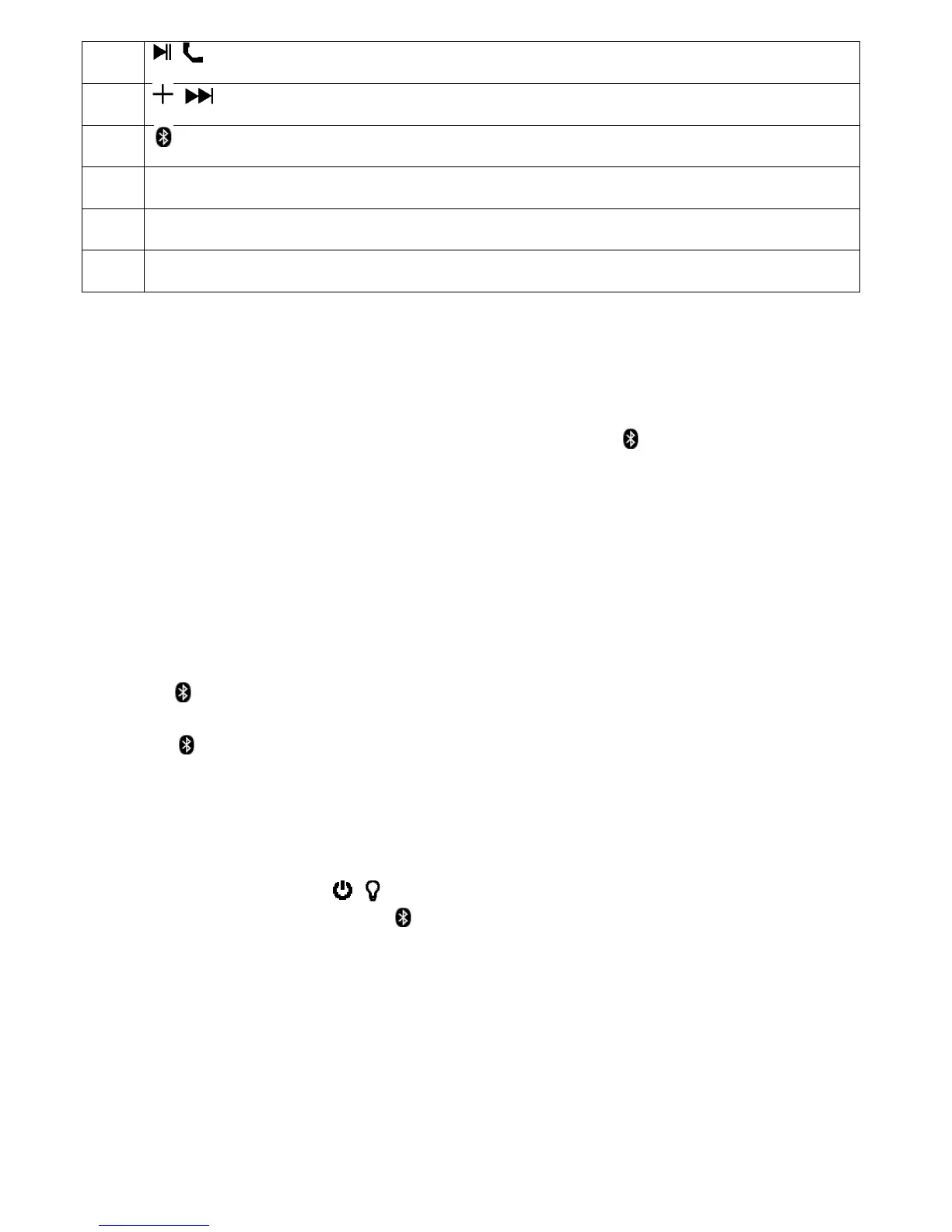
Press and hold the “ / ” (3) button to turn on the device; a series of
tones will sound and the “ MODE” Indicator (7) will rapidly flash blue
in seconds from blinks. The speaker is in the Bluetooth pairing mode.
2.
Then activate the Bluetooth function on your mobile device (such as a
Smartphone or Personal Computer); the device will enter to Bluetooth
searching mode automatically. If this doesn’t happen, tap the related
selection to manually enter to searching mode. (refer to your device’s
manual if necessary).
3.
Your mobile device should show “ICES IBTS-6” in the Bluetooth
Devices list, and then select it for pairing. Wait for some seconds and
you will see the message that you are connected on your mobile


 To Next Page
 Loading...