1 2
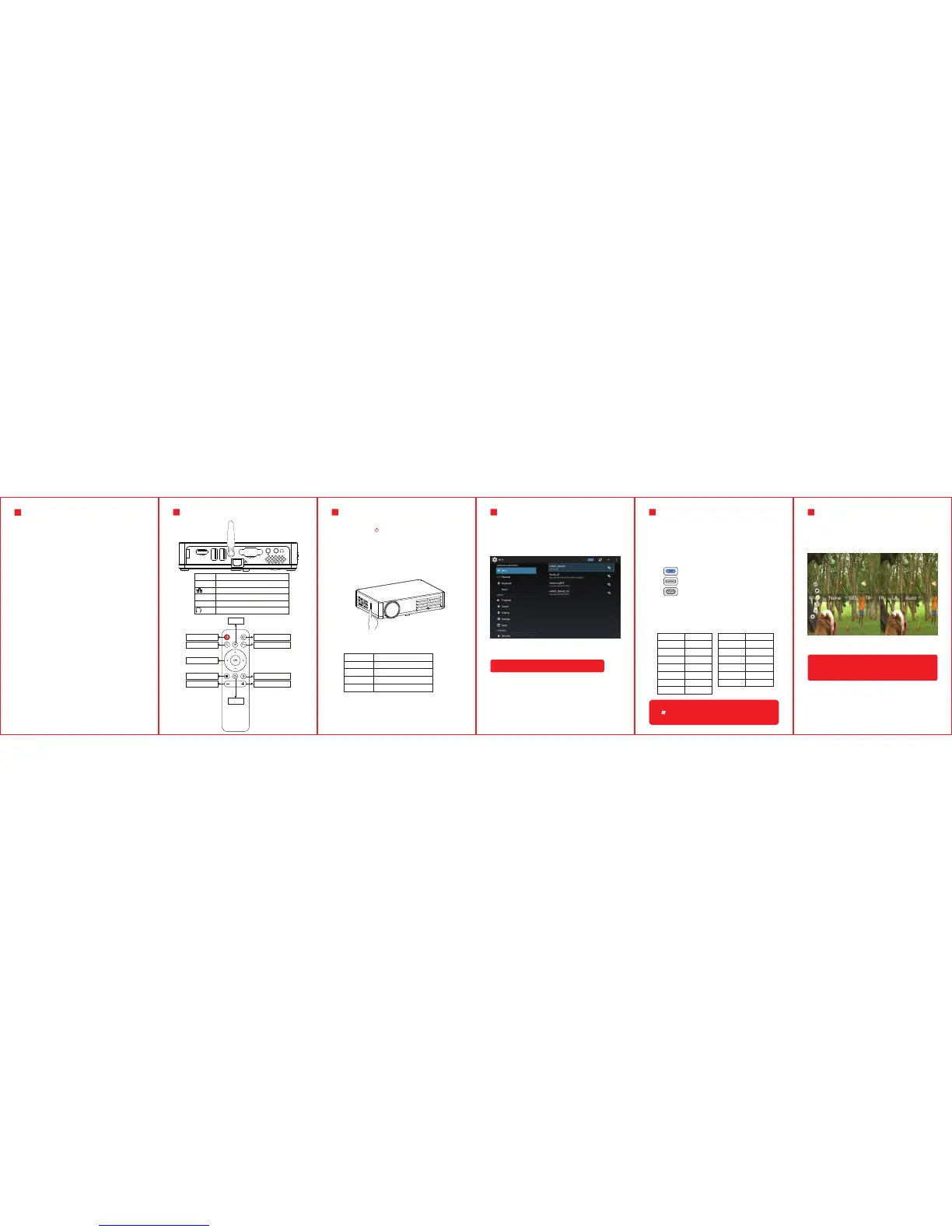
The projector signal port and remote control
Remote the focus slider button up and down slightly,
until the picture clear.
2 Focus adjustment3
connect to WIFI
settings→ Wireless and networks →WiFi → WLAN,
choose the WIFI and enter the password,wait conne-
ction succeeded,you can access network.
Connect to the ethernet
settings → Wireless and networks → Ethernet → PPPoE
settings,enter Username:Username;enter Password:cord
select Connect,wait,then you can access network.
1. Put cable in the RJ45 port directly,for dial up router.
2. Dial-up operation:
1:Use the proper cables for each connection.
The projector can connect various external
equipment,you should choose proper cables to
connect to the external equipment as needed.
2:Select corresponding signal source.
You can select the following icons from the left
side of the homepage.
The projector supports a 3D fuction,press the
“setting”on the remote during playing the 3D video,
press the arrow button to select“3D mode”menu
(as follows),you can do more settings in this mode.
Add:Different brand laptop output keys are as follows:
AV
HDMI
PC-RGB(computer VGA port)
Note:You should disconnect WIFI before connectting
to the ethernet.
Connect to the network4 Connect to the external5 3D fuction6
Ⅲ Screen Size Adjustment
3
focus
Projection distance is proportional to projector area,
The farther the distance is, the larger the projection
image are,you can adjust the distance as needed.
(This data is for reference only)
Fujitsu Fn+F10
Haier Fn+F3
NEC Fn+F3
Panasonic Fn+F3
Sharp Fn+F5
Hitachi Fn+F7
TOSHIBA Fn+F5
Lenovo Fn+F3
Dell Fn+F8
HP Fn+F4
ThinkPad Fn+F7
Asus Fn+F8
Acer Fn+F5
Samsung Fn+F4
Sony Fn+F7
The user of windows 7 or over win- dows7.Simply press
the +P,select “copy”to connect.If the operation above
is invalid,Please update computer graphics driver.
Remarks:
You must to wear a pair of matched ActiveShutter
3D glasses,to achieve 3D effect.
Wi-Fi Alliance
Screen Size Projection distance(m)
60”
72”
84”
100”
1.7
2.1
2.4
2.9
2:Press the button“ ”on the projector or on the remote control.
1:Plug the power cord into a power outlet.
Ⅱ Focus adjustment
NOTICE1
Power
Arrow button
Menu
Keystone up Keystone Down
HOME
Mute
SET
VOL- VOL+
BACK
HDMI
1/2
PC-RGB
AV
HDMI Signal input
Multimedia interface
Network interface
VGA input
Composite Video Broadcast Signal
Earphone/3.5mm AUDIO OUT
How to use the projector correctly:
1 Do not face to lens by eyes, it will hurt your eyes from
hard Light of the projector when it’s working.
2 Do not block the air outlet, to avoid damage from
internal electronic device by projector can not cooling.
3 Do not use chemicals, Cleaner or water to clean, and also
avoid rain, moisture and leucocratic liquid to corrode
circuit board.
4 Please put the projector and accessories on the place
that children can not reach.
5 Please make sure the projector working environment is
dry and windy.
6 Do not place projector in too warm or too cold room, the high
temperature or low temperature will Shorten lifespan of the
device. The working environment would be 5℃~35℃ better.
7 Do not put the projector in heating equipment(drying machine,
microwave oven)to make it dry.
8 Do not press hard or put something heavy on the projector, it
will damage projector.
9 Do not throw, beat, shake projector, it will damage circuit board
in it.
10 Do not dismounting projector. Please contact after-sales service
if you have any problem.
11 Do not fix by yourself. If projector can not working normaly,
please consult with after-sales service or depot repair.


 To Previous Page
 Loading...