8
CZ
SK
EN
PL
HU
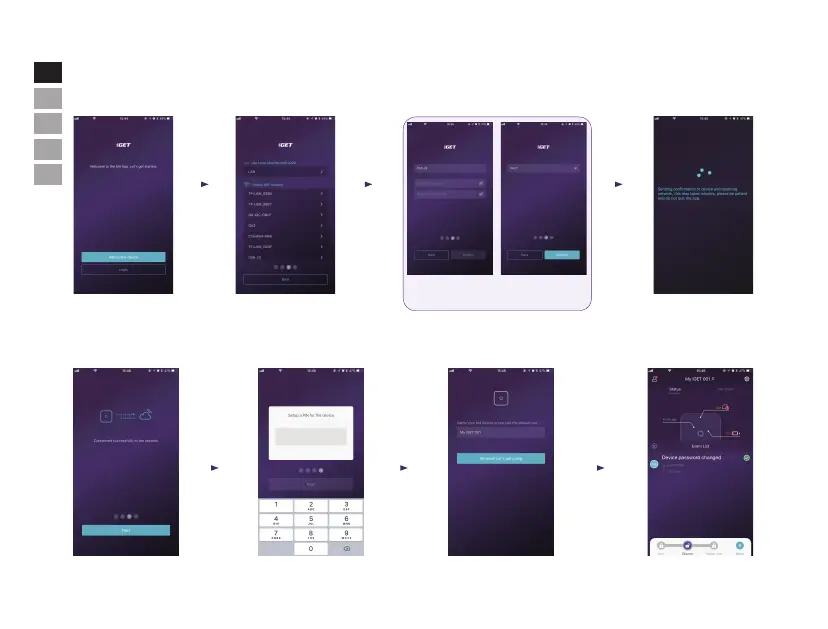
Step 4. Network conguration
Step 5. Setting the password and name it.
Click "iGET M4" on your smart phone, then add the device by following the guidelines:
Click the App, press"Start
to add adevice"
You will get a "Succeed
page" after indicator of
Then set a password for the
Name it. Now it is.
Select LAN or WiFi for con
-
necting panel to internet.
Key in the password for selected Wifi
*The panel only supports 2.4G Wifi.
Confirm DHCP if connect to router by LAN
* Or config IP address manually
The panel will start to connect
internet after CONFIRM, It will
take around 45 seconds.


 To Next Page