DIV434837A rev3
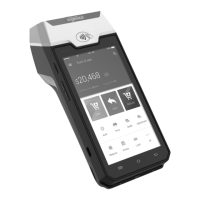
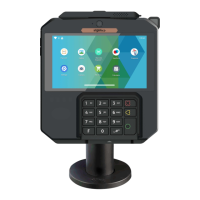
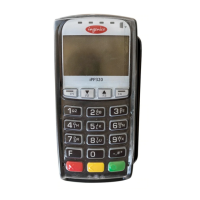
THE CHIP CARD READER
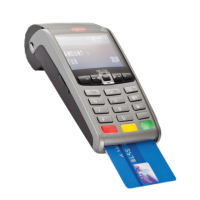
Customer cards must be inserted as shown, with the chip upwards. Push the card
fully into the slot below the screen and follow the instructions on screen.
If you see a “Please Insert Again” message, check the card orientation and try
again.
DO NOT remove the card until instructed to do so by the terminal.
Chip & PIN Transactions – SALE
Chip & PIN Transactions – REFUND
Select SALE from the menu options.
Enter the sale amount for the transaction and tap
For example, enter £12.34 as 1234
The customer’s card should be inserted into the card reader.
The customer must enter their PIN code.
NEVER ASK THE CUSTOMER TO DIVULGE THEIR PIN CODE.
After the customer has entered their PIN and pressed ,
the terminal will connect to the acquirer for authorisation.
If the transaction is authorised the terminal will display
‘Transaction Approved’
The terminal will print two receipts. The merchant copy will
be printed first. After confirming a successful print by
selecting OK, the terminal will prompt for the card to be
removed. The customer receipt will be printed after the
card’s removal
Select REFUND from the menu options.
Enter the refund amount for the transaction and tap
The customer’s card should be inserted into the card reader.
Once the customer’s card is presented you will be prompted
for the Supervisor Code.


 To Next Page
 Loading...