Payment Terminals | Page 17 of 54
4.4 Contactless (NFC) Payment
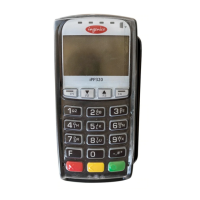
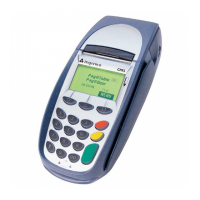
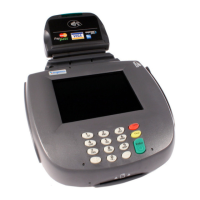
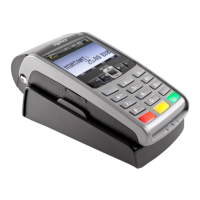
Reading the card (or mobile phone) using contactless depends on what type of payment terminal is used. For terminals from
the Telium 2 range (iCT250E, iPP350, iSMP4 and iWL250B/G), the card/phone must be held above the display screen of the
terminal. For terminals from the TETRA range (Desk/3500, Move/3500 and Lane/3000), the card/phone must be held above
the contactless symbol found at the top of the terminal casing.
Contactless payment is a common term for all payments using NFC technology (Near Field Communication). NFC can be
implemented in a range of payment methods such as chip cards and Micro SD cards connected to mobile phones, clocks,
bracelets etc. or via mobile phone (through a wallet application).
Contactless payments without verication can only be used for purchases under a certain amount; all purchases above this
amount will require verication – either with a PIN code or password. The details of the verication will depend on the pay-
ment card provider. However, the instructions to enter the verication code will be shown on the terminal and/or on the
mobile phone.
NB: The rst time a contactless card is used, the card must be opened for NFC transactions. This is done by inserting the chip
into the terminal while performing the transaction.
For security reasons, the terminal will, in some cases, ask for a PIN - even if the amount the amount is under the contactless limit.
4.4.1 Wallet Solution
“Wallet” is a solution for conrming a contactless payment using the customer’s mobile phone. Viking terminals also support
Mobile Dankort both via BLE (MAB Box) and QR.
4.4.2 QR Codes
When initiating a transaction using a QR code:
1. The QR text will be shown in the lower right-hand corner of terminal screen. Press F1 to activate it.
2. Once the terminal shows the QR code, scan it using the wallet installed on the phone.
3. The transaction will proceed by asking (on the wallet screen) for conrmation of the amount.
4. Enter the passcode to complete the transaction.
4.4.3 Contactless Payment with Wallet Solution
To use the wallet function, customers must install a phone app supplied by their card issuer. They can then conrm contactless
payments by holding their phone over the top of the terminal (where the contactless symbol is shown on the terminal casing).
As with card-based contactless payments, purchases above a certain amount will require verication.
Contactless payment via wallet can be performed even if the mobile phone is switched o. However, the customer will be
unable to conrm payments in such instances. If the customer has registered several payment cards via a wallet solution, the
correct payment card must be selected in the application/program before the phone is switched o.
4.4.4 IFR Selection
The Merchant can choose which card scheme is the default choice on the terminal:
› Swipe the Merchant card
› 6 (parameters)
› 1 (change)
› 1 (Function)
› IFR Priority
NB: You may also choose between “domestic”, “international” and “none”
The customer can override the terminal settings by pressing the yellow button before swiping/tapping the card.


 To Next Page
 Loading...