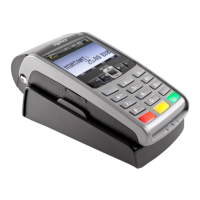
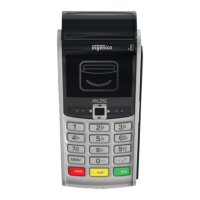
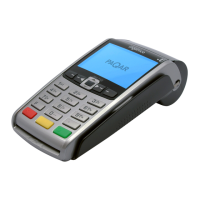
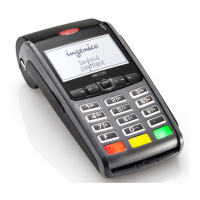
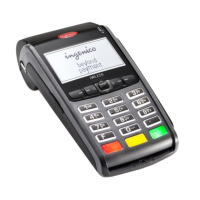
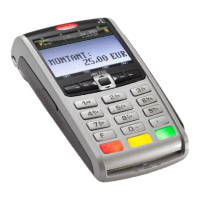
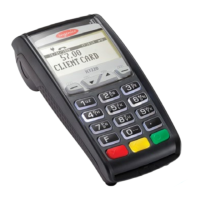
1- Receipt printer
2- Tab to open the lid
3- Paper roll compartment
4- Magnetic stripe reader
5- Green key to confirm input data or messages
6- Yellow key to correct invalid data
7-
Red key to cancel the current function and return
to the menu
8- Chip card reader
9-
: Access retailer menus
: Not use
: Scroll up
: Scroll down
: Not use
: Access default transaction
Where applicable, each of these keys allows
for the selection of the item displayed above
the key on the screen.
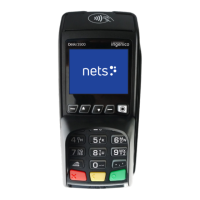
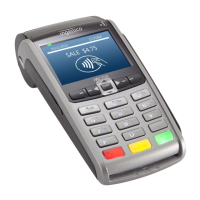
10- Color graphic screen /Contacless reading area
Inserting the paper roll
1- To open the terminal cover, lift the tab and push back the lid.
2- Remove the empty paper roll.
3- Insert the new paper roll as indicated in the photo. Pull the
paper up approximately 2-3 cm (1 inch) beyond the serrated
tear bar.
4- Push the cover down to close it properly.
Terminal description
4
The terminal
Tree-diagram
structure of
the menus
Description
of menus and
transactions
Considerations
for hotel and
rental industries



 To Next Page
 Loading...