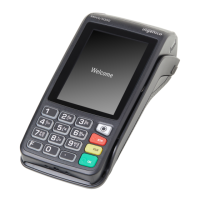
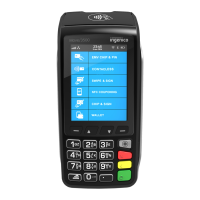
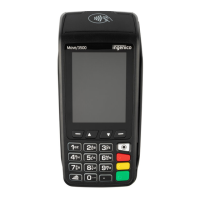
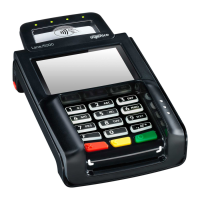
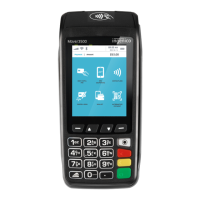
3. Ask the customer to present their card to the contactless symbol on the terminal
display.
4. A merchant receipt is automatically printed.
5.
If the customer wants a receipt, press F1 from the home screen to print it.
Important.
This must be done before the next transaction takes place.
MOTO
1.
Press the key, and then select MAILORDER.
2.
Choose SALE.
3.
Key in the customer’s card number and press Confirm .
4. Enter the expiry date, the start date (if required), the issue number (if required),
pressing Confirm after each entry.
5. Enter the card security Code (CSC), the numbers from the cardholder’s
postcode (e.g. GU7 1LG is 71), and the numbers from the cardholder’s address
(e.g. Flat 1, 28 High Street is 128), pressing Confirm after each entry.
6.
(You can press Confirm key without entering anything to bypass the check
when appropriate.)
7.
Enter the transaction amount and pressConfirm .
8. The terminal connects to Valitor for authorisation and will prompt you to choose
“Decline” or “Accept”.
9. The result of the CSC/AVS check is displayed, and the two receipts are printed.
Refunding a Sale
Chip and PIN
1.
From the idle screen, press , then choose REFUND.
2.
Enter the Supervisor password and press Confirm to confirm.
8
valitor.com



 To Next Page
 Loading...