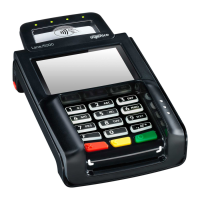
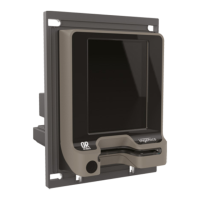
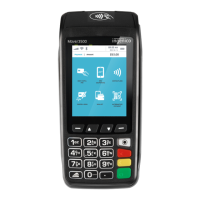
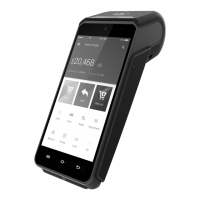
3. Insert the customer’s card, face up, chip forward.
4.
Enter the refund amount and press Confirm .
5. The terminal connects to Valitor for authorisation.
6. When the refund is authorised, “REFUND ACCEPTED” is displayed.
7. A merchant copy of the receipt is printed.
8. Ask the customer to sign this receipt.
9. Remove the card.
10. Check the signature on the receipt with the one on the card. If the signature is
valid then choose “YES”, otherwise choose “NO”.
11. The customer receipt is then printed.
End of Day Reports
Press the key twice, and then REPORTS.
Key in the Supervisor password and press Confirm.
The following reports are available:
END OF DAY: This prints both the “Z REPORT” and the “BANKING” report.
Important.
This MUST be done at the end of each trading day.
BANKING: reports the total value of processed transactions, and that the totals
have been confirmed by the acquirer.
X REPORT: a running total of all transactions, without resetting any totals. It can
be used to check against individual receipts and the BANKING report.
Z REPORT: a total of transactions taken during a trading period. The Z report will
also reset the totals. This can be useful if, for example, you run a breakfast service
and a lunch service, and you wish to total each trading period separately.
9
valitor.com



 To Next Page
 Loading...