Need help?
Do you have a question about the inogeni 4K2USB3 and is the answer not in the manual?
Configuration steps to designate the INOGENI 4K2USB3 as the primary camera source in Zoom Rooms.
The 4K2USB3 is identified as an HDMI screen-sharing device in Zoom Rooms.
These devices are recognized as cameras within Zoom Rooms, allowing camera switching.
Addresses problems with no audio feed from devices, suggesting checks for system audio configurations.
The INOGENI 4K2USB3, 4KXUSB3, and SDI2USB3 are Zoom-certified capture cards designed to enhance the Zoom Rooms experience by integrating external video sources. These devices serve different functions within a Zoom Room setup, primarily acting as either HDMI screen-sharing devices or camera devices, depending on the model and configuration.
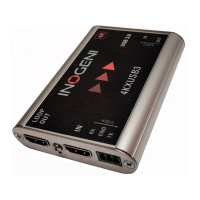
The INOGENI 4K2USB3 is primarily designed to function as an HDMI screen-sharing device within Zoom Rooms. This means it's used to share content from an HDMI source, such as a laptop, rather than to capture video of people in the room. When connected, the 4K2USB3 allows users to extend their HDMI content directly to Zoom Rooms. This is particularly useful for presentations, sharing documents, or displaying any content from an external device that has an HDMI output. A typical setup might involve using two cameras to film the audience, while the 4K2USB3 is dedicated to sharing content from a laptop. The device is recognized by Zoom Rooms as an HDMI screen-sharing device by default, and its audio is mixed with the primary audio source of the room. This distinction is important because, unlike camera devices, the "Switch Camera" button on the Zoom Rooms controller cannot be used to switch to an HDMI screen-sharing device. Content sharing can be initiated by connecting a valid HDMI source, which may automatically share its content depending on Zoom Rooms settings, or manually by clicking the "Share Content" icon on the controller and then "Share to Meeting." To stop sharing, users can click the "Stop Sharing" button within the "Sharing Content" menu on their tablet control app.
While the 4K2USB3 is primarily a screen-sharing device, it can also be configured to function as a camera device, though this requires special settings. To do this, users need to specify the INOGENI 4K2USB3 as the primary camera within the Zoom Rooms settings. This change can be made via the Zoom Rooms control tablet, potentially requiring a passcode from the room administrator. Once configured as a camera, the 4K2USB3 will no longer behave as a capture device for screen sharing but will instead be treated as a video input for the room. This allows users to switch between the 4K2USB3 and any other camera sources using the "Switch Camera" button on the tablet control app. It's important to note that a new meeting might need to be started after changing the 4K2USB3's function from a capture device to a camera source.
In contrast to the 4K2USB3, other INOGENI devices like the 4KXUSB3 and SDI2USB3 are designed to be recognized as camera devices by default within Zoom Rooms. This means they are intended for capturing video of participants or other visual elements in the room, rather than just screen content. The 4KXUSB3, for example, is detected by Zoom as a camera device and offers additional functionality for controlling PTZ (Pan-Tilt-Zoom) cameras via Zoom commands using its VISCA RS-232 control. This feature allows users to remotely adjust the camera's position and zoom directly from the Zoom Rooms interface, providing greater flexibility in managing camera angles during a meeting. Similarly, the SDI2USB3 is also detected as a camera device, allowing it to integrate SDI video sources into the Zoom Room environment. For these camera-type devices, users can easily switch between them and any other camera sources added to the room using the "Switch Camera" button on the Zoom Rooms controller. This seamless switching capability makes them ideal for multi-camera setups where different views of the room or specific subjects are needed.
Maintenance for these devices primarily involves ensuring proper connectivity and troubleshooting common issues. One common problem users might encounter is the absence of audio when capturing a feed. In such cases, the troubleshooting guide suggests checking if the system is properly accessing its audio devices. It highlights that some systems, particularly Dell computers with Dell Optimizer software installed, may have audio management configurations that interfere with USB audio devices. Specifically, the "Remove My Background Noise" feature in Dell Optimizer can cause issues. Disabling this feature is recommended as a solution to restore audio functionality. Beyond this, general maintenance would involve keeping the devices clean, ensuring cables are securely connected, and updating firmware if available, to ensure optimal performance and compatibility with Zoom Rooms. The user guide emphasizes that these devices are designed to simplify the integration of various video sources into Zoom Rooms, providing a more versatile and professional meeting experience.
 General
| Bandwidth | 297 MHz |
|---|---|
| Video resolutions | 640 x 480, 800 x 600, 1024 x 768, 1280 x 1024, 1280 x 800, 1280 x 960, 1920 x 1200, 3840 x 2160, 4096 x 2160 pixels |
| Supported video modes | 480p, 576p, 720p, 1080p, 1440p |
| Maximum video resolution | 4096 x 2160 pixels |
| Product color | Black, Silver |
| Converter type | Active video converter |
| Output interface | HDMI |
| Audio output channels | 2.0 channels |
| USB powered | Yes |
| Operating current | 0.58 A |
| Operating voltage | 5 V |
| Quantity | 1 |
| Storage temperature (T-T) | -40 - 105 °C |
| Operating temperature (T-T) | 0 - 45 °C |
| Operating relative humidity (H-H) | 0 - 90 % |
 Weight and Dimensions
| Depth | 73.6 mm |
|---|---|
| Width | 81.2 mm |
| Height | 19 mm |
| Weight | 120 g |


 To Next Page