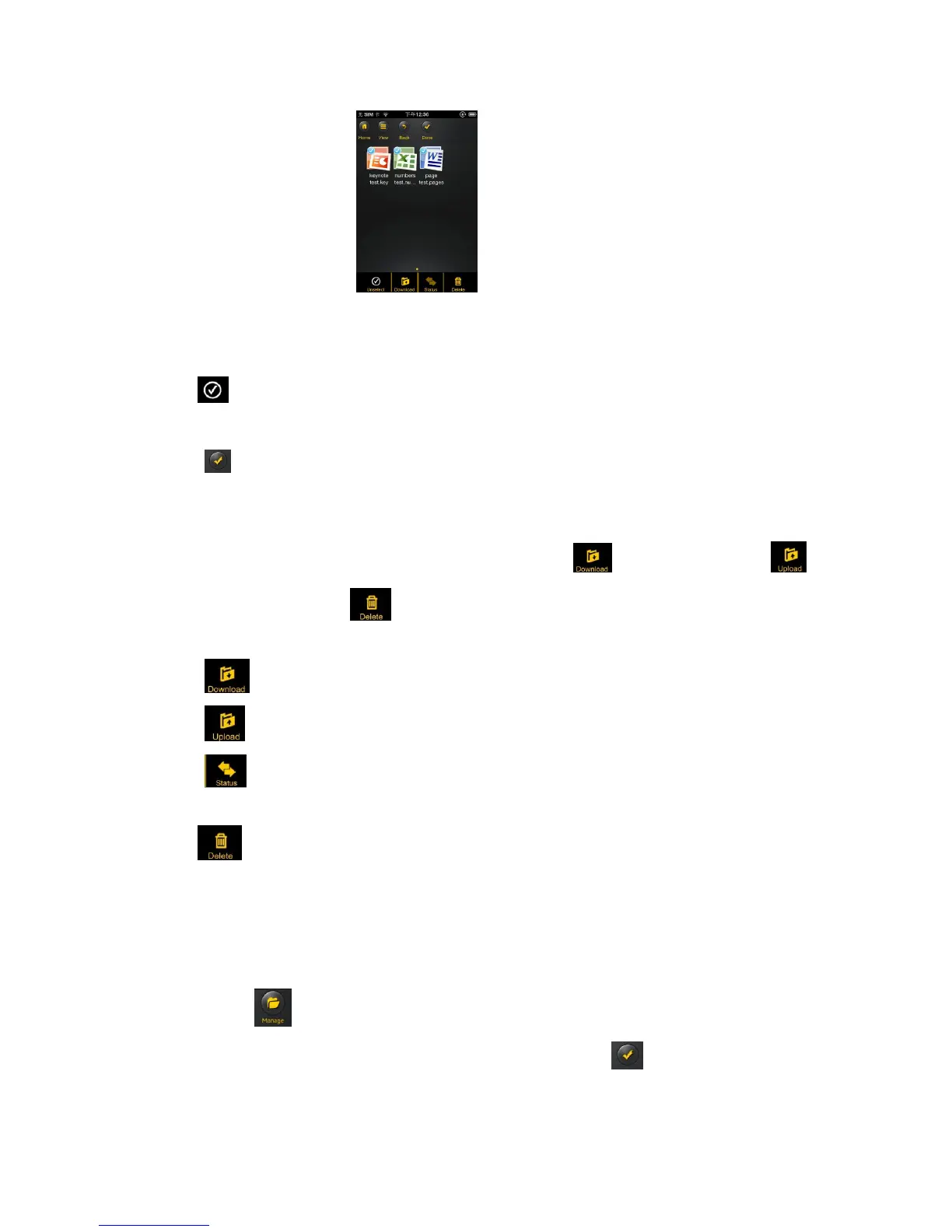
At the bottom of the screen, there are new icons. See below for their functions.
- Click once, all the files will be selected. The icon will turn into yellow color and a check mark
will appear on every file.
- Click once again, all the files will be unselected. The check marks are invisible.
Tip: You may select a single or multiple files by clicking on the thumbnail. As well, you may click
and hold on the thumbnail for few seconds and drag it to the icon to download, to the
icon to upload, or to the icon to delete a file or files.
- Download files from the Memory 2 Move
- Upload files from “My Device”
- When clicked, the list of files that are in queue for uploads/downloads will appear as well
as the list of files that were copied/transferred successfully.
- When clicked, any selected files will be deleted.
11.10. Copying/transferring file to My Device (iOS and Android)
Once you get connected into the “Memory 2 Move”, you can only copy/transfer a single or multiple
files into the local storage (My Device).
1. Click on .
2. Use your index finger to select one or more files. You may use the to select all files to be
copied/transferred.


 To Next Page