EasyManua.ls Logo

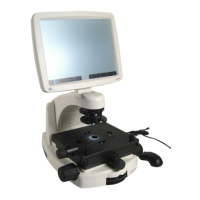
Invitrogen EVOS XL - User Manual

Invitrogen EVOS XL
58 pages
Print Icon
To Next Page IconTo Next Page
Loading...
For Research Use Only. Not for use in diagnostic procedures.
EVOS
XL Imaging System
For Transmitted Light Applications
Catalog Number AME3300
Publication Number MAN0007987
Revision A.0

Questions and Answers

  • M
    Michael JonesSep 23, 2025
    How to fix uneven focus across screen on Invitrogen Medical Equipment?
    • L
      Linda BakerSep 23, 2025
      To correct uneven focus across the screen on your Invitrogen Medical Equipment, position the sample so that it lies flat on the stage and ensure the sample’s thickness is even.
  • M
    Mark CostaAug 25, 2025
    What to do if the onscreen Save button does not respond on Invitrogen Microscope?
    • R
      Russell CannonAug 25, 2025
      If the Save button displays a gray USB icon, ensure a USB drive is plugged in. If a USB is already plugged in but not recognized, the USB's format may be the issue, or the flash drive's data lock might be enabled. Try unlocking the flash drive or using a different USB.
  • J
    jillkimAug 25, 2025
    How to fix a dim image on Invitrogen Microscope?
    • M
      Molly PearsonAug 26, 2025
      If the image on your Invitrogen Microscope is too dim, even at the brightest setting, especially at higher magnifications, make sure the phase turret is set to the BF position. Also, if a condenser slider from a different EVOS™ instrument has been inserted, remove it, as sliders are not necessary for this instrument.
  • B
    Bianca WaltonAug 27, 2025
    Why isn't my mouse working with my Invitrogen Microscope?
    • M
      Michael BrownAug 27, 2025
      First, check that the wireless mouse receiver is properly connected to the USB drive. Then, inspect the battery and replace if necessary. Finally, ensure no nearby wireless devices are interfering with the mouse's signal.
  • K
    kleeSep 23, 2025
    How to remove specks, dots, or blurs on image on Invitrogen Medical Equipment?
    • J
      Jeff JohnsonSep 23, 2025
      To address specks, dots, or blurs on the image produced by your Invitrogen Medical Equipment, follow the instructions under “Objective lens care” to clean the objectives.
  • S
    seangraySep 13, 2025
    How to focus on coverslipped sample on Invitrogen Medical Equipment?
    • W
      Wendy BurnettSep 13, 2025
      If you're having difficulty focusing on a coverslipped sample on a standard slide with your Invitrogen Medical Equipment, place the slide so the coverslip is facing up. Long working-distance objectives require a thick optical substrate and image best through 1.0–1.5 mm of glass or plastic.
  • T
    Tammy AllenSep 12, 2025
    How to fix DVI output on Invitrogen Medical Equipment?
    • Z
      zvegaSep 12, 2025
      To resolve the issue of the DVI output not working on an external LCD monitor or projector with your Invitrogen Medical Equipment, power off the EVOS™, check the cable connections, and then power the instrument back on. Also, make sure that the external display accepts DVI-D input (digital input), as a monitor with only analog input (DVI-A) will not display the EVOS™’ digital output.
  • C
    Christopher HaasSep 12, 2025
    Why is the LIGHT ON/OFF button inactive on Invitrogen Medical Equipment?
    • M
      Madison OrtegaSep 12, 2025
      If the LIGHT ON/OFF button on your Invitrogen Medical Equipment is inactive, verify that the objective selection wheel is clicked into a position.
  • C
    Cory SnyderSep 4, 2025
    Why is the LCD screen red on my Invitrogen Medical Equipment?
    • N
      Nicole WilkinsSep 4, 2025
      If the LCD screen of your Invitrogen Medical Equipment is red, or red patches appear, try dimming the illumination to eliminate the red highlights and achieve optimal brightness without overexposure. Alternatively, you can disable the 'Highlight saturated pixels in red' option within the Settings: Basic tab.
  • Z
    zcoleSep 2, 2025
    What to do if the vessel does not sit securely on Invitrogen Microscope?
    • E
      Elizabeth WilliamsSep 2, 2025
      If the vessel doesn't sit securely when the mechanical stage moves on your Invitrogen Microscope, use the correct vessel holder for your application. Refer to the EVOS™ Vessel Holders spec sheet in the documentation USB included with the instrument packaging for guidance.

Summary

Installation

Installing in a Cell Culture Hood

Step-by-step guide for installing the instrument in a cell culture hood.

Basic Operation

Advanced Operation

Recording Time Lapse Images

Step-by-step guide to setting up and capturing time-lapse image sequences.

Counting Cells

Instructions for using the Count tool to mark and tally cells or other features in images.

Connecting to a Network

Steps for connecting the instrument to a Windows/SMB network for image saving.

Care and Maintenance

Appendix A: Troubleshooting

Image Quality Issues

Common problems related to image quality and their solutions.

Software Interface Issues

Troubleshooting common issues with the instrument's software interface.

Mechanical Issues

Solutions for problems related to the mechanical components of the instrument.

Appendix D: Safety

General Instrument Safety

General safety precautions for operating and handling the instrument.

Chemical Safety

Safety guidelines and warnings related to handling chemicals with the instrument.

Chemical Waste Safety

Guidelines for the safe handling and disposal of chemical waste.

Electrical Safety

Safety precautions related to the electrical components and power supply of the instrument.

Physical Hazard Safety

Safety information regarding physical hazards like moving parts.

Biological Hazard Safety

Safety guidelines for handling biological samples with the instrument.

Invitrogen EVOS XL Specifications

General IconGeneral
TypeDigital inverted microscope
Light SourceLED
ModelEVOS XL
Image FormatsJPEG, TIFF, BMP, PNG
ApplicationsCell culture