Please follow steps below to ensure the optimal performance:
Step 1
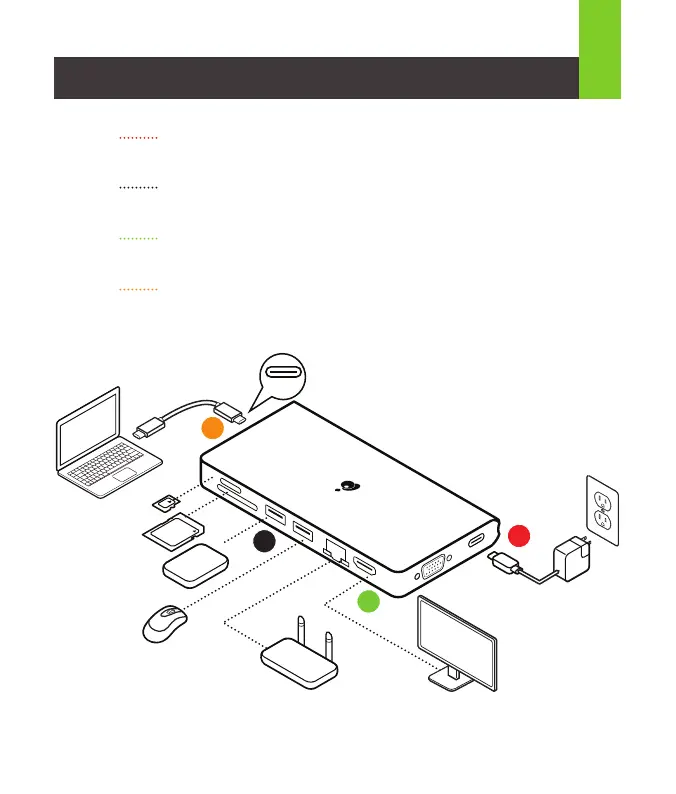
Turn on the host computer. Then plug in the laptop’s USB-C Power adapter to the
USB-C port with Power Delivery Pass-Through*
Step 2
Connect external devices to appropriate ports as needed (refer to product overview
for ports call out).
Step 3
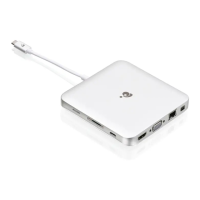
Connect external monitor(s) to the video output with HDMI port or VGA port for single
monitor. Please note that VGA port cannot be used with HDMI at the same time.
Step 4
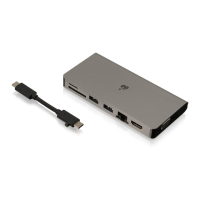
Connect the detach USB-C cable on GUD3C08 USB-C port (the port for the host) to
the USB-C port on the host computer. The computer screen might appear to flicker
few times before GUD3C08 can recognize all the connected devices.
4
Hardware Installation
2
USB-C
HDD
SD
32
GB
8
GB
1
2
*Note: Without plugging the laptop’s USB-C power adapter, GUD3C08 can still function in step 2-3, but GUD3C08
will not provide power to charge the laptop.
**Note: Maximum resolution of 4K is dependent on the capability of the video display and its computer host sources.
3
9. VGA port
10. USB-C port
(Power Delivery Pass-Through up to 100W)
(Maximum of up to 85W of power can be
delivered to the laptop after deduction of
15W used by the docking station)


 To Next Page