Hardware Installation
5
Transmitter
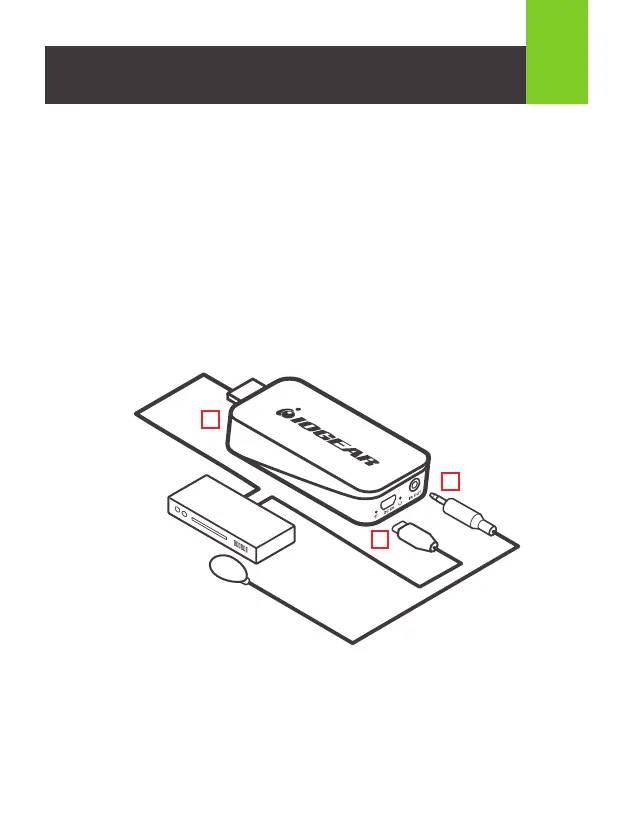
STEP 1 Insert the transmitter into an open HDMI port on the video source device
(Blu-ray, computer, media player, etc.). In case the space is too tight around the
HDMI port, or the position of the HDMI port is at an awkward angle and could
possibly cause a connection issue, use the HDMI cable extension cable included in
the package to increase the space or correct position issues.
STEP 2 Use the USB charging cable to connect the micro USB port on the
transmitter to a type A USB port on the source device to obtain power. In the rare
case that the source device has no USB port, please use a 5V USB power adapter
with a minimum 500mA output (not included in the package).
3
2
1
STEP 3 Skip this step if the video source device does not use an IR remote,
for example, a computer. Take the IR Out for TX cable from the box, connect the
IR TX cable to the IR Out port on the transmitter; peel off the protective paper from
the sensor end of the cable and place it in front of the video source device with the
round area of the IR TX sensor facing the IR sensor on the source device (it is very
important to accurately identify the IR sensor area on the video source device, you
may have to use your remote very close to the video source device to find it).



 To Next Page