5
APP INSTALLATION AND SCANNING
Before you can begin using the DOCS2GO hardware
with your iPad, you must first install the free
DOCS2GO app from the App Store.
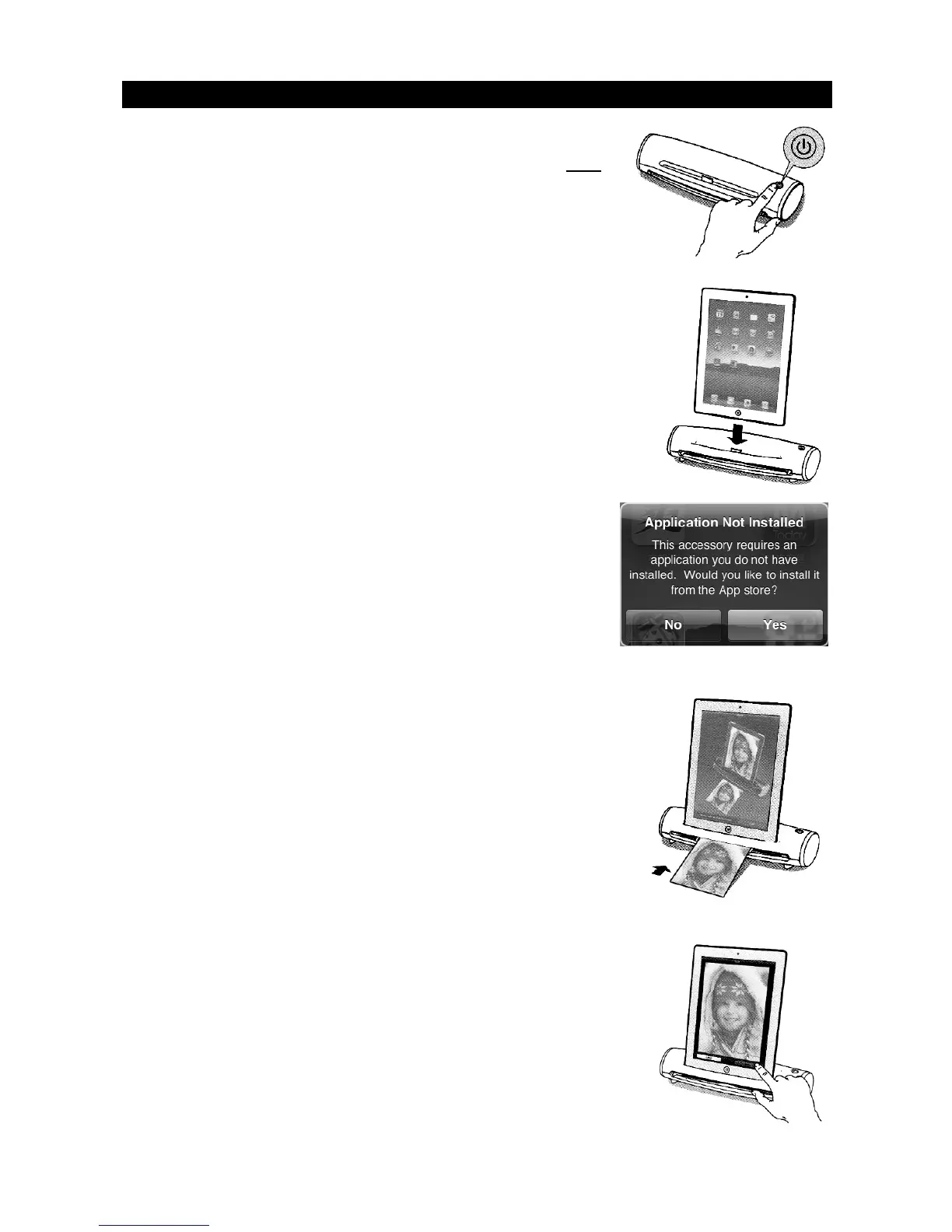
1. Power on the DOCS2GO hardware.
2. Connect iPad to the 30-pin port on DOCS2GO hardware.
3. For the dialog box that appears on the iPad, click
‘Yes’ to go to the App Store to download the
DOCS2GO app.
4. Tap 'Install' or 'Install App'.
5. Open DOCS2GO App on iPad.
6. Prepare your image or document for scanning:
• Paper: Place the paper into the FEED SLOT with
the surface to be scanned facing up. Adjust the
PAPER GUIDE so it rests against the edge of the
paper.
• Photo: Place the photo inside the included
protective photo sleeve. Place the photo sleeve
into the FEED SLOT with the sealed end first and
with the surface to be scanned facing up. Adjust
the PAPER GUIDE so it is at the edge of the
sleeve.
7. Press the SCAN button in the app. The photo or
document will be pulled through the scanner. Preview
your scan in the app and then press SAVE to save your
results to your photo library or press CANCEL to re-
scan.



 To Next Page