WINDOWS XP
DRIVER & SOFTWARE INSTALLATION
ENGLISH
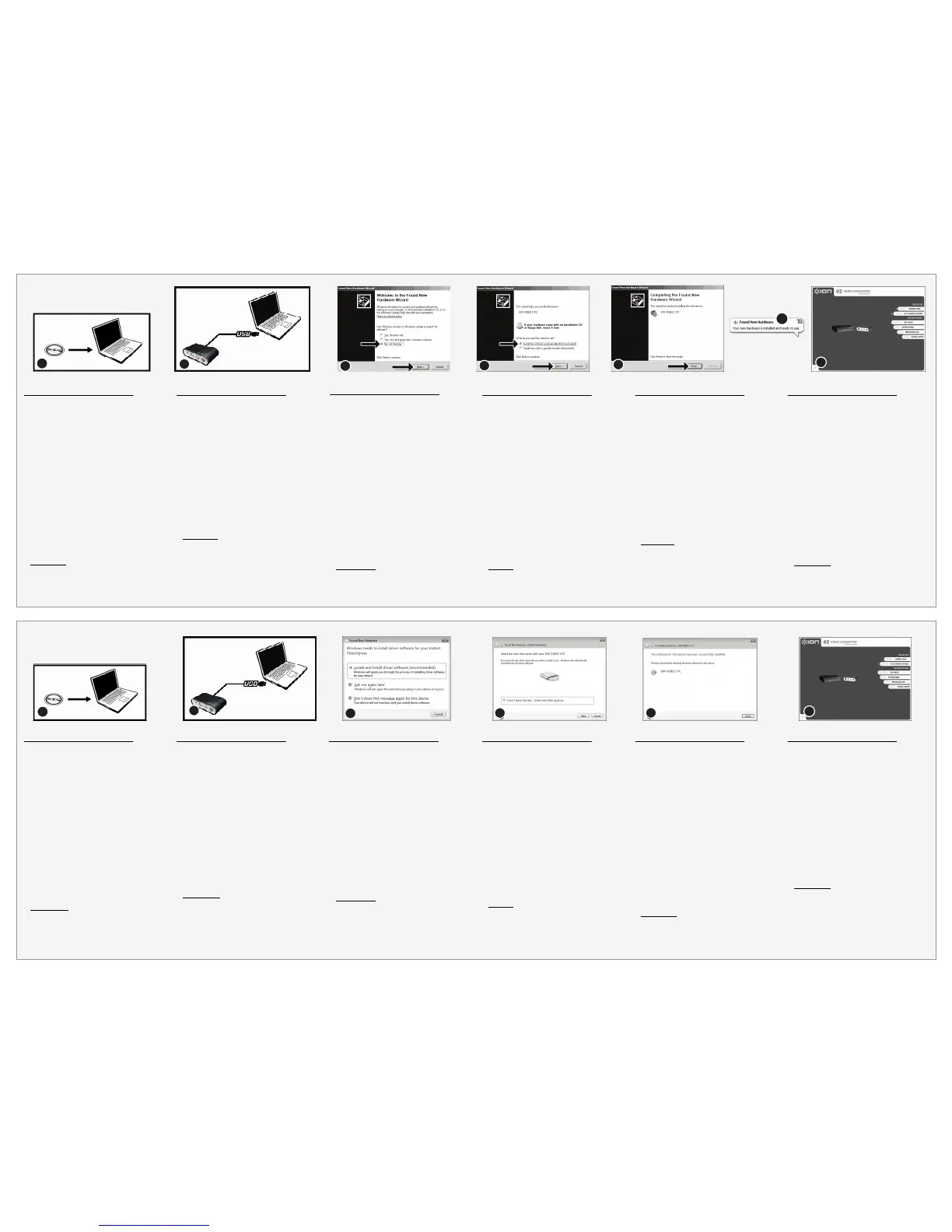
1. Insert included CD into your computer’s CD drive.
2. Connect the USB cable from the VIDEO 2 PC to a
USB port on your computer.
3. The driver installation process should begin
automatically and you will see the "Found New
Hardware Wizard" dialog. When the dialog asks
you to connect to Windows Update to search for
software, select "No, not at this time" and click
"Next."
4. Select "Install software automatically" and click
"Next."
5. The driver installation process will begin. Allow
for this process to complete. When the process
has completed, click "Finish."
6. Once the drivers have been successfully installed,
you will see the message "Your new hardware is
installed and ready to use."
7. Lastly, install the software by clicking the "Install
EZ Video Converter Software" button. Follow the
on-screen instructions to complete the software
installation process.
IMPORTANT
: Making sure your software is up-
to-date ensures best performance. Go to Setup
General About EZ Video Converter
Update to check for available updates. (Internet
connection required.)
ESPAÑOL
1. Inserte el CD incluido en el lector de CD de la computadora.
2. Conecte el cable USB desde el VIDEO 2 PC a un puerto
USB de la computadora.
3. El proceso de instalación del driver debe comenzar
automáticamente y verá el diálogo “Found New Hardware
Wizard” (Asistente para nuevo hardware encontrado).
Cuando el diálogo le solicite conectarse a Windows Update
para buscar el software, seleccione “No, not this time” (No,
no esta vez) y haga clic en “Next” (Siguiente).
4. Seleccione "Install software automatically" (Instalar software
automáticamente) y haga clic en "Next."
5. Comienza el proceso de instalación del driver. Espere que
termine este proceso. Cuando haya terminado el proceso,
haga clic en "Finís" (Terminar).
6. Una vez que los drivers están instalado exitosamente, verá
el mensaje "Your new hardware is installed and ready to
use." (Su nuevo hardware está instalado y listo a usar).
7. Finalmente, instale el software haciendo clic en el botón
"Install EZ Video Converter Software" (Instalar el software
EZ Video Converter). Siga las instrucciones de la pantalla
para completar el proceso de instalación del software.
IMPORTANTE: Asegurar que su software esté actualizado
garantiza el mejor rendimiento. Vaya a Setup General
About EZ Video Converter Update (Configuración
General Acerca de EZ Video Converter Actualización)
para verificar las actualizaciones disponibles. (Se requiere
conexión a Internet).
FRANÇAIS
1. Insérez le CD fourni dans le lecteur CD de
l’ordinateur.
2. Branchez le câble USB du VIDEO 2 PC au port USB
de l’ordinateur.
3. Le lancement de l’installation du pilote devrait se
faire automatiquement, puis la fenêtre « Assistant
Ajout de nouveau matériel détecté » devrait
s’afficher. Lorsque la fenêtre « Autorisez-vous
Windows à se connecter à Windows Update pour
rechercher les mises à jour? » s’ouvre, sélectionnez
« Non, pas cette fois », puis cliquez « Suivant ».
4. Sélectionnez « Installer le logiciel
automatiquement », puis cliquez sur « Suivant ».
5. Le processus d’installation du pilote sera lancé.
Veuillez attendre que le processus soit terminé.
Lorsque le processus est terminé, cliquez sur
« Terminé ».
6. Une fois les pilotes sont correctement installés, le
message « nouveau matériel installé et prêt à
l'emploi » apparaît.
7. Installez le logiciel en cliquant sur « Install EZ Video
Converter Software ». Suivez les instructions à
l’écran pour compléter le processus d’installation.
IMPORTANT :
Veuillez vous assurer que la version
du logiciel est à jour pour un meilleur rendement.
Allez à to Setup General About EZ Video
Converter Update afin de vérifier pour les mises
à jour disponibles. (Connexion internet requise)
DEUTSCH
1. Beigelegte CD in das CD-Laufwerk Ihres Computers
einlegen.
2. USB-Kabel vom VIDEO 2 PC an den USB-Port Ihres
Computers anschließen.
3. Der Installationsablauf des Treibers sollte
automatisch beginnen, und Sie sollten das
Dialogfenster des Assistenten “Neue Hardware
gefunden" sehen. Wenn Sie im Dialogfenster gefragt
werden, ob Sie zum Windows Update verbinden
möchten, um nach Software zu suchen, wählen sie
“Nein, diesmal nicht” und klicken Sie “Weiter”.
4. "Software automatisch installieren" wählen und auf
"Weiter" klicken.
5. Der Treiberinstallationsprozess beginnt. Dieser
Prozess muss fertiggestellt werden. Nach
Fertigstellung auf "Beenden" klicken.
6. Sobald die Treiber erfolgreich installiert wurde,
erscheint die Nachricht "Ihre neue Hardware ist
installiert und betriebsbereit."
7. Zuletzt die Software installieren, indem Sie auf "EZ
VHS Konvertierungssoftware installieren" klicken.
Folgen Sie den Anweisungen auf dem Bildschirm,
um die Installation durchzuführen.
WICHTIG
: Für beste Ergebnisse ist es wichtig, dass
die Software standing auf dem letzten Stand
gehalten wird. Über Setup General About EZ
Video Converter Update kann nachgeprüft
werden, ob Aktualisierungen vorhanden sind.
(hierzu wird eine Internetverbindung benötigt)
.
ITALIANO
1. Inserire il CD in dotazione nel lettore CD del computer.
2. Collegare il cavo USB dal VIDEO 2 PC ad una porta USB
del computer.
3. Il processo di installazione dei driver dovrebbe iniziare
automaticamente e apparirà la finestra di dialogo “Found
New Hardware Wizard” (trovato nuovo hardware). Quando
vi viene richiesto di collegarvi a Windows Update per
cercare il software, selezionare “No, not this time” (No, non
questa volta) e quindi cliccare su “Next” (Avanti).
4. Selezionare "Install software automatically" (Installa
software automaticamente) e cliccare su "Next" (Avanti).
5. Avrà inizio il processo di installazione dei driver. Lasciare
che il processo venga portato a termine. Una volta
completato il processo, cliccare su "Finish" (Finito).
6. Una volta che i driver sono stati installati con successo,
verrà visualizzato il messaggio "Your new hardware is
installed and ready to use" (Il nuovo hardware è stato
installato ed è pronto per l’uso).
7. Infine, installare il software cliccando sul pulsante "Install EZ
Video Converter Software" (Installa il Software EZ Video
Converter). Seguire le istruzioni a display per completare il
processo di installazione del software.
IMPORTANTE: assicurarsi che il software sia sempre
aggiornato ne garantisce le migliori prestazioni. Recarsi su
Setup General About EZ Video Converter Update
per verificare l’eventuale presenza di aggiornamenti
disponibili. (Richiede il collegamento ad Internet.)
NEDERLANDS
1. Plaats de bijgeleverde CD in het CD-station van uw
PC.
2. Sluit de USB-kabel van de VIDEO 2 PC aan op een
USB-poort op de PC.
3. Het installatieproces voor de driver zou automatisch
moeten beginnen en u ziet het venster "Nieuwe
hardware gevonden". Wanneer gevraagd wordt
verbinding te maken met Windows Update om te
zoeken naar software, kiest u voor "Nee, deze keer
niet" en klikt op "Volgende".
4. Selecteer: "Software automatisch installeren" en klik
op "Volgende".
5. Het installatieproces voor het stuurprogramma zal
beginnen. Geef het proces tijd voor afronding.
Wanneer het proces is afgerond, klikt u op "Einde".
6. Nadat de drivers succesvol zijn geïnstalleerd ziet u
het bericht: "De nieuwe hardware is geïnstalleerd en
klaar voor gebruik".
7. Als laatste installeert u de software door te klikken
op knop “Install EZ Video Converter Software”. Volg
de instructies op het scherm om het installatieproces
voor de software af te ronden.
BELANGRIJK
: Zorg ervoor dat uw software up-to-
date blijft om een goede prestatie te waarborgen. Ga
naar Setup General About EZ Video
Converter Update om te controleren of er
updates beschikbaar zijn. (Internetverbinding vereist)
ENGLISH
1. Insert included CD into your computer’s CD
drive. If you get an AutoPlay dialog, click Run
EZ VHS Converter.exe.
2. Connect the USB cable from the VIDEO 2 PC
to a USB port on your computer.
3. The driver installation process should begin
automatically and you will see the "Found New
Hardware" dialog. Click "Locate and install
driver software." If you see a "Windows needs
your permission to continue" dialog, click
"Continue."
4. Windows will ask you to insert a CD. Click
"Next."
5. The driver installation process will begin. Allow
for this process to complete. When the
process has completed, click "Close."
6. Lastly, install the software by clicking the
"Install EZ Video Converter Software" button.
Follow the on-screen instructions to complete
the software installation process.
IMPORTANT
: Making sure your software is
up-to-date ensures best performance. Go to
Setup General About EZ Video
Converter Update to check for available
updates. (Internet connection required.)
ESPAÑOL
1. Inserte el CD incluido en el lector de CD de la
computadora. Si obtiene un cuadro de diálogo
AutoPlay, haga clic en Run EZ VHS Converter.exe.
2. Conecte el cable USB desde el VIDEO 2 PC a un
puerto USB de la computadora.
3. El proceso de instalación del driver debe comenzar
automáticamente y verá el diálogo “Found New
Hardware” (Encontrado nuevo hardware). Haga clic en
“Locate and install driver software” (Localizar e instalar
el software driver). Si ve el diálogo "Windows needs
your permission to continue" (Windows necesita su
permiso para continuar), haga clic en "Continuar".
4. Windows le solicitará que inserte un CD. Haga clic en
"Next" (Siguiente).
5. Comienza el proceso de instalación del driver. Espere
que termine este proceso. Cuando haya terminado el
proceso, haga clic en "Close" (Cerrar).
6. Finalmente, instale el software haciendo clic en el botón
"Install EZ Video Converter Software" (Instalar el
software EZ Video Converter). Siga las instrucciones
de la pantalla para completar el proceso de instalación
del software.
IMPORTANTE:
Asegurar que su software esté
actualizado garantiza el mejor rendimiento. Vaya a
Setup General About EZ Video Converter
Update (Configuración General Acerca de EZ
Video Converter Actualización) para verificar las
actualizaciones disponibles. (Se requiere conexión a
Internet.)
FRANÇAIS
1. Insérez le CD fourni dans le lecteur CD de
l’ordinateur. Si vous recevez le dialogue d’exécution
automatique, cliquez Exécuter EZ VHS
Converter.exe.
2. Branchez le câble USB du VIDEO 2 PC au port USB
de l’ordinateur.
3. Le lancement de l’installation du pilote devrait se
faire automatiquement, puis la fenêtre « Nouveau
matériel détecté » devrait s’afficher. Cliquez sur
« Recherchez et installez le pilote logiciel ». Si la
fenêtre « Windows a besoin de votre autorisation
pour continuer » s’affiche, cliquez sur « Continuer ».
4. Windows vous invite à insérer un CD. Cliquez sur
« Suivant ».
5. Le processus d’installation du pilote sera lancé.
Veuillez attendre que le processus soit terminé.
Lorsque le processus est terminé, cliquez sur
« Fermer ».
6. Installez le logiciel en cliquant sur « Install EZ Video
Converter Software ». Suivez les instructions à
l’écran pour compléter le processus d’installation.
IMPORTANT :
Veuillez vous assurer que la version
du logiciel est à jour pour un meilleur rendement.
Allez à Setup General About EZ Video
Converter Update afin de vérifier pour les mises à
jour disponibles. (Connexion internet requise.)
DEUTSCH
1. Beigelegte CD in das CD-Laufwerk Ihres Computers
einlegen. Wenn Sie ein AutoPlay-Dialogfenster
bekommen, klicken Sie Run EZ VHS
Converter.exe.
2. USB-Kabel vom VIDEO 2 PC an den USB-Port Ihres
Computers anschließen.
3. Der Installationsablauf des Treibers sollte
automatisch beginnen, und Sie werden das
Dialogfenster “Neue Hardware gefunden” sehen.
Klicken Sie “Treibersoftware lokalisieren und
installieren”. Falls Sie das Dialogfenster “Windows
benötigt Ihre Genehmigung, um fortzufahren”
erhalten, klicken Sie auf “Fortfahren”.
4. Windows wird Sie auffordern, eine CD einzulegen.
Auf "Weiter" klicken.
5. Der Treiberinstallationsprozess beginnt. Dieser
Prozess muss fertiggestellt werden. Nach
Fertigstellung auf "Beenden" klicken.
6. Zuletzt die Software installieren, indem Sie auf "EZ
VHS Konvertierungssoftware installieren" klicken.
Folgen Sie den Anweisungen auf dem Bildschirm,
um die Installation durchzuführen.
WICHTIG
: Für beste Ergebnisse ist es wichtig, dass
die Software standing auf dem letzten Stand
gehalten wird. Über Setup General About EZ
Video Converter Update kann nachgeprüft
werden, ob Aktualisierungen vorhanden sind.
(hierzu wird eine Internetverbindung benötigt.)
ITALIANO
1. Inserire il CD in dotazione nel lettore CD del computer.
Se appare una finestra di dialogo AutoPlay, cliccare su
Run EZ VHS Converter.exe (Lancia EZ VHS
Converter.exe).
2. Collegare il cavo USB dal VIDEO 2 PC ad una porta
USB del computer.
3. Il processo di installazione dei driver dovrebbe iniziare
automaticamente e apparirà la finestra di dialogo
“Found New Hardware” (trovato nuovo hardware).
Cliccare su “Locate and install driver software”
(Individua e installa i driver del software). Se appare la
finestra di dialogo "Windows needs your permission to
continue" (Windows necessita del vostro permesso per
proseguire), cliccare su "Continue" (Avanti).
4. Windows chiederà di inserire un CD. Cliccare su "Next"
(Avanti).
5. Avrà inizio il processo di installazione dei driver.
Lasciare che il processo venga portato a termine. Una
volta completato il processo, cliccare su "Close"
(Chiudi).
6. Infine, installare il software cliccando sul pulsante
"Install EZ Video Converter Software" (Installa il
Software EZ Video Converter). Seguire le istruzioni a
display per completare il processo di installazione del
software.
IMPORTANTE
: assicurarsi che il software sia sempre
aggiornato ne garantisce le migliori prestazioni. Recarsi
su Setup General About EZ Video Converter
Update per verificare l’eventuale presenza di
aggiornamenti disponibili. (Richiede il collegamento ad
Internet.)
NEDERLANDS
1. Plaats de bijgeleverde CD in het CD-station van uw
PC. Als het venster voor Automatisch Afspelen
verschijnt, klik dan op Run EZ VHS Converter.exe.
2. Sluit de USB-kabel van de VIDEO 2 PC aan op een
USB-poort op de PC.
3. Het installatieproces voor de driver zou automatisch
moeten beginnen en u ziet het venster "Nieuwe
hardware gevonden". Klik op "Driversoftware vinden
en installeren”. Als u een venster "Windows heeft uw
toestemming nodig om door te gaan", klik dan op
"Doorgaan".
4. Windows zal vragen om een CD. Klik op "Volgende".
5. Het installatieproces voor het stuurprogramma zal
beginnen. Geef het proces tijd voor afronding.
Wanneer het proces is afgerond, klikt u op "Sluiten".
6. Als laatste installeert u de software door te klikken
op knop “Install EZ Video Converter Software". Volg
de instructies op het scherm om het installatieproce
voor de software af te ronden.
BELANGRIJK
: Zorg ervoor dat uw software up-to-
date blijft om een goede prestatie te waarborgen. Ga
naar Setup General About EZ Video
Converter Update om te controleren of er
updates beschikbaar zijn. (Internetverbinding vereist)
6
7
1
2
5
4
3
WINDOWS VISTA
DRIVER & SOFTWARE INSTALLATION
2
6
1
5
4
3
MANUAL VERSION 1.0


 To Next Page
 Loading...