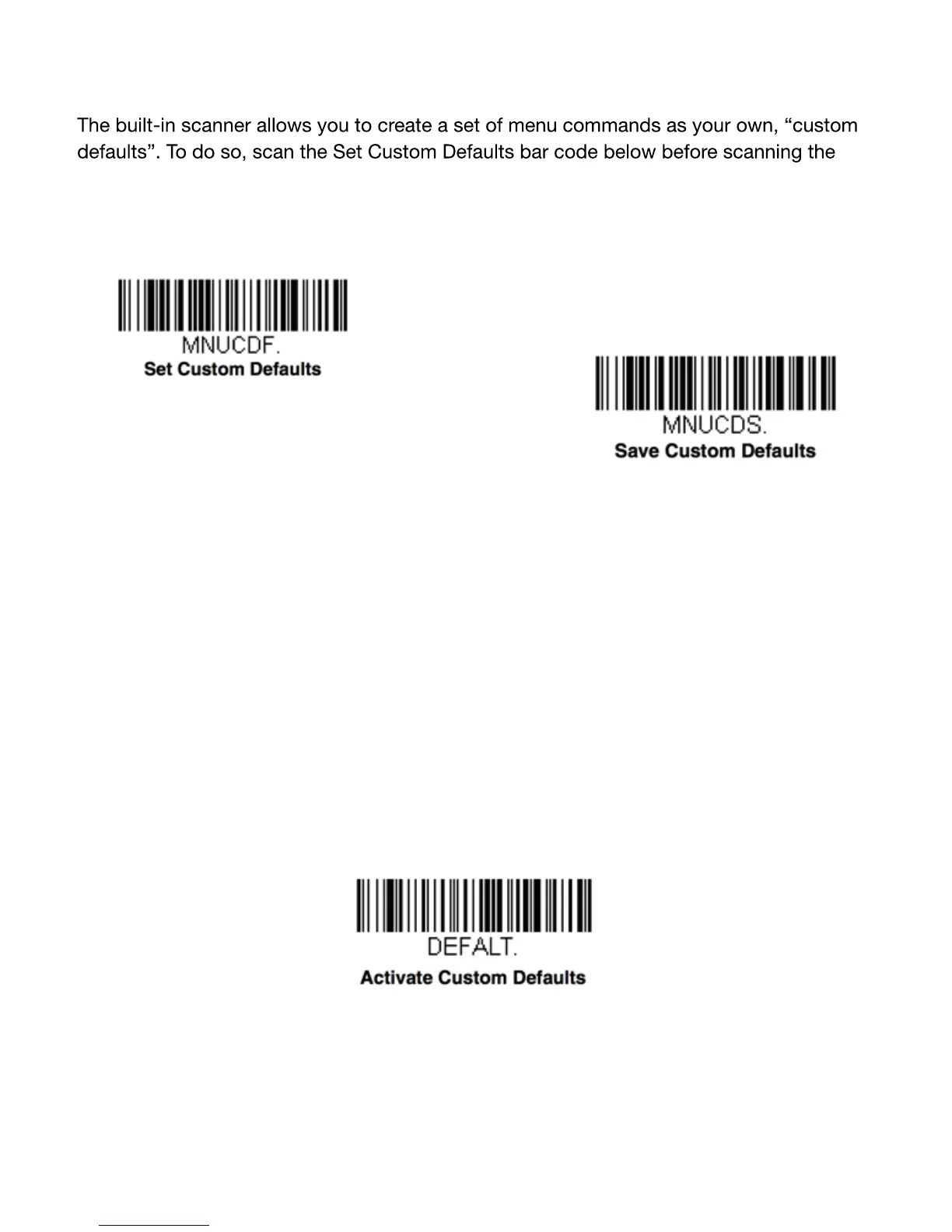
Setting Custom Defaults for the built-in scanner
menu commands for your custom defaults. After you have entered all the commands
you want to save for your custom defaults, scan the Save Custom Defaults barcode.
You may have a series of custom settings and want to correct a single setting. To do so,
just scan the new setting to overwrite the old one. For example, if you had previously
saved the setting for Beeper Volume at Low to your custom defaults, and decide you want
the beeper volume set to High, just scan the Set Custom Defaults barcode
, then scan the
Beeper Volume High menu code, and then Save Custom Defaults. The rest of the custom
defaults will remain, but the beeper volume setting will be updated.
Resetting the Custom Defaults
If you want to restore the custom default settings, scan the Activate Custom Defaults
barcode below. This is the recommended default barcode for most users. It resets the
scanner settings to the custom defaults. If there are no custom defaults, it will reset the
scanner to the factory default settings.
14


 To Next Page
 Loading...