JCD543P Troubleshoong
Before troubleshoong
Ensure the dock connects directly to a USB port on the laptop (not through any other adapters/converters).
PD Charging issue: When some of the ports are not working, or the dock is not charging the laptop
1. Ensure the JUP2290 100W PD power adapter connects to the dock, then connects the dock to a USB port
on the laptop (not connecng the power adapter directly to the laptop)
2. Remove DC power adapter from the laptop (if applicable)
Ethernet issue: When Ethernet drops out aer running Teams call for a while
Follow the instrucons in the link below and update rmware to 1.0.6.
hps://drive.google.com/drive/folders/11CuAzDdjNU4vcFeraf9czepoGWThZa?usp=drive_link
Display issue: When HDMI/DisplayPort/VGA ports are not working
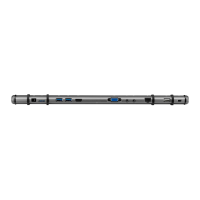
1. See image below and idenfy the port that is not working is using DP Alt-mode or USB Driver Graphics.
⚫ DP Alt-mode port: ensure your laptop supports DP Alt-mode.
⚫ USB Driver Graphics port: ensure the driver is installed correctly.
2. If the issue persists, try following steps:
⚫ Ensure the video cable is connected directly from the dock to the monitor (not through any other
adapters/converters).
⚫ Ensure the monitor is powered on
⚫ Ensure the monitor is funconing properly
⚫ Ensure the monitor is selected to the correct input source, i.e., HDMI, DP, VGA
⚫ Cross-test the dock with another monitor (if possible)

 Need help?
 General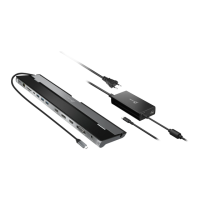

 To Next Page