Device Application/ Install the Application
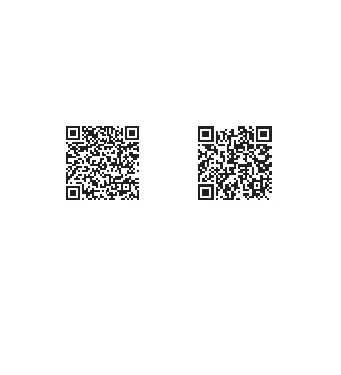
Scan the below QR codes to find the matching Applications via
Google
®
Play Store or Apple
®
Play store and search for “fitpro”.
Minimum system requirements for watch device and App device
to work: Android 5.0 or newer – Apple iOS9.0 or newer.
Profile Set Up
It is advised to fully set up a user account profile within the App
for accurate results. The App will ask for device permissions once
installed. We encourage the user to allow all notifications and
pairing access to their connected smart device for better
functionality. The device will continue to work, but with limited
visibility and functionality.
How to Use
Basic Operations:
1. Power On
Press and hold the front button for 4 seconds, the watch will
turn on and re-connect to the last smart device it was paired to.
If the device fails to power on, it could be due to insufficient
power and will need to be charged.
2. Power Off
Tap through the device menu screen and press and hold the
“More” icon. Again, tap through the menu until the model’s
name and power off logo appear. Press and hold again to power
off the device.
3. Reset
Tap through the device menu screen and press and hold the
“More” icon. Again, tap through the menu until the “Reset” icon
appears. Press and hold again to reset the device.
Note the reset option will place the device back to the factory
settings.
4. Screen Wake Up Options
1. Tap the display screen button
2. Turn and raise wrist to activate screen wake up function
(Controlled via the App)
Tap the “Brightness Controller” icon to enter the menu to activate
this function. A timer can also be set for this function.
Basic Operation Connected App:
The App has 4 main menu icons found on the bottom of the
screen.
Home – This is where activity statistics are found.
My Health Rating
This will show a health rating based on the information
completed in the user profile section.
Healthy Habit
This is where activity logs are completed and where custom
activities can be created.
Set – This is where device settings can be adjusted.
Brightness Control – Adjusting screen wake up function and
adjusting a schedule to turn ON/OFF.
Do Not Disturb - Turning this function ON/OFF and setting a
schedule.
Alarms – 8 Individual alarms can be set and adjusted.
Sedentary Reminder - Turning this function ON/OFF and setting
a schedule.
Find – This feature will activate the device to vibrate once to help
locate its position.
Remote Shutter – This feature allows a picture to be taken
remotely with the watch. Tap the “Remote Shutter” icon to enter
the camera function. There are 2 actions to take a picture, in the
app by pressing the centre circle button, or via the connected
watch device. Shake the wrist with the device fitted, a 3 second
countdown timer will active prior to the picture being taken.
Message Push – This feature allows the user to adjust what push
notifications are to be activated.
Note: For some notifications to work, applications may require
permissions to be adjusted to allow full functionally.
Reset Device – Resets the device to the factory settings.
Remove – Deletes all data from the device and App.
Other – Toggles the vibration setting for the device.
OTA Upgrade – Looks for a latest version of the App to be used
and auto updates.
Motion – This is where activities are tracked.
Walk/Run/ Bike – Tracks distance travelled in map mode in the
App.
By tapping on the total distance tracker, it will enter the history of
that activity. You can also view history data by Day, Week and
Month.
Mine – This is where the user profile is managed.
User Profile – This function is used to set up the user details to
help track data. This data is also used for the My Health Rating
data to calculate steps and calories burnt.
Android iOS


 To Next Page
 Loading...