This document describes the operation and features of the PB553 and PB555 control panels, which are designed for managing spa or hot tub systems. These control panels are compatible with P20B29, P23B32, and P25B37 control systems and provide real-time display of the system's status.
Function Description
The control panel serves as the main interface for users to interact with and monitor the spa system. It displays various parameters and allows control over different functions.
Main Interface Display
The main interface is divided into a state display area on the left and a menu display area on the right. When the control panel is connected to the control system, it displays the state of every function using icons and words, making it easy for the user to understand the system's condition.
State Display Area Features
- Current Water Temperature: Displays the current water temperature, which changes with the actual water temperature. The temperature unit can be set to either Fahrenheit (°F) or Celsius (°C).
- Temperature Unit Setting: Allows users to select their preferred temperature unit (°F or °C).
- Display Mode: The system can store up to four different display modes. Users can switch between these modes as needed and also configure them.
- Cycle Filtration State: Indicates the status of the cycle filtration function, which purifies the water by removing dirt from the tub. Users can set the duration of the cycle filtration.
- Pump State: When a pump is active, its icon transitions from half-transparent to fully lit. For pump/jet 1, a "1" with a green background in the top-left corner indicates low-speed operation, while an orange background indicates high-speed operation. Other pumps use a similar display method.
- Blower State Display: The blower icon is displayed normally when active and becomes half-transparent when turned off.
- Heating Display: When the heating function is initiated, the icon blinks. Once the heating element starts working, the icon is displayed normally. When heating is off, the icon becomes half-transparent.
- Ozone State Display: Ozone is used for disinfection. The ozone icon is displayed normally when active and becomes half-transparent when turned off.
- Lamp State Display: The lamp icon is displayed normally when the light is on and becomes half-transparent when turned off.
- Navigation and Selection: Users navigate the menu using up and down keys. The selected item is highlighted with a green background. The OK key is used to turn functions on/off or change their states. For items with multiple states, the OK key cycles through them. The current state is displayed in the state area. A progress bar on the right side of the menu indicates the cursor's position, showing if it's at the top or bottom of the menu.
- Multi-System Control (for large systems): For larger control systems, bars appear under "Menu" at the top of the interface, each representing a control system. Users can switch between systems using the left and right keys. The thicker bar indicates the currently displayed system. Basic control systems do not show these bars. The "set" item is used to access the setting interface.
Time and Date Features
- Current Time and Date Display: The panel displays the current date, month, hour, minute, and day of the week. Users can set the time in the setting interface.
- Error and Lock State Display: In case of a control system error or key lock, the screen displays relevant error messages or lock states. Users should address malfunctions based on the alarming information. If a malfunction cannot be resolved, operation should cease immediately, and technical support should be contacted. Professionals can diagnose issues using the provided information.
Usage Features
The control panels offer both navigation keys and shortcut keys for ease of use.
Key Functions Description
- PB553: Features 10 keys.
- PB555: Features 9 keys.
Both panels share common navigation keys and specific shortcut keys.
Navigation Keys
The navigation keys (up, down, left, right, OK/confirm) are used to move the cursor, select items, and change settings within the display interface. The chosen item is indicated by a green background.
Shortcut Key Operation Instruction
Shortcut keys allow users to start or stop corresponding functions directly from any interface without returning to the home screen.
- Pump 1 Shortcut Key: Controls the on/off state of pump 1. If pump 1 is a single-speed pump, it toggles on/off. If it's a double-speed pump, continuous presses cycle through low speed, high speed, and off.
- Pump 2 Shortcut Key: Functions identically to the pump 1 shortcut key.
- Screen Invert Shortcut Key: Inverts the displayed content by 180 degrees and adjusts the navigation key directions accordingly.
- Light Shortcut Key: Toggles the light on/off. In RGB mode, it cycles through 9 states: auto color change, red, green, yellow, blue, purple, cyan, white, and off.
- Mode Selecting Shortcut Key (PB553 only): Allows selection of the four different modes stored by the user.
Setting Interface Functions
- Manual Heating: When enabled, a "Heat" option appears in the menu, allowing users to manually start the heater from the home interface. This option disappears when manual heating is turned off.
- Heating Time: The control system can be set to a timing heating mode, allowing the heater to operate automatically during two independent time periods. These periods can overlap. If the start time is later than the end time, the heater will operate continuously until the end time on the next day. The heater works when the time period is "on" and turns off when "off."
- Setting Heating Time: Use navigation keys to select the time period, then press OK to set it to "on" or "off." Press right to enter time setting, use up/down to adjust, and left/right to move between fields. Press "Back" to save and exit.
- Manual C.Pump: This option appears if the control system has a separate cycle pump. When enabled, a "CPump" item appears in the function operation interface, allowing manual control of the cycle pump from the home interface. It disappears when manual cycle pump is turned off.
- Filter Time: Similar to heating time, users can set timing for water filtration to purify the water. The setting method for start/stop times and time periods is the same as for timing heating. Regular filter changes are recommended based on water quality.
- Mode: Users can define and store up to four different function states as modes. These modes can be selected using the navigation keys.
- Storing Modes: Set desired functions, then in Set->Mode, navigate to the mode saving option and press OK. A solid square indicates the mode is stored. Jet (pump), blower, ozone, heat, and brightness settings can be stored.
- Selecting Modes: In the main interface, use navigation keys to select "Mode," then press OK to choose a stored mode.
- Temp. Unit: In the Set menu, users can navigate to "Temp. unit" and press OK to switch between °C and °F.
- Temperature: Allows setting the desired water temperature (range: 50°F-104°F / 10°C-40°C). The set temperature is automatically stored. If the set temperature is higher than the current water temperature and heating is enabled, the heater will automatically activate.
- Ozone: Ozone function has manual and auto modes. In the Set menu, navigate to "Ozone" and press OK to select auto start or manual start. When manual mode is chosen, an "Ozone" symbol appears in the menu, allowing manual activation from the main interface. The symbol disappears when manual start is turned off.
- Auto Lock: Prevents accidental key presses. In the Set menu, navigate to "Auto Lock." The lock starting time can be set to "off," "30S," "1 min," or "3 min." If set to a time duration, the control panel will lock if no actions are detected within that time. To unlock, press and hold OK for 3 seconds.
- Brightness: Adjusts the backlight brightness of the screen (range: 1-30) to suit different lighting environments. The set value is automatically stored upon exiting the menu.
- Date & Time: Essential for timing functions. Users can set the date and time in the Set->Date&Time menu. The settings are automatically stored. The system retains correct time settings for several days even if power is off.
- Wifi: If a Wifi module is connected, a "Wifi" option appears in the Set menu. Users can navigate to "Wifi" and press OK to set it to AP mode, Sta mode, or "forgetting the connected Wifi."
- AP Mode: Allows connection via a cell phone app (e.g., Joyonway-xxxx).
- Sta Mode: Connects the control system to a local area network or the internet. Refer to the APP instruction for Wifi connection and operation details.
- Function: Used to configure control system loads and Panel ID. In Set->Function, there are 12 items: Jet1, Jet2, Jet3, Jet4, Light, Blower, Water cycle Ozone, Independent cycle, Heat, Water level, and Panel ID.
- Configuration: Use navigation keys to select an item, then press OK to change its parameter.
- Pump (Jet1-Jet4): "2" indicates a double-speed pump, "1" indicates a single-speed pump, and "0" indicates invalid.
- Light: "2" indicates RGB mode, "1" indicates on/off mode, and "0" indicates invalid.
- Cycle Pump: "1" indicates the control system has a separate cycle pump, "0" indicates jet 1 low speed pump is set as cycle pump.
- About: In the Set->About menu, the current control system's function configuration and software version are displayed.
- Pump (Jet1-Jet4): "Two speed" means double-speed, "One speed" means single-speed.
- Light: "RGB" means RGB mode, "Yes" means on/off mode, "No" means invalid.
- Blower: "Yes" means blower function is set, "No" means invalid.
- Ozone: "Yes" means ozone function is set, "No" means invalid.
- Cycle Pump: "Yes" means a separate cycle pump is set, "No" means Jet 1 low speed pump is set as cycle pump.
- Panel ID: Displays the control panel ID (1, 2, 3, or 4). The panel ID must be unique.
- Panel Version & Board Version: Displays the software version numbers.
Important Technical Specifications
- Temperature Range: 50°F-104°F (10°C-40°C).
- Brightness Range: 1-30.
- Control Panel IDs: 1, 2, 3, or 4 (must be unique).
- Pump Speeds: Single or double speed.
- Light Modes: RGB or on/off.
- Cycle Pump Configuration: Separate cycle pump or Jet 1 low-speed pump as cycle pump.
Maintenance Features
- Filter Replacement: Users are advised to regularly change the filter or strainer according to water quality to purify the water and keep the tub clean.
- System Time Accuracy: Maintaining accurate system time is crucial for the proper functioning of all timing-based features, such as heating and water cycle.
- Malfunction Handling: In case of errors, the panel displays alarming information. Users should address issues based on these alerts. If a malfunction cannot be resolved, contact technical support for professional diagnosis.

 Need help?
 General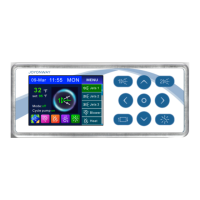

 To Next Page