Filename [XVC33U_09Editing.fm]
Masterpage:Left0
68
EN
Page 68 23 July 2003 5:05 pm
EDITING (VCR DECK)
Edit From A
Camcorder
You can use a camcorder as the source player and your
unit as the recording deck.
A
Make connections.
Connect the camcorder’s AUDIO OUT and VIDEO OUT
connectors to the unit’s front panel AUDIO and VIDEO
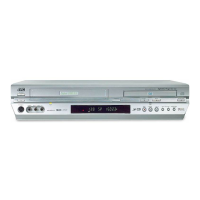
input connectors.
●
When using a monaural camcorder, connect its AUDIO OUT
connector to the AUDIO L input connector on your unit.
B
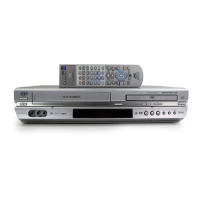
Select the VCR deck.
On the unit
Press
VCR/DVD
repeatedly so that the VCR indicator
lights up.
On the Remote
Press
VCR
so that the VCR indicator lights up.
C
Set the unit’s input mode.
Press
AUX
(
number key “0”
) and/or
CH
to select “F-1”.
D
Set the edit mode.
See “PICTURE CONTROL” on page 76.
E
Engage the Record Pause mode.
Use
PLAY
(
4
),
REW
(
3
), or
FF
(
5
) to locate the
point where you start recording, then press and hold
PAUSE
(
9
) and press
REC
(
7
) to engage the Record Pause
mode.
F
Start the camcorder.
Engage the Play mode of the camcorder.
G
Start the unit.
Press
PLAY
(
4
) to engage the Record mode of the unit.
NOTES:
●
All necessary cables can be obtained from your dealer.
●
When you select “EDIT” to dub tapes in step
D
, be sure to select
“NORM” after you finish dubbing the tapes.
Recorder
To Audio/VIDEO
Output
connectors
Camcorder
AUDIO input
Player
VIDEO
input
Audio/video cable
(not supplied)
Slide the
TV/VCR/DVD
switch to the right.
XVC33U_09Editing.fm Page 68 Wednesday, July 23, 2003 5:05 PM


 To Next Page
 Loading...