12
Tuner
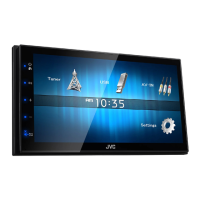
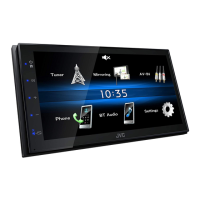
Tuner Basic Operation
1 Press the < > button.
2 Touch [Tuner].
Ñ Source control screen
1
Displays the information of the current station:
PS name, Frequency, PTY Genre, Indicator Items
[<<] [>>] : Touch to the next frequency manually.
2
Recalls the memorized station.
When touched for 2 seconds, stores the current
receiving station in memory.
3
[E] [F] : Tunes in a station with good
reception automatically. *
1
[TA] : Sets the traffic information mode.
“ON”, “OFF” (Default) *
2
(P.12)
[PTY] :
Select the available Program Type
.
*
2
(P.12)
*1 If “AF” is set to ON on the Tuner screen, only RDS
stations are received. (P.13)
*2 FM only
4
[1] : Presets stations automatically. (P.12)
5
[FM] : Switches the FM band.
“FM1”, “FM2”, “FM3”
[AM] : Switches the AM band.
“AM1”, “AM2”
Presetting stations
Ñ Storing stations in the memory
You can preset 18 stations for FM and 12 stations for
AM.
1 Touch [FM] or [AM] to select the band.
2 Touch [1].
The local stations with the strongest signals are
found and stored automatically.
• If “AF” is set to “ON” on the Tuner screen, only RDS
stations are stored in the memory. (P.13)
Ñ Manual memory
You can store the current receiving station in
memory.
1 Tune in to a station you want to preset.
2 Touch and hold [#] (#:1-6) in which you want to
store the station.
Ñ Recalling the preset station
1 Touch [#] (#:1-6).
✎ NOTE
• Only frequencies are registered as preset stations.
Information about RDS stations is not registered.
FM RDS features
Ñ Search by program type
1 Touch [PTY].
2 Select a program type from the list.
PTY Search starts.
Ñ Traffic Information
1 Touch [TA].
Switches to the traffic information automatically
when the traffic bulletin starts. (TA indicator lights
up.)
“ON”, “OFF” (Default)
• If “AF” is set to “ON” on the Tuner screen, the station is
switched to the RDS station. (P.13)
When the traffic bulletin starts
The Traffic Information screen appears automatically.
!B5A-3197-00_KWM.indb 12 2019/06/11 16:42


 To Next Page
 Loading...