Basic Operations
11English
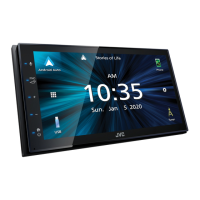
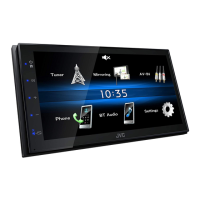
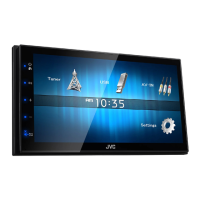
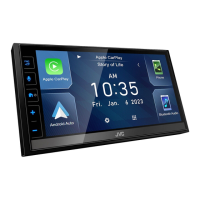
FUNCTION screen
1
Press the [FNC] button.
FUNCTION screen appears.
2
Touch to display the FUNCTION screen.
The contents of the menu are as follows.
• Displays the SETUP Menu screen. (P.37)
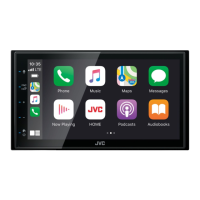
• Displays the APP (Apple CarPlay/ Android
Auto) screen. (P.12)
• Displays the Screen Adjust screen.
(P.37)
• Displays the view camera. (P.35)
• Displays the source selection screen.
(P.9)
• Turns the display off. (P.11)
• Displays the Audio screen. (P.41)
• Close the FUNCTION screen.
Turn o the screen
1
Select [ ] on the FUNCTION screen.
● To turn on the screen
1
Touch the display.
List screen
There are some common function keys in the
list screens of most sources.
61 2
3 4 5
1
Displays list type selection window.
2
Displays music/movie file list.
3
Text scroll
Scrolls the displayed text.
4
etc.
Keys with various functions are displayed here.
• [
] : Plays all tracks in the folder containing
the current track.
• [
] [ ] : Moves to the upper hierarchy.
5
[ ] / [ ] / [ ] / [ ] Page scroll
You can change the page to display more items
by pressing [
]/[ ].
• [
]/[ ] : Displays the top or bottom page.
6
Return
Returns to previous screen.
NOTE
• Buttons which cannot be activated from the list
screen are not displayed.
!B5H-0357-10_JVC_KWM_K_En.indb 11 2020/04/17 16:25


 To Next Page
 Loading...