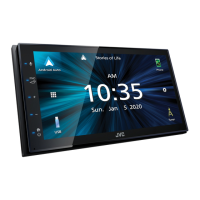
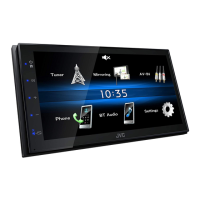
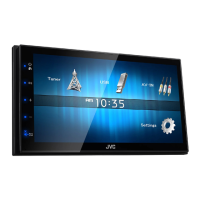
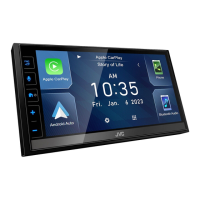
Basic Operations
9English
Select the playback source
1
Touch [ ] on the HOME screen.
From the screen, you can select the
following sources and functions.
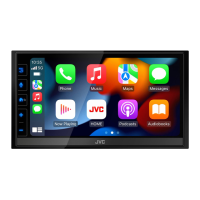
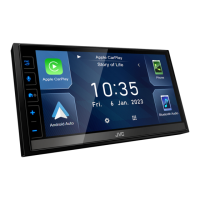
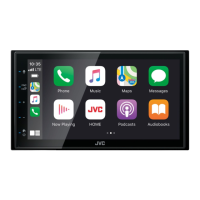
• Switches to the Apple CarPlay screen from
the connected iPhone. (P.12)
• Switches to the Android Auto screen from
the connected Android smartphone.
(P.13)
It is necessary to connect Android
smartphone compatible with
Android Auto and to set [Mode] to
[Android Auto]. (P.14)
• Switches to the USB Mirroring screen
from the connected Android smartphone.
(P.14)
It is necessary to connect Android
smartphone with “Mirroring OA for JVC”
application installed and to set [Mode] to
[Mirroring for Android™]. (P.14)
• Displays the Hands Free screen. (P.31)
When neither Apple CarPlay, Android
Auto, nor a Bluetooth Hands-Free phone
is connected, displays "[Disconnected]"
message in the TEL screen.
When connecting as Apple CarPlay
or Android Auto, it works as a phone
provided in Apple CarPlay or Android
Auto.
• Switches to the Radio broadcast. (P.18)
• Plays a Bluetooth audio player. (P.27)
• Plays files on a USB device. (P.15)
• Switches to an external component
connected to the AV-IN input terminal.
(P.36)
• Switches to the SiriusXM® satellite radio
broadcast. (P.21)
• Turns off the AV source. (P.9)
To select the playback source on the
HOME screen
The 3 items displayed on the source selection
screen as the large icons are shown on the
HOME screen.
You can change items displayed on this area
by customizing the source selection screen.
(P.10)
To turn o the AV source
1
Touch [ ] on the HOME screen.
2
Touch [AV Off].
!B5H-0357-10_JVC_KWM_K_En.indb 9 2020/04/17 16:25


 To Next Page
 Loading...