Basic Operations
9English
Gesture Touch Control:
You can also control playback by moving your
finger on the touch panel as follows (for some
sources, the gesture control is not available).
• Sliding the finger towards up/down:
- Functions same as pressing [
] / [ ]
(Media) in the USB Control screen.
- For the Tuner, tuner preset broadcast stations
are switched.
• Sliding the finger towards left/right: Functions
same as pressing [E] / [F].
• Moving your finger clockwise or counter-
clockwise: increases/decreases the volume.
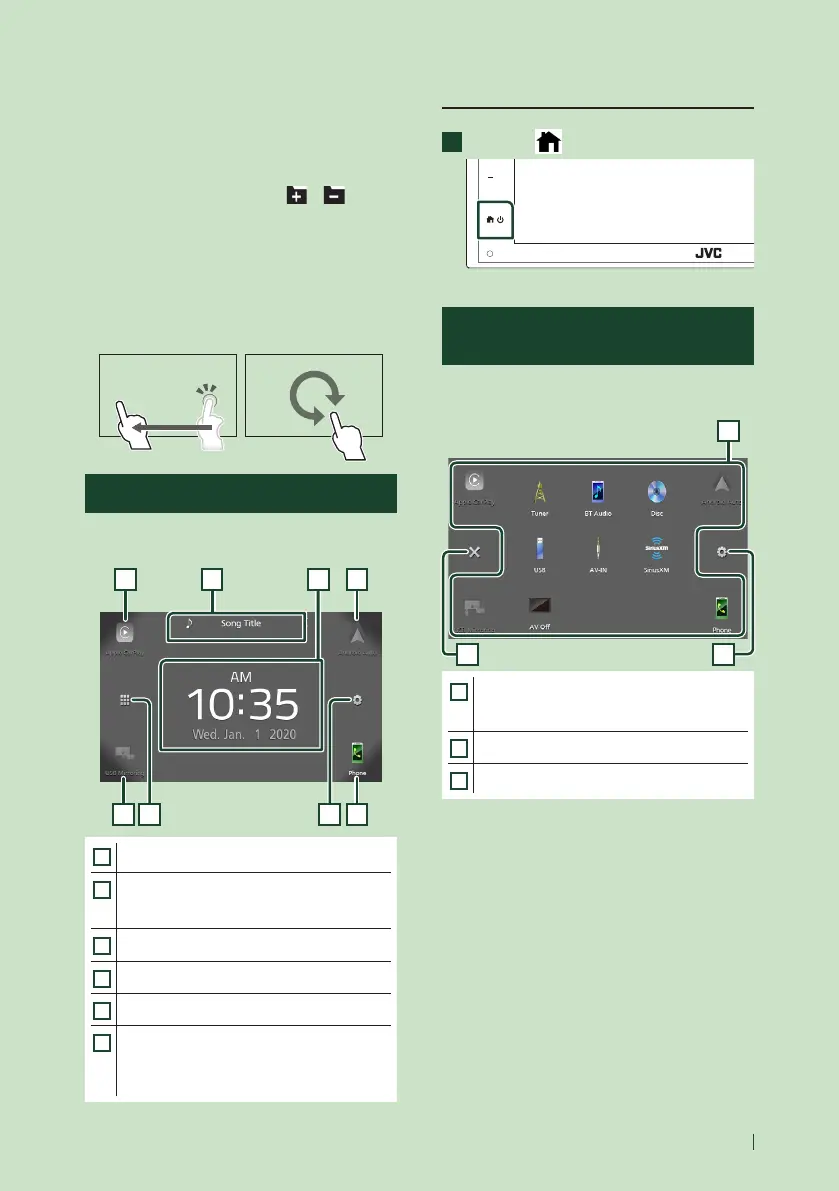
HOME screen descriptions
Most functions can be performed from the
HOME screen.
41 5 6
1 2 3 1
1
• Short-cut playback source icons. (P.10)
2
• Current source information.
• Touch to display the control screen of current
source.
3
• Widget
4
• Displays the source selection screen. (P.10)
5
• Displays the SETUP Menu screen. (P.44)
6
• Displays the Hands Free screen. (P.38)
• When connecting as Apple CarPlay or
Android Auto, it works as a phone provided
in Apple CarPlay or Android Auto.
Display the HOME screen
1
Press the [ ] button.
HOME screen appears.
Source selection screen
descriptions
You can display all playback sources and options
on the source selection screen.
2 3
1
1
• Changes the playback source.
For playback sources, see Select the
playback source (P.10).
2
• Returns to previous screen.
3
• Displays the SETUP Menu screen. (P.44)
!B5H-0357-03_JVC_KWV_K_En.indb 9 2020/07/09 8:19


 To Next Page
 Loading...