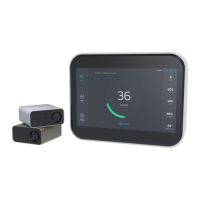
Kaiterra Sensedge Mini Hardening Checklist
4.
Checklist
1. Disable Modbus (TCP/502)
Skip this step if you choose to use this method of communication
Using the Kaiterra Configuration Tool, connect to the device.
Navigate to the Configure tab.
Ensure that the Modbus Address field and all sub-fields are empty.
2. Disable BACnet (UDP/47808)
Skip this step if you choose to use this method of communication
Using the Kaiterra Configuration Tool, connect to the device.
Navigate to the Configure tab.
Ensure that the BACnet ID field and all sub-fields are empty.
3. Disable Primary MQTT (TCP/8884)
Skip this step if you choose to use this method of communication
In the Kaiterra Configuration Tool, enable this restricted feature by:
1. Open the Settings window, from the hamburger menu in top left.
2. Click 10 times on the word “Settings” at the very top of the screen, in
the navigation header. When this has been done, you should see
status text appear at the bottom of the screen: “Developer mode
activated.”
3. Once that is done, proceed with normal usage as described below.
Connect to the device.
Navigate to the Configure tab.
Toggle the Primary MQTT setting to Disabled.



 To Next Page
 Loading...