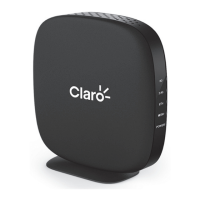
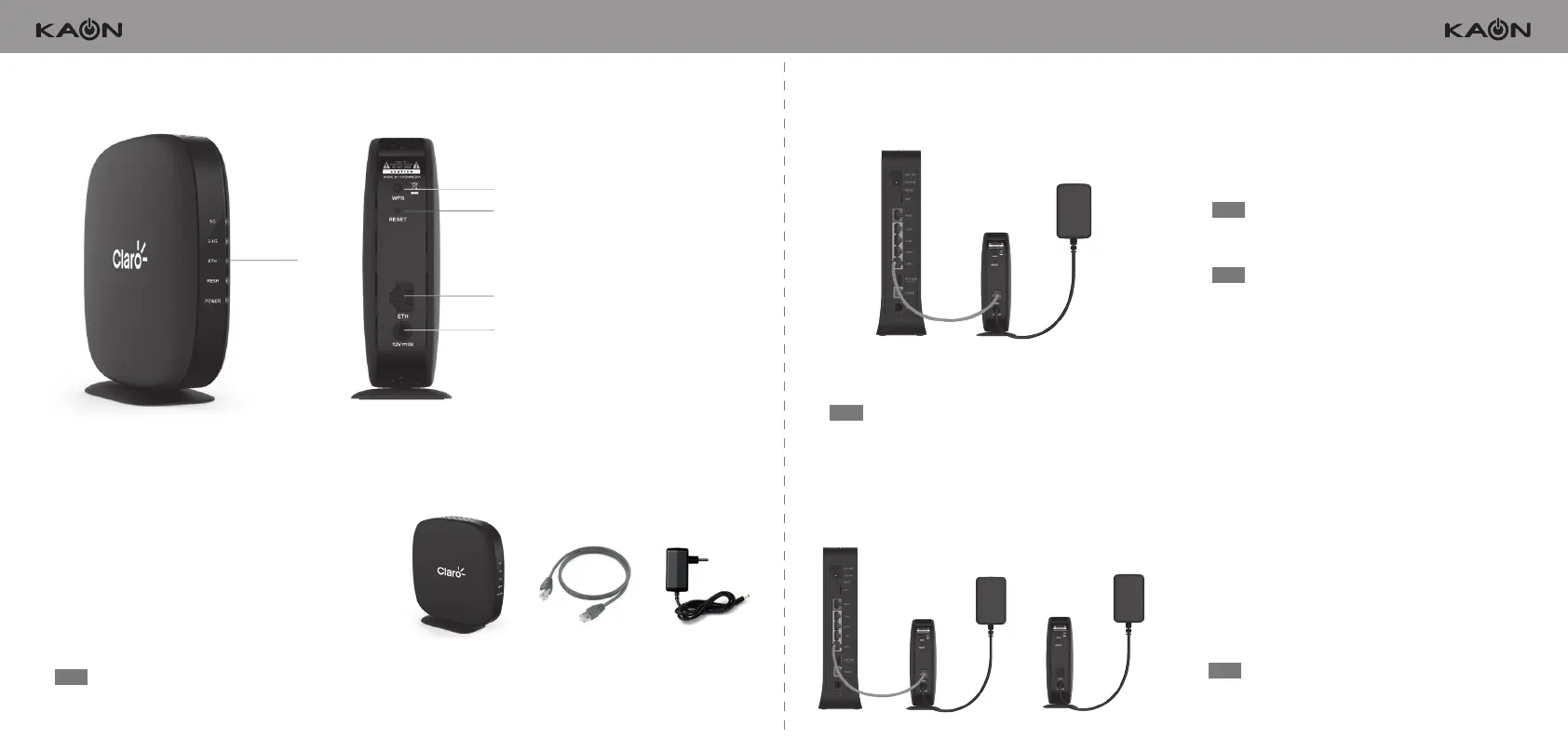
Set up AR1031 without the App AR1031 overview
➊ LED (2.4G, 5G, ETH, MESH, Power)
➋ WPS button
➌ Factory reset button
➍ Ethernet port
➎ Power connector
�
LED colors Package contens
The light on the front side of your AR1031 gives you
information about the AR1031’s operation.
Note
The MESH LED on the front of the rst AR1031 unit
indicates blue, whereas the MESH LED on the front of
additional AR1031 unit(s) indicates green.
Blinking Blue / Green on MESH LED
The AR1031s are starting up to create mesh networking.
Solid Blue / Green on MESH LED
Mesh network is created successfully and working great.
Solid Yellow on either 2.4GHz or 5GHz LED
The AR1031 is too far from another AR1031.
a.
b.
c.
Step 1. Set up your rst AR1031
Plug AR1031 into a power outlet near to your home
gateway.
Use the included Ethernet cable to connect your home gateway
to the Ethernet port on the AR1031, and then wait 3 minutes
until the MESH LED lights blue to indicate it is completely set up.
a.
b.
Step 3. Access the web-based setup page
Note
The Power LED on the front of the extender lights green to
indicate that it’s powered on and ready for setup.
Step 2. Add AR1031(s) to an existing Wi-Fi network
Place additional AR1031(s) at a distance of around three
meters from the working AR1031 connected to your home
gateway.
a.
Note
You’ll get the best signal when it is in an open space like
on a shelf or a table.
Plug your additional AR1031(s) into a power outlet. b.
In a few minutes, all AR1031(s) will start to connect each
other automatically to form a mesh network, and in the
meantime, the MESH LEDs on the front of all AR1031s will
c.
Wait for the MESH LED to turn a solid light on all AR1031s,
which indicate that the mesh network is successfully
created in your place.
d.
Note
Please press a WPS button on the working AR1031
connected to your home gateway. for 3 seconds within 10
minutes after plugging in the additional AR1031(s).
Otherwise, you’ll need to re-plug the additional AR1031(s).
Connect your PC to the rst AR1031’s Wi-Fi network (SSID),
and then type the last 8 digits of the AR1031 serial number
in the password eld.
Launch a web browser, and enter http://kaonmesh■■■■
(■■■■ is the last 4 digits of the rst AR1031’s serial
number) in the address bar, then press.
Enter the default
user name : admin
and
password : password
in the elds.
a.
b.
c.
Note
You can view and change your Wi-Fi name (SSID) and
password, and see all your AR1031s congured as a
mesh network in your Wi-Fi.
➊ AR1031
�
�
�
�
➋ Ethernet cable ➌ Power adapter


 To Previous Page
 Loading...