EN
taskbar in the lower right corner of your desktop.
In the keyboard memory, you can save to 3 proles. Just
click on any of them and “Apply” to activate.
Macro Function
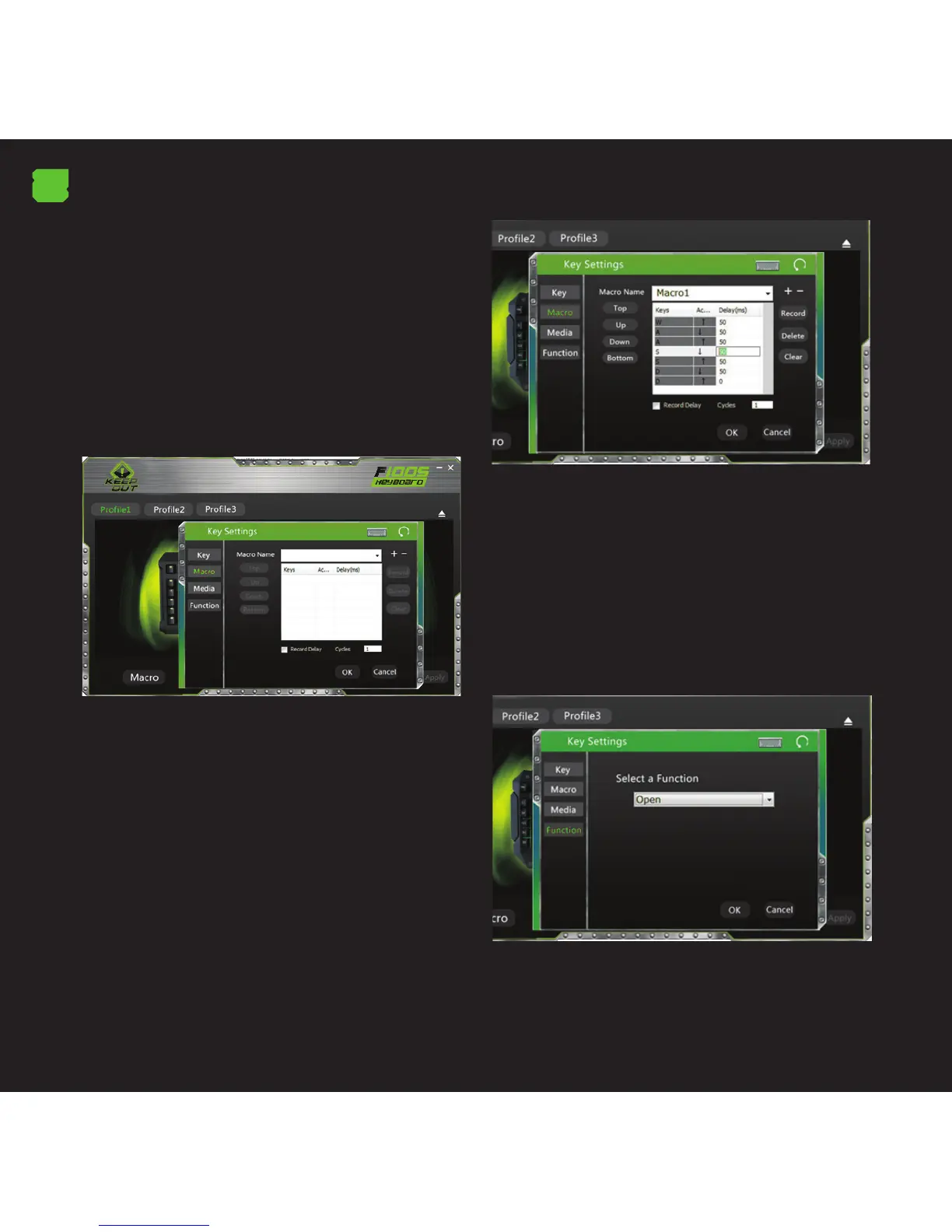
If you want to program a macro, follow these steps: (For
example we will set the “G1” key)
1. First, click the key you want to program, in this case “G1”.
Then the conguration window opens.
2. To create a new ‘Macro’ click on “+” and if you want to
assign a custom name to the macro.
3. To record the macro click the “Record” option, it will start
recording the “Macro”. For example, if you want to burn the
letter combination “WASD” press “Record” and then press
on your keyboard the letters “WASD”. When nished, click
“Record”. (You can also change the “Delay time”, for this
click on the “Delay” column, as shown in the picture.
3.1 The “delay” is the delay between the keystrokes that are
entered in the macro. It is measured in milliseconds.
4. Once we have programmed the macro, click on “OK” to
save. Now every time you press the “G1” key, will be writing
the “WASD” command.
5., We can also assign a function to a key as a “Copy”, “Paste”,
“Open”. We’ll just have to click the button you want to
modify and assign a function as shown in the picture, then
click “Ok”.
6. To create macros manually (without using the software),
you must follow the following steps:



 To Next Page