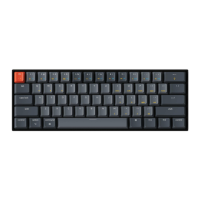
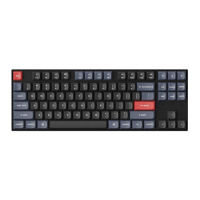
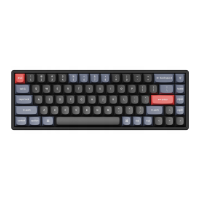
3 - INPUT METHOD SWITCH
For iOS:
Input method switch: Ctrl + Space
Caps Lock: Caps (Enable Keyboard>Caps Lock Language Switch)
For Android:
Input method switch: Shift + Space
NOTE: Functions of certain multimedia key may be disabled due to compatibility, versions,
brands and drivers of Windows/Android OS.We also recommend not to switch OSfrequently
as it may impact keyboard operations.
TROUBLESHOOTING
If unable to pair keyboard to device, confirm that the device you're trying to pair with is
Bluetooth-capable. If so, restart the device and try pairing it with the keyboard again.
Note: On a Windows computer, a new Bluetooth connection will sometimes require additional
software updates a process that may still be ongoing after a message appears indicating a successful
completion. Wait at least 20 minutes after pairing to make sure all updates are completed before
restarting the computer.
Confirm that the device is configured to accept Bluetooth connections (Windows) and supports an
external keyboard (HID profile).
Go to Bluetooth Devices > Open Settings and select the following:
Allow Bluetooth devices to find this computer
Allow Bluetooth devices to connect to this computer
Alert me when a Bluetooth device wants to connect
19


 To Next Page