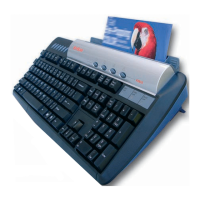
Tutorial 1- NoTouch-AutoScan
Description
KeyScan NoTouch-AutoScan are two functions that simplifies and automates the scanning process.
KeyScan AutoScan:
Is activated when the user places a document on the scanners feeding tray
and then indicates to the NoTouch-AutoScan process that he wishes to manually select a non-default
function, this indication is done by moving the mouse cursor over the NoTouch-AutoScan Timeout Bar
Box.
When using AutoScan the user can choose one of set of predefined functions each can have all its
scanning and output parameters preset so the complete function is performed automatically once the
user selects a function.
The AutoScan is configurable and the user can modify each selection option and modify the scanning
parameters, enable/disable user interfaces, and select the output function and its parameters.
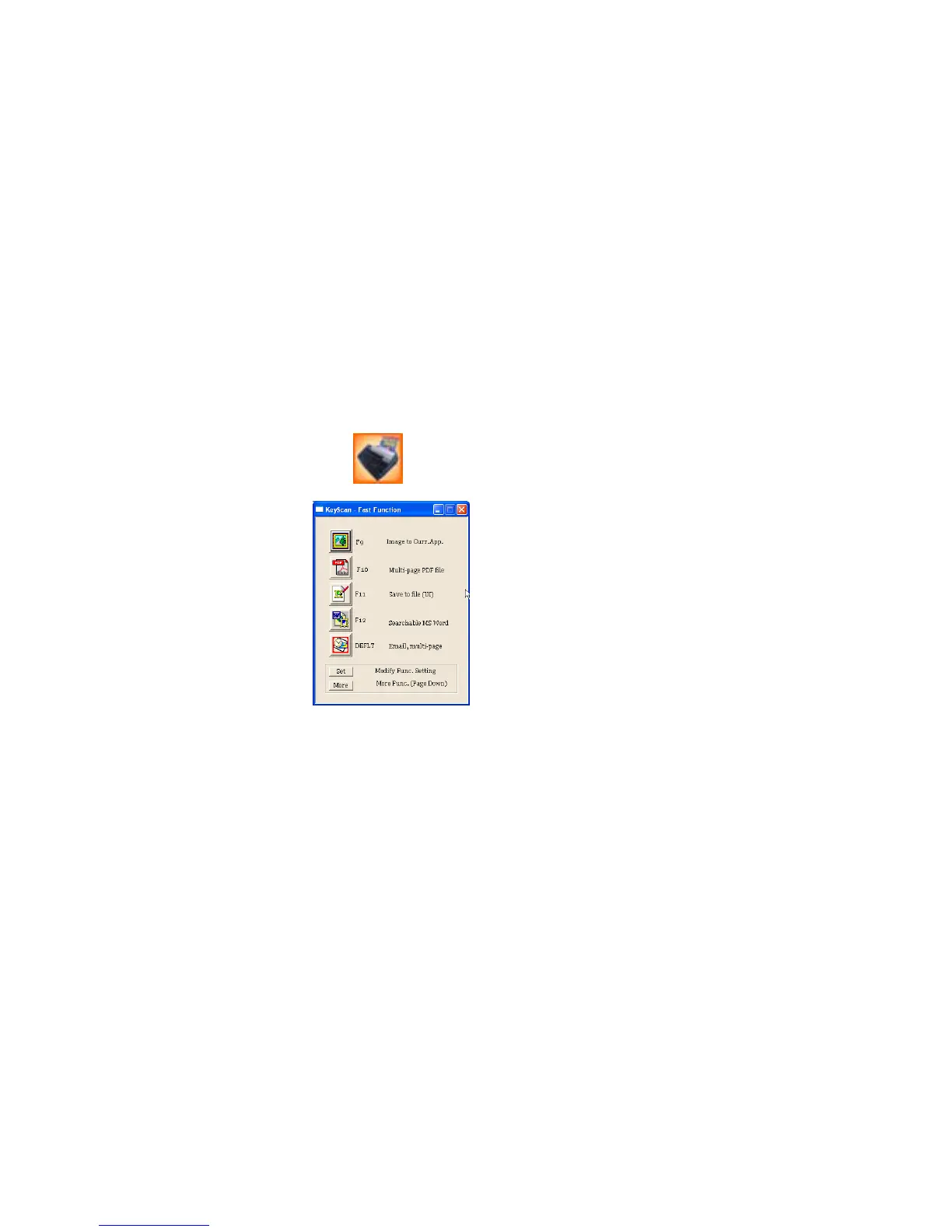
The NoTouch-AutoScan icon-
AutoScan dialog
KeyScan NoTouch-AutoScan: Manages the NoTouch and AutoScan functionality.
If the user does not indicate that he wishes to make any special selection (by moving the mouse
cursor over the NoTouch-AutoScan Timeout Bar Box), NoTouch-AutoScan assumes the user wishes to
perform the NoTouch default function and proceed to scanning and function execution without
requiring the user to make any additional button or software selection. On the other hand, if the user
moves his mouse over the Timeout Bar Box, NoTouch-AutoScan assumes he wishes to override the
default NoTouch function selection and choose another AutoScan function, it will than display a popup
function selection dialog of the AutoScan process, enabling the user to select the required function.
Step 1:
Making sure NoTouch-AutoScan is active.
In order for the NoTouch-AutoScan functions to be ready and respond to user actions they must be
activated.
1.1 If NoTouch-AutoScan is active its icon should show up on the active applications task bar (also
called Icons Tray), usually located on the right – bottom corner of the monitor.
1.2 If NoTouch-AutoScan is not active, the user can activate it by one of 3 options:
• By clicking on its icon located on the desktop.
• By selecting from KeyScan Imaging application main menu <File><Enable-AutoScan>



 To Next Page
 Loading...