Vehicle controls
◦ The gear is shifted
◦ There is no smart key (saving process will not begin)
• As the in-vehicle authentication pad may not work smoothly depending on the in
ternal structure of the smartphones, the digital key may not be registered. In this
case, register the procedure by moving the smartphone to the left or right of the in-
vehicle authentication pad (wireless charging pad).
• UWB (Ultra Wide Band) means ultra-wideband wireless communication technology.
NFC (Near Field Communication) means short-range wireless communication.
How to Use the Digital Key 2 (Smart Phone)
Smart Phone Touch Control
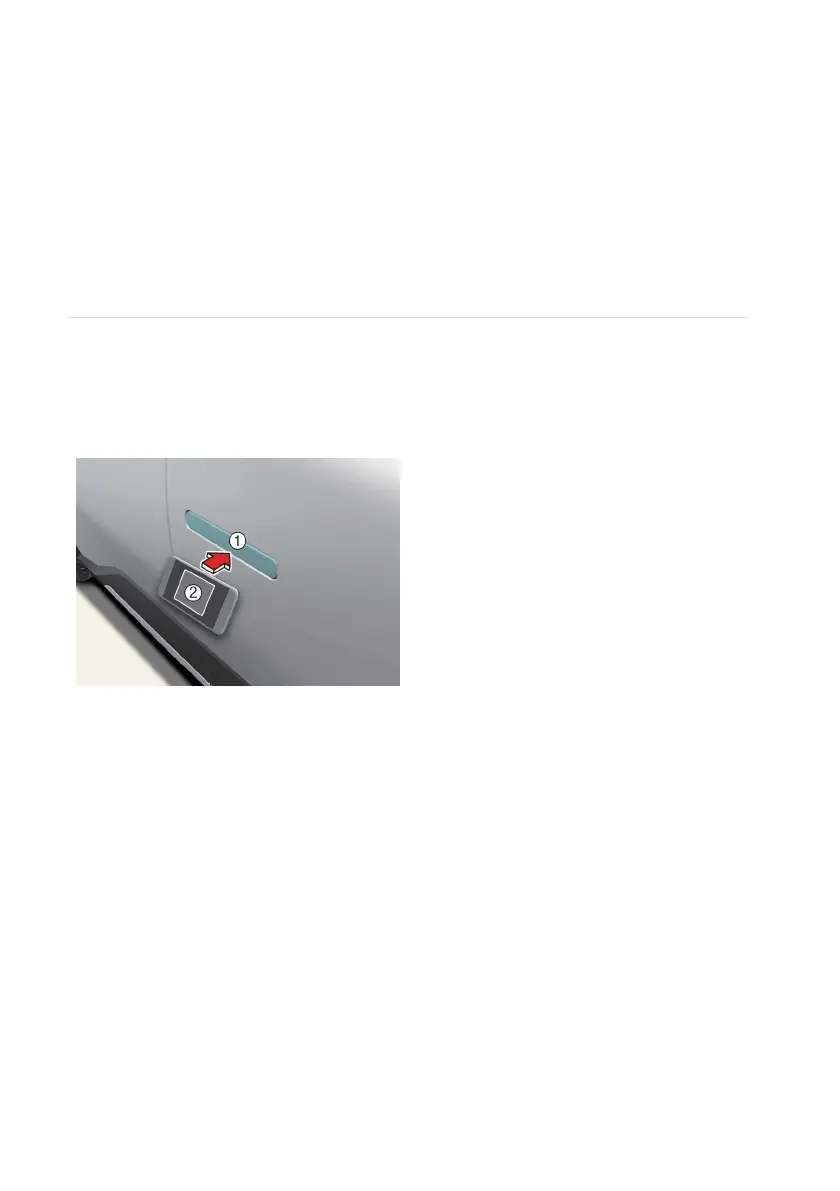
The driver can lock and unlock the door by touching the smart phone on the door
handle without activating the Kia Access App. Also, the vehicle can be started by plac
ing the smart phone on the in-vehicle authentication pad (wireless charging pad).
OMV053099R
1 Door handle authentication pad
2 NFC antenna on the back of the
smartphone (The antenna position differs
depending on models.)
You can check the location of the NFC antenna on your Samsung smartphone in the
Settings app > Connections > NFC and contactless payments . The Apple iPhone's
NFC antenna is located at the top of the back of the device, and the Apple Watch's
NFC antenna is located in the centre of the screen. Make sure that the location of the
smartphone's NFC antenna touches the in-vehicle authentication pad (wireless charg
ing pad). However, as the location of the smartphone's NFC antenna may be different
by smartphone model, contact the smartphone manufacturer for more details.
Locking/Unlocking the doors
• If the driver touches the smart phone NFC antenna to the driver's or passenger's
door handle authentication pad for more than 2 seconds, the door will lock or un
lock.
• After unlocking the doors, the doors will automatically re-lock after 30 seconds un
less a door is opened.
• If the smart phone digital key does not operate, move the smart phone more than 4
inches (0.1 m) from the door handle authentication pad and try it again.
224


 To Next Page
 Loading...