EasyManua.ls Logo

Kodak Mini 2 - User Manual

Kodak Mini 2
3 pages
Print Icon
To Next Page IconTo Next Page
Loading...
Smartphone App Installation
English
1. Android
1) Go to Google Play Store in your smartphone.
2) Search “Kodak Mini Shot”
3) Install “Kodak Mini Shot”. Into your smartphone
2. Apple Device
1) Go to Appstore in your iPhone, IPod touch or IPad.
2) Search “Kodak Mini Shot”
3) Install “Kodak Mini Shot”. Application into your device.
Note
Troubleshooting
Power and Active Status
Printing in the App
* Photo Paper will go in and out 4 times(YMCO, Yellow, Magenta, Cyan, Overcoating).
Do not touch the paper during printing process for best image quality
* Do not pull paper out by force during printing.
* Do not place an object in front of the paper exit slot.
* Use the latest application for best print quality. Check the latest app version from
Google Play Store and Apple Appstore.
* Printer has built-in battery. Charge the printer before using.
* Handle with care during charging to prevent electric shock.
* Do not disassemble or deform.
* Avoid too high or low temperature or humidity.
* If NFC tag is not read, check its position on the printer and smartphone. Then try again.
* The higher resolution the image has, the higher quality the printed photo has.
Recommended image size is 1280*2448 pixel.
* Operating Temperature : 0~40
Bluetooth Connection
1) Turn on Bluetooth in your smartphone
2) Turn on printer.
3) Go to Bluetooth setting in your smartphone and you can ind
"KODAK Mini-XXXX" (’XXXX’ are 4 digits combination of numbers and letters.)
4) Select it for connection.
Searching
Connecting
Printer Found
1 tap : Mini Shot app launch ->2 tap : “Gallery” to load your devices photos.
3 tap : Choose Photo -> 4tap : Select Print Number -> 5 tap : Select Printer Icon
*Select SNS if you want to print the photo from it.
Before Start
1) Turn NFC on in your smart phone.
2) Turn Printer on by pressing power button 23 seconds.
3) Tap the phone on the top of printer. Google Play Store app installation page will show up.
4) Install the app into your smartphone from the store.
NFC Connect *NFC Support Android device only.
1) This Printer has built-in battery. Charge the printer
before using it.
2) How to Change Cartridge
Symptom
Paper Jam
Image quality is not
good.
Printer is
not responding
Power o and Power On again. Paper will be automatically ejected
If not, please contact customer service.
Power ON : White / Power OFF(2Sec) : O / Printing : White Flickering
F.W Upgrade : Pink Flickering / No Cartrige, Error : Red Flickering
Waiting,Cooling : White
Charging : Red / Charging Complete : Green
Connecting : Green Blink / Blutooth Complete : Green
Print quality could be less if your photo source has low resolution.
Over 1280 x 2448 pixel is recommended for best image quality.
Press Reset button with sharp tool like pin.
Cause / Solution
Charge
KODAK Mini 2
INSTANT PHOTO PRINTER
Question and Answer IconNeed help?

Do you have a question about the Kodak Mini 2 and is the answer not in the manual?

Summary

Smartphone App Installation

Android App Installation

Steps to download and install the Kodak Mini Shot app from Google Play Store.

Apple Device App Installation

Steps to download and install the Kodak Mini Shot app from the App Store.

NFC Connection Guide

Bluetooth Connection

Initial Printer Setup

Printer Charging

Instructions to charge the printer's built-in battery before first use.

How to Change Cartridge

Guide on replacing the ink cartridge in the printer.

Printing Process in App

Troubleshooting Common Issues

Paper Jam Resolution

Solution for paper jamming issues, including power cycling the printer.

Image Quality Improvement

Guidance on improving print quality, related to image resolution.

Printer Unresponsive Fix

Steps to resolve when the printer is unresponsive, using the reset button.

Power and Active Status Indicators

Summary

Smartphone App Installation

Android App Installation

Steps to download and install the Kodak Mini Shot app from Google Play Store.

Apple Device App Installation

Steps to download and install the Kodak Mini Shot app from the App Store.

NFC Connection Guide

Bluetooth Connection

Initial Printer Setup

Printer Charging

Instructions to charge the printer's built-in battery before first use.

How to Change Cartridge

Guide on replacing the ink cartridge in the printer.

Printing Process in App

Troubleshooting Common Issues

Paper Jam Resolution

Solution for paper jamming issues, including power cycling the printer.

Image Quality Improvement

Guidance on improving print quality, related to image resolution.

Printer Unresponsive Fix

Steps to resolve when the printer is unresponsive, using the reset button.

Power and Active Status Indicators

Overview

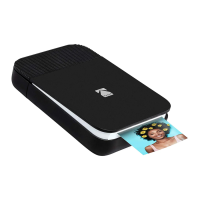
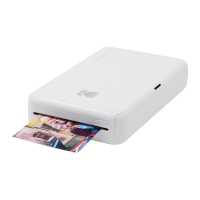
The KODAK Mini 2 is an instant photo printer designed for convenient printing of photos directly from your smartphone or other compatible devices. This portable printer allows users to bring their digital memories to life in a tangible format, offering a simple and quick way to get physical prints of their favorite images.

Function Description

The primary function of the KODAK Mini 2 is to print photos wirelessly from a smartphone or tablet. It achieves this through a dedicated mobile application, "Kodak Mini Shot," which is available for both Android and Apple devices. The printer supports various connection methods, including Bluetooth and NFC (for Android devices), ensuring broad compatibility and ease of use. Once connected, users can select photos from their device's gallery, choose the desired print quantity, and initiate the printing process. The printer utilizes a dye-sublimation printing technology, which involves four passes (Yellow, Magenta, Cyan, and Overcoating) to produce a durable and high-quality print. The overcoating layer protects the print from fingerprints and water, enhancing its longevity.

Usage Features

The KODAK Mini 2 is designed for straightforward operation, making it accessible for users of all technical skill levels.

Smartphone App Installation:

  • For Android Devices: Users need to navigate to the Google Play Store, search for "Kodak Mini Shot," and install the application on their smartphone.
  • For Apple Devices: iPhone, iPod touch, or iPad users can find and install the "Kodak Mini Shot" application from the App Store.

NFC Connect (Android only):

  • To use NFC, ensure NFC is enabled on your smartphone.
  • Turn on the printer by pressing the power button for 2-3 seconds.
  • Tap your phone on the top of the printer. This action will automatically direct you to the Google Play Store app installation page if the app is not already installed.
  • Install the app from the store to proceed.

Bluetooth Connection:

  • Activate Bluetooth on your smartphone.
  • Turn on the printer.
  • Go to your smartphone's Bluetooth settings, where you should find "KODAK Mini-XXXX" (where 'XXXX' represents a unique 4-digit combination of numbers and letters).
  • Select this entry to establish a connection. The app will indicate "Printer Found" once connected.

Printing in the App:

  • Launch the "Mini Shot" app.
  • Tap "Gallery" to load photos from your device.
  • Choose the desired photo.
  • Select the print number (quantity).
  • Tap the "Printer Icon" to initiate printing.
  • Users can also select SNS (Social Networking Service) if they wish to print a photo directly from a social media platform.

Printer Status Indicators:

The printer provides visual cues through an LED light to indicate its current status:

  • Power ON: White light.
  • Power OFF (2 seconds): Light off.
  • Printing: White flickering light.
  • F.W Upgrade: Pink flickering light.
  • No Cartridge/Error: Red flickering light.
  • Waiting/Cooling: White light.
  • Charging: Red light.
  • Charging Complete: Green light.
  • Connecting: Green blink.
  • Bluetooth Complete: Green light.

Maintenance Features

Proper maintenance ensures the longevity and optimal performance of your KODAK Mini 2 printer.

Charging:

  • The printer has a built-in battery and should be charged before its first use.
  • Handle the printer with care during charging to prevent electric shock.

Cartridge Replacement:

  • The manual indicates a procedure for "How to Change Cartridge," suggesting that cartridges are user-replaceable. While specific steps are not detailed in this section, it implies a straightforward process for replacing the print cartridge when it runs out.

Troubleshooting:

The manual provides solutions for common issues:

  • Paper Jam: If a paper jam occurs, power off the printer and then power it back on. The paper should be automatically ejected. If the issue persists, contact customer service.
  • Image Quality Not Good: If print quality is unsatisfactory, it might be due to a low-resolution photo source. The manual recommends using images with a resolution of over 1280 x 2448 pixels for the best print quality.
  • Printer Not Responding: If the printer becomes unresponsive, press the "Reset" button using a sharp tool, such as a pin.

General Care and Precautions:

  • During Printing: Do not touch the paper as it goes in and out four times during the printing process (for YMCO layers) to ensure the best image quality. Do not pull the paper out by force.
  • Paper Exit Slot: Avoid placing any objects in front of the paper exit slot.
  • App Updates: Always use the latest version of the "Kodak Mini Shot" application for optimal print quality. Regularly check for updates on the Google Play Store and Apple App Store.
  • Physical Handling: Do not disassemble or deform the printer.
  • Environmental Conditions: Avoid exposing the printer to excessively high or low temperatures or high humidity. The recommended operating temperature is between 0°C and 40°C.
  • NFC Tag: If the NFC tag is not read, verify its position on both the printer and your smartphone and try again.
  • Resolution: Higher image resolution generally leads to higher quality printed photos. The recommended image size is 1280 x 2448 pixels.

Kodak Mini 2 Specifications

General IconGeneral
ConnectivityBluetooth
Mobile AppKodak Mini Shot App
Print TechnologyDye Sublimation
Print Size2.1 x 3.4 inches
CompatibilityiOS, Android
Technology4Pass
Print Resolution300 DPI
Print SpeedApproximately 50 seconds per print
Weight238 grams
Dimensions3.0 x 5.2 x 1.0 inches

Related product manuals