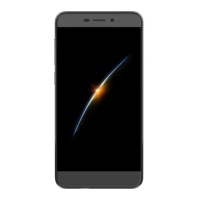
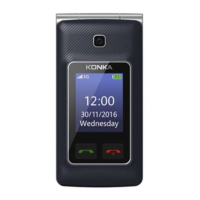
Q6. How do I turn talkback on so the phone talks to me when I press on buttons?
To turn this function on, head to the applications menu by pressing the icon directly above the home button
(looks like a number 6 on a dice). Now scroll down and single tap on settings. Scroll down further and single
tap on accessibility. Now select the talk back setting. Please read all the instructions – as this will tell you
how to disable the setting if you accidentally activate it. To activate, simply press the grey icon under
settings.
Q7. How do I save a photo that I sent as an attachment via SMS?
To save a photo. Open the message. Long press on the photo itself and small settings menu will appear. Single
tap on the option that says Save attachment. The attachment should be automatically selected, but if you had
multiple attachments, you can select more than one via this menu. Once selected, simply press OK and you
will get a pop up that says attachment saved.
Q8. Why won’t my phone unlock?
You need to ensure you are swiping up from the unlock icon and its surrounds. That icon is located in the
middle of the device, right at the bottom. You also need to ensure you swipe high enough, otherwise it will not
unlock completely.
Q9. How do I turn the torch on?
To turn the torch on, place your finger above the screen itself, and swipe down half way. This will open your
notifications bar. The 5
th
icon from the left (1
st
from right), is the torch. Single press to activate and single
press to deactivate.
Q10. How do I adjust the ringtone as well as its volume?
To adjust these settings head into the applications menu by single tapping on the applications icon (looks like
the number 6 on a dice). Now swipe down and single tap on settings. Single tap on sound. You can now use
the sliders to adjust ringtone and other volume settings.
Q11. How can I clear notifications from the notifications bar?
To clear notifications from this device, unlock the phone. Put your finger on the area slightly above the display.
Slide your finger half way down the screen to open the notifications bar. You can now swipe left on all the
notifications to remove them one by one or you can click on clear all to clear them all at once.
Q12. How do I completely clear applications from the background?
To remove applications from the background, simply press the Small Square / recents button. There are 3
icons along the bottom of the screen. One is the back button (left), one is the home button (middle) and the
other is the recents button (right). If you click that recents button, the applications will appear. To clear them
one by one, simply swipe left on each or you can clear all by clicking on clear all at the bottom.
Q13. How do I take a screenshot?
To take a screenshot, you simply need to press and hold the power button and the volume down keys at the
same time. This will automatically save the screenshot to your gallery.


 To Previous Page
 Loading...