The GoType! driver provides a number of options that allow
you to customize its operation to best suit the way you
work.
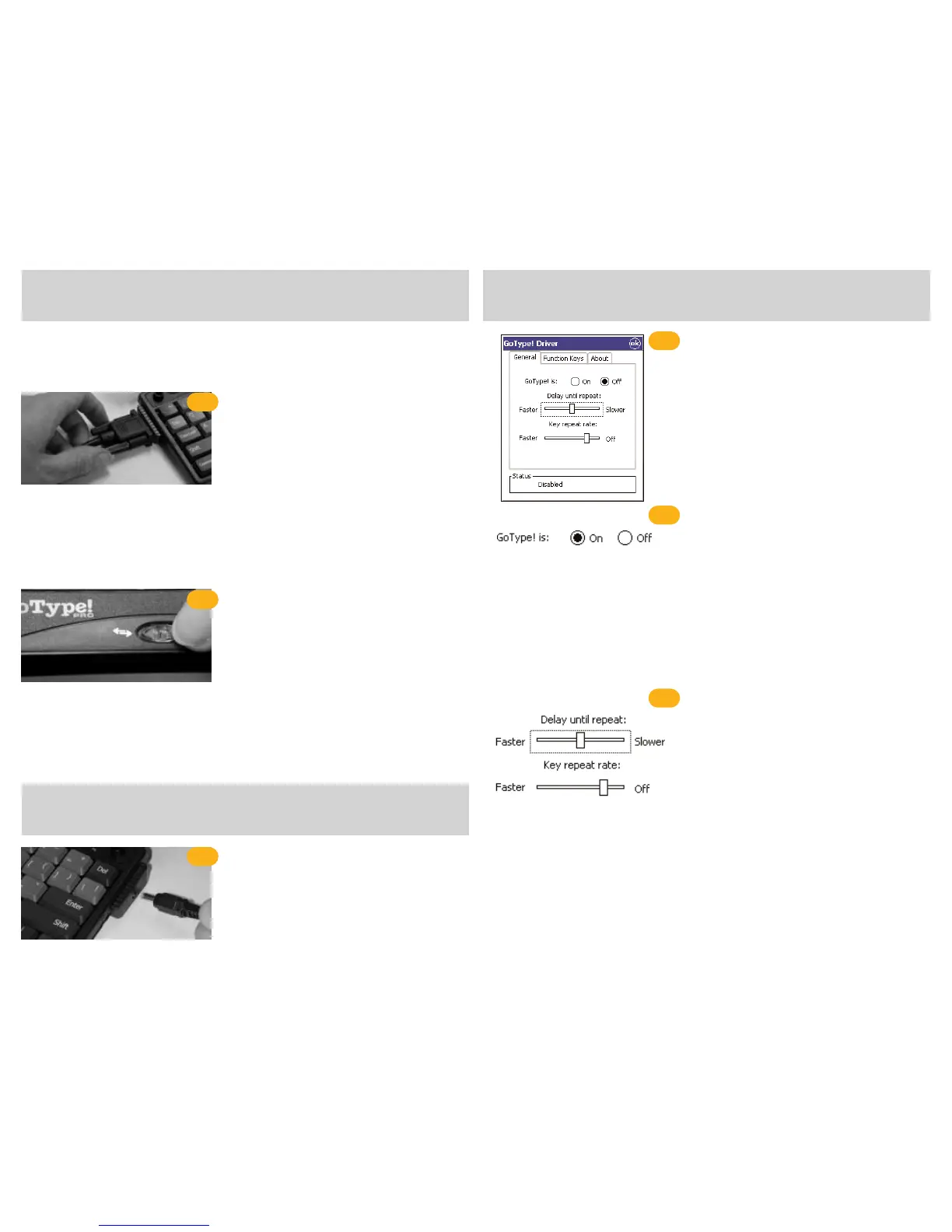
Altering operational preferences
1 Tap the Start or Windows button on your Pocket PC.
2 Tap Programs > GoType!
3 The window shown on the left will appear.
During the normal course of operations you should not have
to manually enable and disable the GoType! driver. The soft-
ware is smart enough to activate and deactivate itself auto-
matically when the organizer is placed in or removed from
the keyboard. In order for it to achieve this:
1. The organizer must be turned off before it is docked
with the keyboard.
2. The organizer must be turned off before it is
removed from the keyboard.
If for some reason you need to manually disable the driver,
simply tap the Off radio button within the GoType! soft-
ware.
Setting delay and key repeat rates
Tap and drag the Delay until repeat to change how long you
need to hold a key down until it starts to repeat. Moving the
slider to the Off position will disable this feature completely.
Tap and drag the Key repeat rate slider to change how fast a
key repeats when you hold it down.
The GoType! keyboard comes equipped with an integrated
serial port or USB port (depending on your model) that can
be used to connect the keyboard to a desktop computer. On
handhelds that supports ActiveSync, this port enables you to
perform an ActiveSync directly from the keyboard.
Plug one end of the GoType! serial or USB cable into the
port on the left side of the keyboard. Remove your existing
cradle. Plug the other end into the same port on your PC.
NOTE: On a Cassiopeia E-125, you will need to
change the default PC Connection setting from USB
to SERIAL in order to connect with the GoType!
keyboard.
To change this setting on your E-125:
Tap Start, tap Settings, tap Connections, tap PC,
select 57600 Default from the pop-up, and tap OK.
To perform an ActiveSync through the keyboard
1 TURN THE ORGANIZER OFF
2 Move the port switch to the
left (arrows)
3 Turn the organizer ON, ActiveSync should now
begin.
To use the keyboard after an ActiveSync
1 TURN THE ORGANIZER OFF
2 Move the port switch to the keyboard
abc
mode
3 Turn the organizer ON
4 You should now be able to use the keyboard.
GoType! Pro can provide recharging power for your
Pocket PC unit while they are sitting in the keyboard.
NOTE: The GoType! power port supports the orginal
adapter that came with your Pocket PC ONLY. Under no
circumstances should any other adapter be used.
connect the serial/USB cable
1
altering operational settings
•
altering keyboard behavior
•
set port switch to ActiveSync mode
2
plug in the AC adapter
1
performing an activesync
using gotype!
A guide to additional features
recharging the organizer
enabling and disabling gotype!
•



 To Next Page
 Loading...