1~ 4/10
I/M Readiness
Misfire Monitor
Fuel system
component monitor
Catalyst monitor
N/A
OK
INC
N/A
DTC
C138F 1/13
GM Pending
The fault code is not found in the database
?
Monitor Status
MIL Status
DTCs in this ECU
Readiness Completed
Readiness Not Completed
Readiness Not Supported
Datastream Supported
Ignition
Protocol Type
OFF
108
5
2
3
119
Spark
CAN
?
Product Serial Number
Device Upgrade
Select Language English
B
3. Register & Update
2. Basic Operations
The tool can be updated via USB cable.
Note: Make sure the PC has an Internet connection.
1. Go to and download the update tool to the
computer.
2. Decompress and install it on your computer(compatible with
Windows XP, Windows 7, Windows 8 & Windows 10).
3. After installation, connect one end of the USB cable to the
USB port of PC, and the other end to the tool.
4. If a newer version is found, a
screen similar to Fig. A will
appear.
5. Launch the update tool on
your PC, Fig. B will appear.
6. Choose the desired interface
language and then click [Device
Update] to enter update center.
7. Choose the software version and then click [Update] to start
updating.
8. Once update is complete, a “Upgrade success” message
box will pop up.
9. The update process is complete, your tool is now ready for
use.
www.dbscar.com
Boot Version:
V1.00.000
Serial Number:
972890000029
Register Code:
36FFDB054753
1. USB Connected for Upgrade.
2. Press [EXIT] key to Enter
Normal Mode.
A
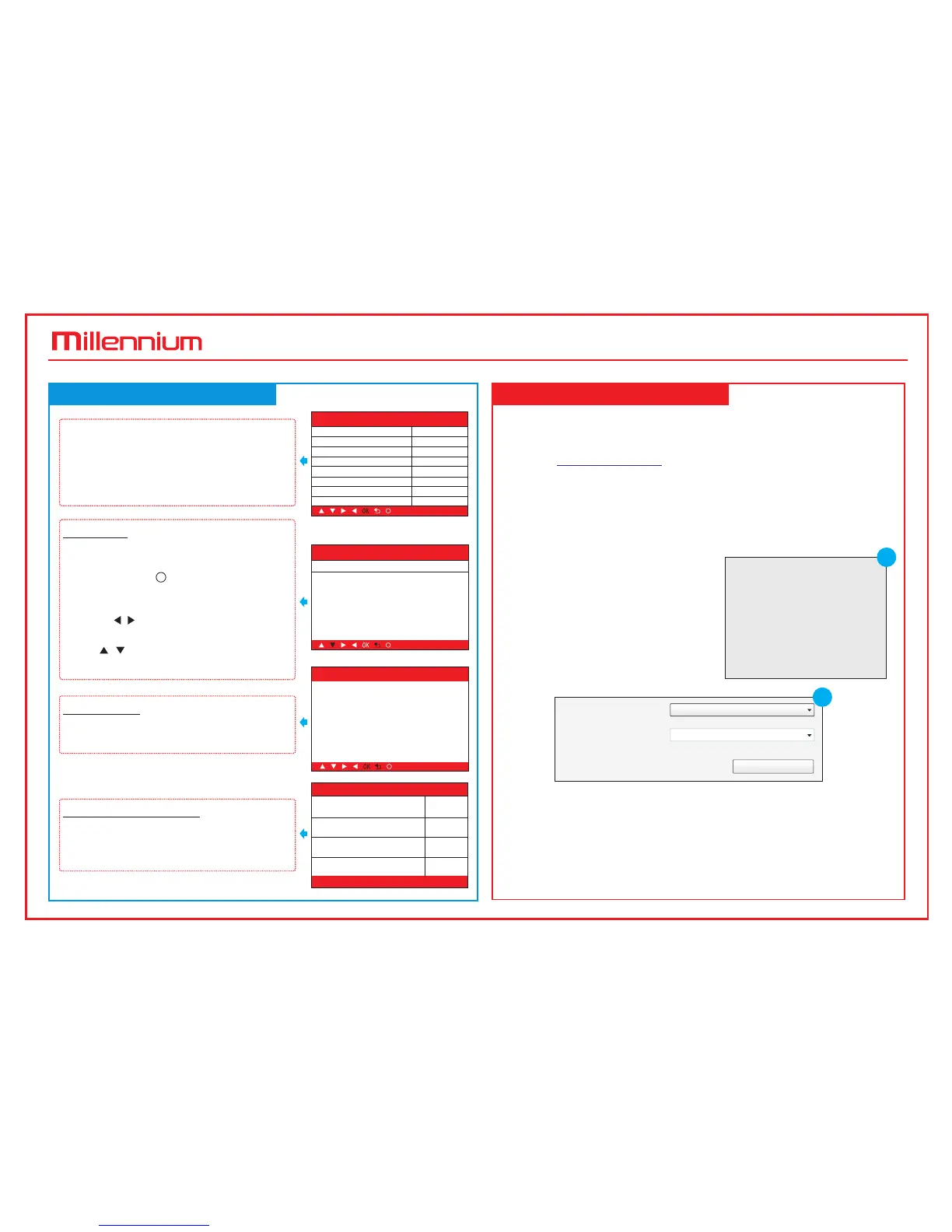
The icons in black at the bottom of
the screen indicate the available
actions, which can be done by
pressing the corresponding buttons
on the tool.
Press the F3/I/M button to check the
I/M(Inspection & Maintenance)
readiness.
Press the F1/DTC button to retrieve
the DTC.
Press the F4/ button to get more
details about the DTC.
If more than one DTC was retrieved,
press / to view different DTCs.
In the case of long code definitions,
use / to view the additional
information.
?
Read DTC
Erase DTCs
Check I/M Readiness
Once DTCs have been retrieved,
press the F2/ER button to erase.
Erase Codes
Clear/Reset Emission-Related Diagnostic
Information. Are you sure?
?
Quick Start Guide
40 50/60/


 To Previous Page