Quick Start Guide
Quick Start Guide
X-431 Torque
X-431 Torque
LAUNCH
LAUNCH
5. Vehicle Connection
B Via Battery Clamps Cable
VCI Connector
OBD I Adaptor
Battery Clamps CableTo Vehicle's Battery
1. OBD II Vehicle Connection
A Directly plug the VCI into vehicle’s DLC
B Using OBD II extension cable
2. Non-OBD II Vehicle Connection
A Via Cigarette Lighter Cable
VCI Connector
OBD I Adaptor
To Vehicle’s DLC
Non-16pin Connector
Cigarette Lighter CableTo Cigarette Lighter Receptacle
VCI Connector
OBD II Extension Cable To Vehicle’s DLC
If the power supply on vehicle diagnostic socket is insufficient or the power pin is damaged,
you can get power in the following ways:
To Vehicle’s DLC
Non-16pin Connector
The method used to connect the diagnostic connector to a vehicle's DLC depends on the
vehicle's configuration as follows:
A vehicle equipped with an OBD II management system supplies both communication and
12V power through a standardized DLC.
A vehicle not equipped with an OBD II management system supplies communication
through a DLC connection, and in some cases supplies 12V power through the cigarette
lighter receptacle or a connection to the vehicle battery.
Not es:
1.
you are suggested to check for
updates on a frequent basis and keep
synchronized with the latest available
software.
2. If you choose “AutoDetect” to
diagnose a vehicle, this flowchart
shall not apply.
To enjoy more service and functions,
Preparation
Before diagnosing, please make
sure the following:
s Switch the ignition on.
s Vehicle battery voltage range
should be 9-14Volts.
s Throttle should be in a closed
position.
6. Start Diagnostics
For more detailed operations, please refer to the User Manual.
X-431 Torque support two kinds of diagnosis approaches: Smart Diagnosis and Manual
Diagnosis.
Smart Diagnosis(AutoDetect):
Through simple Bluetooth communication between the X-431 Torque handset and VCI
connector, you can easily get the VIN (Vehicle Identification Number) information of the
currently identified vehicle. Once the VIN is successfully identified, the system will retrieve
it from the remote server and then guide you to vehicle information page without the
necessity of step-by-step manual menu selection.
Manual Diagnosis:
In this mode, you have to diagnose a vehicle by performing the menu-driven command
manually.
For new users, please follow the operation chart shown on the left to get familiar with and
start using this tool.
1. Charging & Turning On
2. Changing Language
4. Register & Update
3. Wi-Fi Setup
4. Register & Update(Cont.)
1. Plug one end of the included power adaptor into the USB port of the handset, and then
other end into the AC outlet.
2. Once the battery is fully charged, disconnect the power adaptor from the AC outlet.
handset3. Press the [POWER] button on the , the system starts initializing and then enters
the home screen.
X-431 Torque supports multiple languages. To change the language of the tool, please do the
following:
1. On the home screen, tap on Settings -> Language & Input -> Languages.
2. Tap on “Add a language”, and then choose the desired language from the list.
3. Tap and hold the desired language and drag it to the top of the screen and then release it,
the system will change into the target language.
X-431 Torque
X-431 Torque
X-431 Torque
has a built-in Wi-Fi module that can be used to get online. Once you're online,
you can register your tool, update the diagnostic software & APK, surf the Internet, get apps
and send email on your network.
->1. On the home screen, select Settings Wi- Fi.
2. Select the Wi-Fi switch to ON, will start searching for available wireless
networks.
3. Select a wireless network:
If the chosen network is open will connect automatically.
If the selected network is encrypted a network password will need to be entered.
Register/Logi n
Has this un it b een registe red?
New Custo me r Existin g Cu stomer
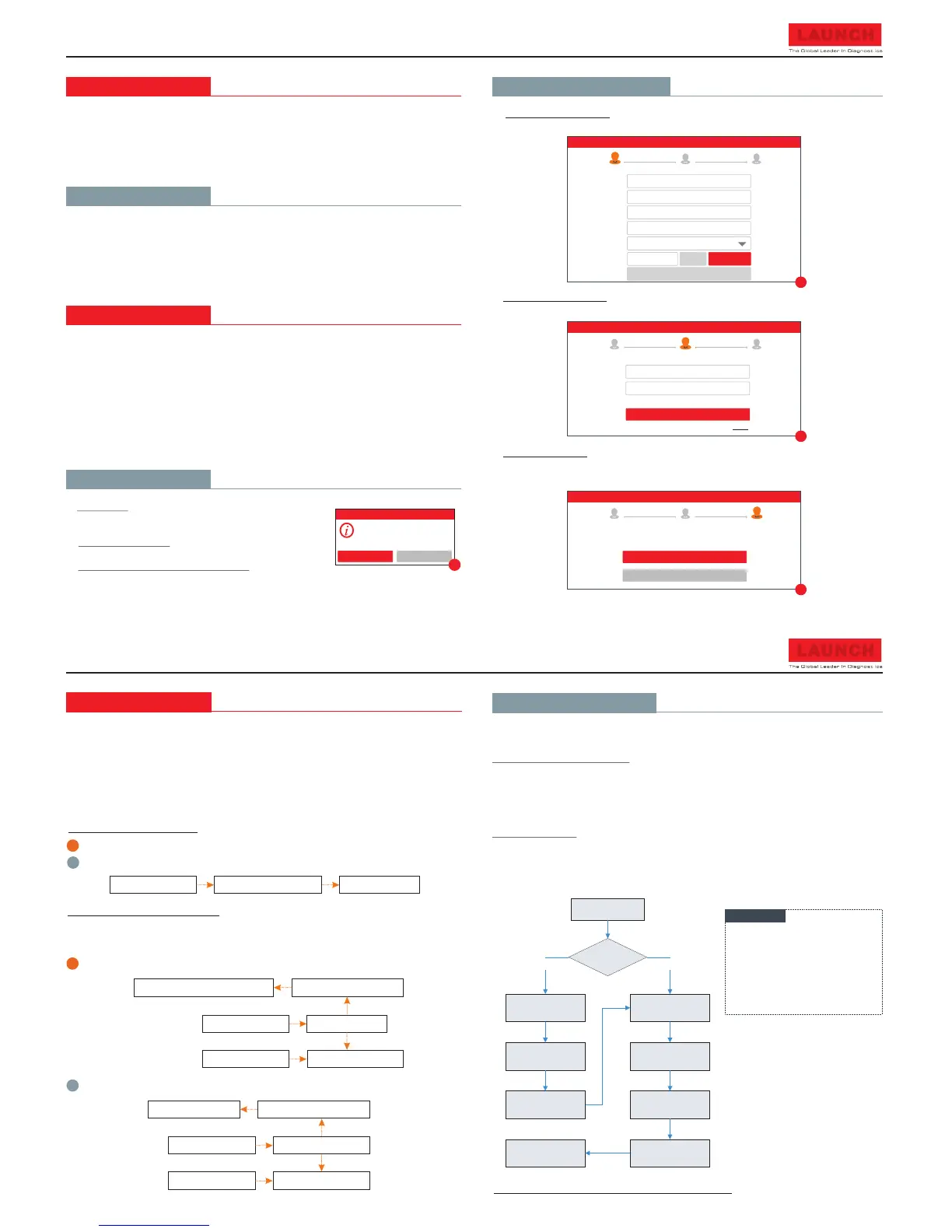
1. Launch App: On the home screen, tap the application icon
to launch it, a dialog box similar to the following will pop up
on the screen.
A. If you are a new user, tap on “New Customer” in Fig. A to
start your sign-up. Refer to Steps 2-4.
B. If you have registered to be a member, tap on “Existing
Customer” and then tap on “Login” to login the system
directly.
2. Create an App Account: Tap on “New Registration” in Figure A, input the information
(items with * must be filled) and then tap on “Register”. Refer to Figure B.
3. Activate VCI Connector: Input the Product S/N and Activation Code (can be obtained
from the password envelope), and then tap on “Activate”. Refer to Figure C.
4. Finish Registration: To download the diagnostic software, tap on “Yes” to navigate to the
download page. Tap on “No” to download and install it later.
On the download page, tap on “Update” to start downloading until it is complete.
Select Countr y
*
Email
*
Confirm Passw ord
*
Password
*
Username
*
CAPTCHA CAPTC HA
Register
2 3
1
Create a n Acc ount
Activa te V CI
Finish R eg istration
Register
B
Create a n Acc ount
Activa te V CI
Finish R eg istration
Register
1 3
2
Serial Number
Activation Code
Where is my activation code?
>> Skip
Activate
C
A
Register
1
2
3
Yes
No
Congratulat ions! You h ave registered succe ssfully. Do you downlo ad vehicl e
soft ware now?
Create a n Acc ount
Activa te V CI
Finish R eg istration
D


 To Previous Page
 Loading...