repercussion of illegal use of the Bluetooth feature.
Connecting the One to a mobile device
Install BTNotification on the mobile device and connect the One to the device via Bluetooth.
• You can connect only one mobile device to one One. You cannot use multiple Ones at the
same time.
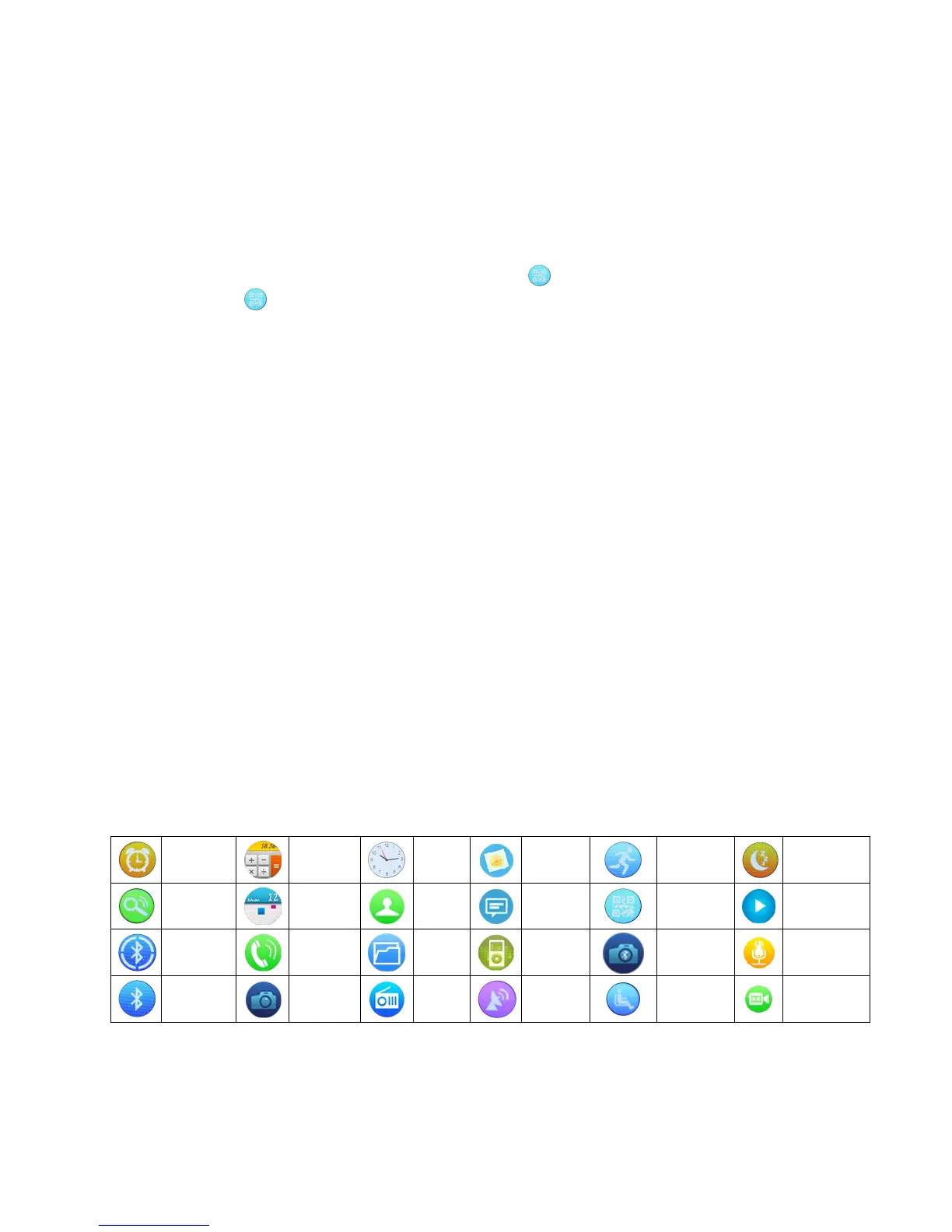
1 On One’s Home screen, tap “Menu” and flick to the “ (QR Code)” panel.
2 Tap “ (QR Code)” icon and scan the QR code using any QR Code scanner. (If any
problems occur, see step 3)
3 On your mobile device, you can also download it via visit:
http://files.lefunsmart.com/apps/BTNotification_K6.apk
4 On mobile device, tap BTNotification. Click the up right-hand corner and tap “Bluetooth
Settings”. Activate Bluetooth in your phone and search for One. Select LeFun One. When the
Bluetooth pairing request window appears both on mobile phone and One, tap “Pair” on your
phone screen and tap “Yes” on the One screen.
5 On mobile device, follow the on-screen instructions.
• You can adjust the One’s configuration in BTNotification.
• Connection methods may vary depending on the type of device and the device’s software
version.
Locking and unlocking the One
When not in use, lock the One to prevent unwanted operation. Pressing the Power button on the
Home screen turns off the screen and puts the One into lock mode. The One automatically gets
locked if it is not used for a specified period. To unlock the One, press the Power button and flick
down to go to the Home panel.
Icons


 To Next Page