10
Network configuration
1. Standard network configuration
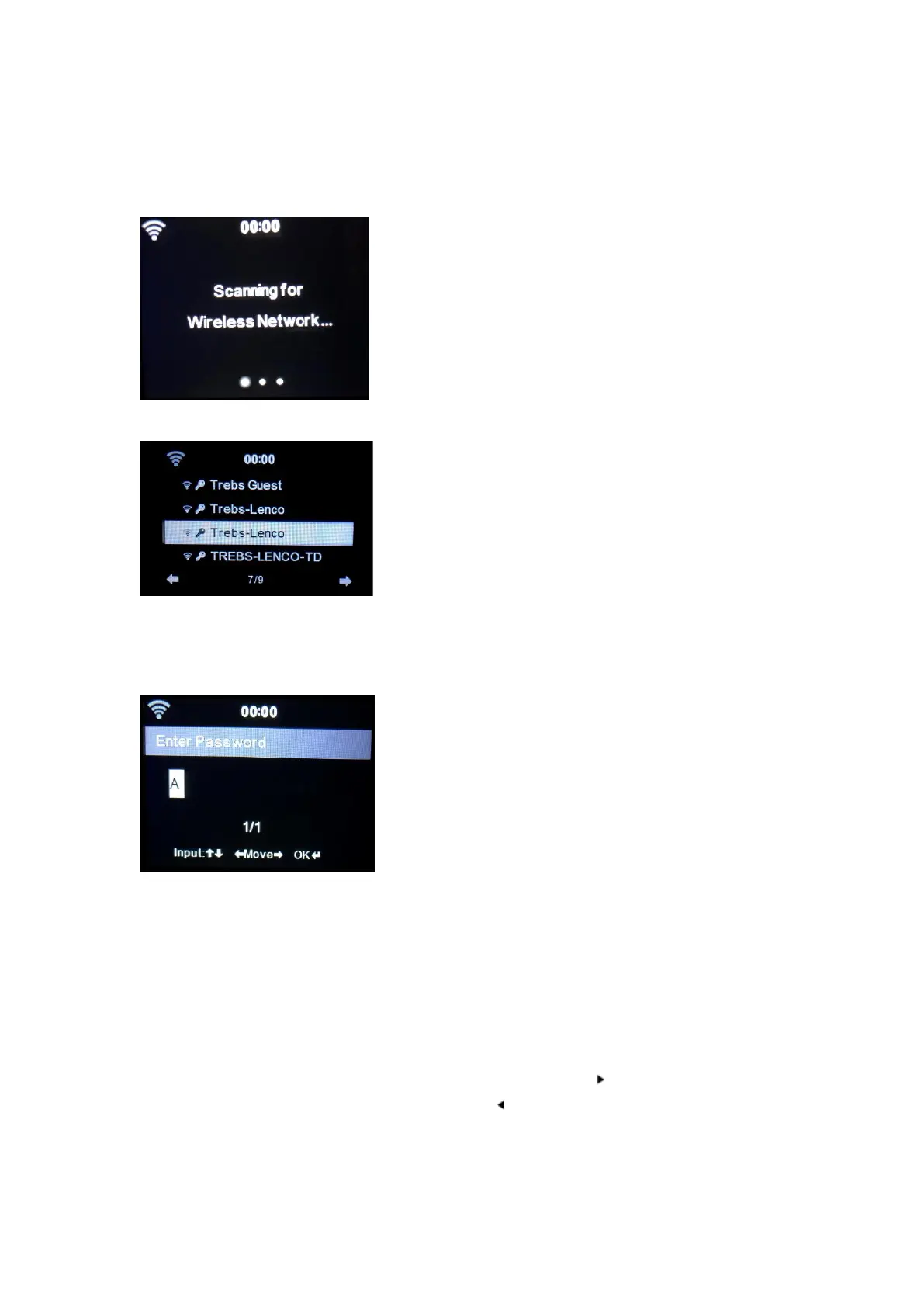
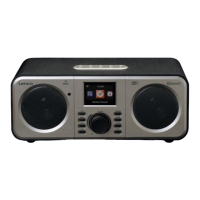
After selecting this option the DIR-141 will scan for available 2.4Ghz WIFI networks.
The display will show available WIFI network
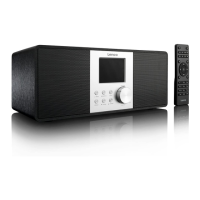
Select your WIFI network by rotating the Navigation/OK (6) wheel and confirm by pressing the
Navigation/OK (6) wheel.
If your selected WIFI network requires a password, you can enter it in the next screen.
Enter password by pressing the numeric keys(20) on the remote control, followed by the
Navigation right(15) button (NOTE: you have to press the navigation right(15) after every
character).
To make a correction, press the Navigation Left(14) to go backwards and delete the last
character at the same time.When the password is completed,press the OK(17) button to confirm.
If you want to enter the password directly on the DIR-141 front panel, you can rotate the
Navigation(6) wheel to select the first character and then press the button(9) to move forward
to the next character. To make a correction, press the button(4) to go back and delete the last
character at the same time.
When the password is completed, press the Navigation (6) button to confirm.


 To Next Page