Storing a radio station in a preset via the panel control:
To store the current radio station to one of the 12 available presets:
(1) Press the “preset” button.
(2) Select which preset number to store the station to by turning the dial to highlight the desired
location, then holding the "select" button for a few seconds.
For example, to store to preset 1:
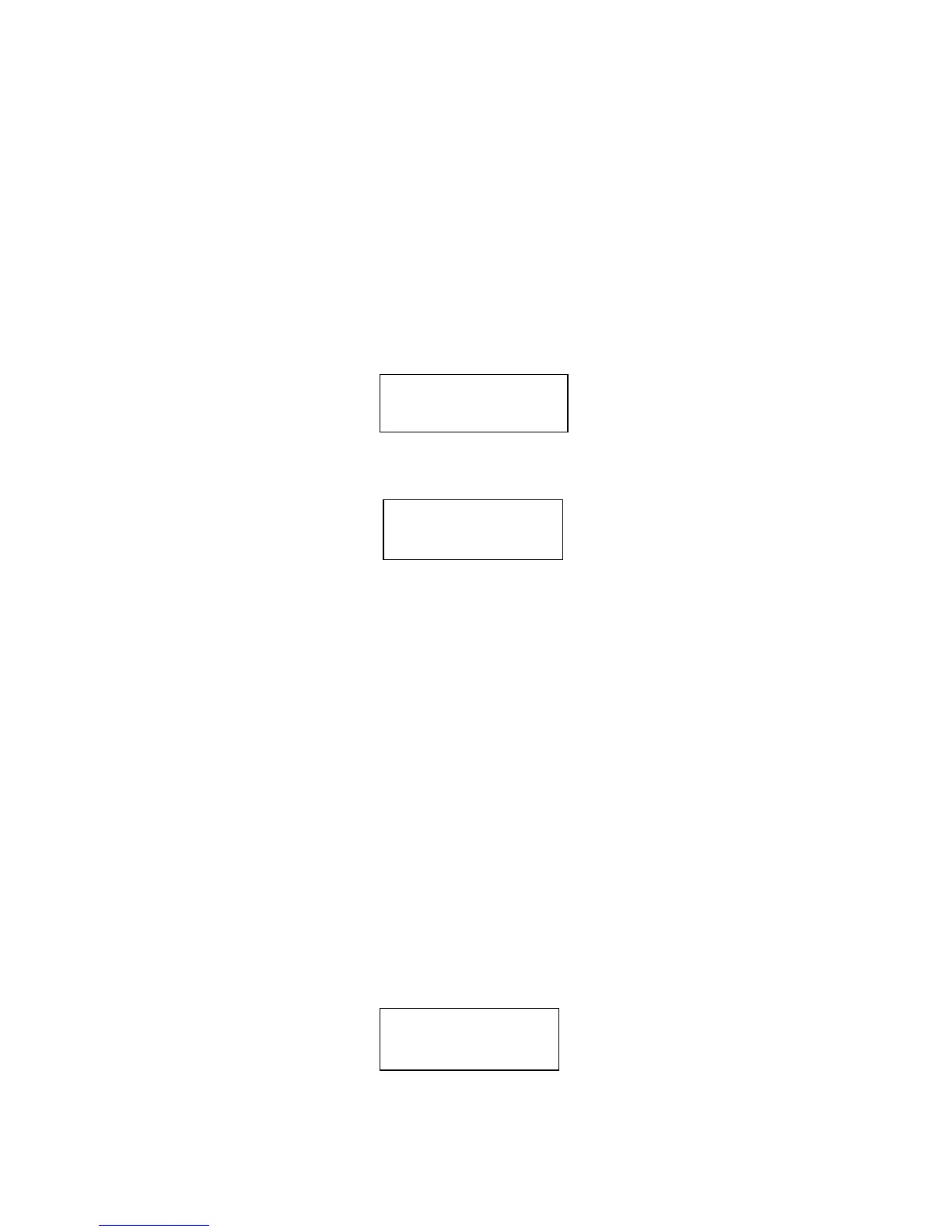
(1) press the” preset” button. The following will show on the LCD display:
(2) Turn the dial until Preset 1 is showing.
(3) Hold the “Select” button for about 3 seconds, until the screen displays:
To select a preset station while the radio is playing, press the “preset” button, turn the dial until
the desired preset number is displayed, and then press “select."
For example: to play Radio A from Preset 1, press “preset” button, turn the dial until the unit
displays”<1:A>”, then press the “select” button.
Note: some presets are stored with default content and you can overwrite them with your
favourite station.
Storing a radio station in a preset via the front remote control:
To store a preset, while listening to the desired station press the STORE button and
then the number of the preset you would like to save it to. Allow 2 seconds for the
selection to register. The LCD will then show <Assigned to preset #>.
To tune to a preset station, press the RECALL button and the preset number for the desired
station. Once you have saved a station to one of the presets, you can tune to it by pressing
RECALL button and then the number where the station is stored.
Setting the CLOCK
Note: If you make a mistake at any point, press BACK button to go back to the previous screen
1. Press the BACK button.
2. Rotate the dial until the display says<Configure>.
- 5 -
Configure
Assigned to preset 1
<preset 1>
<preset 2 >



 To Next Page