3. To Save and Stop Recording File
Press and hold M button, the recorded file will save into memory.
12. Use Record Submenu (in Stop Mode)
You might need to change the folder locations which want to store the record file and / or
change record quality to better compression values.
In Now Recording screen at stop mode, press M button, a “Record Sub-menu appear to use.
a. Local folder
In record submenu, choose “Local folder” and then choose the folder name which you want to
save the record file by using / ( / ) and M buttons.
Once folder name selected, press and hold the M button, then the folder location is changed
and go back to Now Recording screen.
And now you can see the folder name is changed at the Record Folder icon in “Now
Recording” screen.
b. Record Type
In record submenu, choose “Record type”, then choose “32K BPS / 64K BPS / 128K BPS /
256K BPS” values as you desired by using / ( / ) and M buttons.
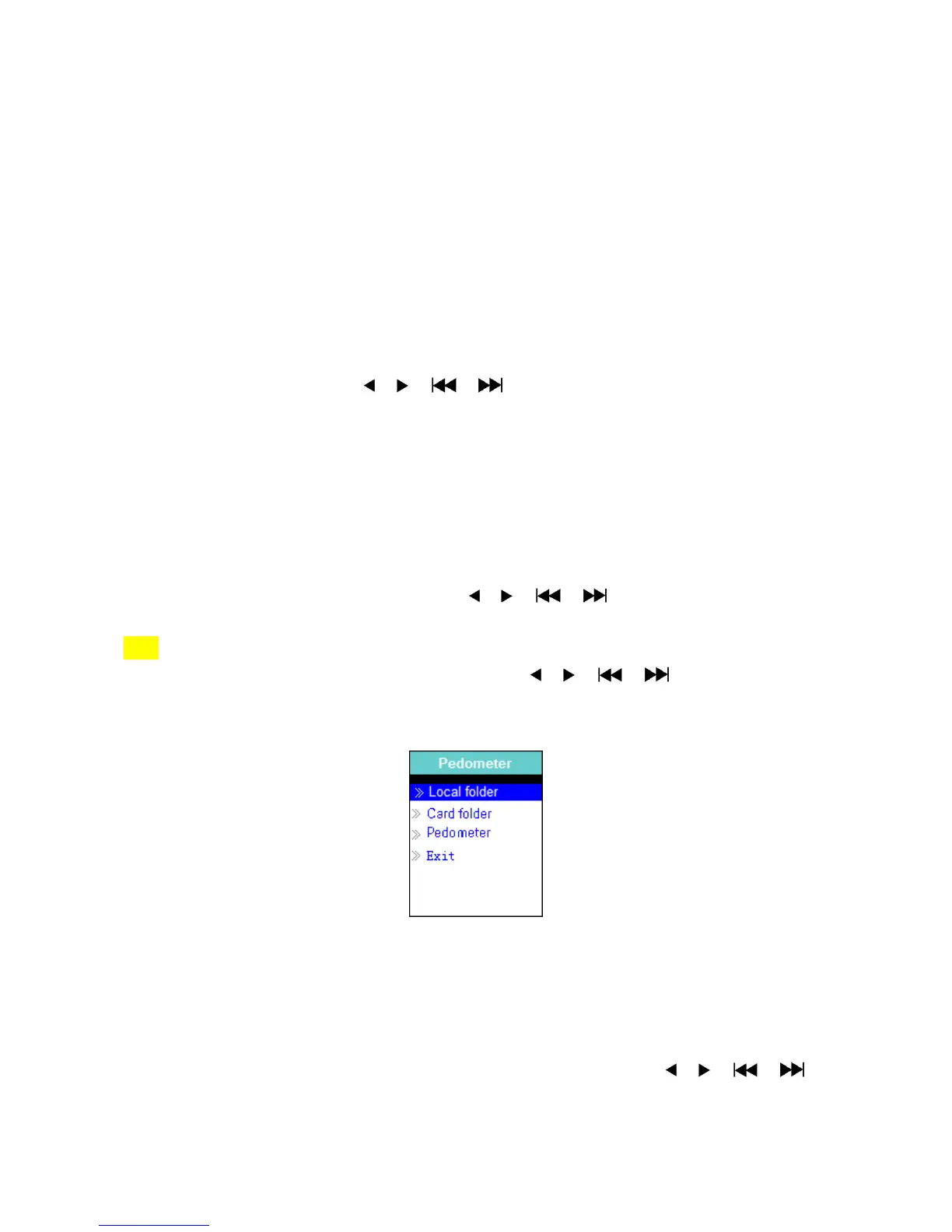
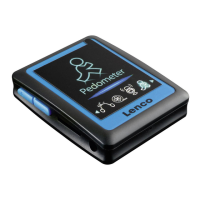
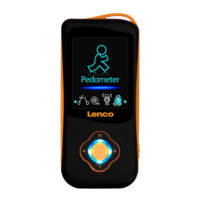
13. Use Pedometer
From main menu choose “Pedometer” by using / ( / ) and M buttons. A
pedometer menu appears to use.
Pedometer Menu
a. Setup your pedometer before start
Before you start to use the pedometer function, you need to input your personal information
and calibrates the player’s pedometer sensor to personalize it.
From pedometer menu, choose “Pedometer” > “Setting” by using / ( / )
and M buttons. A sub list menu appears to use.
Choose “Women / Man”, then choose stride “Walking / Jogging / Running”, a level bar with


 To Next Page