Method 2: Manual settings
Swipeuponhomescreen,thentap
tosetthebrightnesslevelyouprefer.
Method 3: Automatic settings
1. Swipeuponhomescreen,thentap
.
2. TapDisplay settingstosetthefollowingoptions:
• Duringlowlight:Choosethemodethatthehomescreenwillautomaticallyswitchto
inthelow-lightenvironment.
ShowMonoclockface
Showcurrentclockface
Turnothescreen
• Minimumbrightness:Choosethemodethatthehomescreenwillautomaticallyswitch
tointheminimumbrightnessenvironment.
Brighter
Dim
Darker
3. TapDone.
Using the Google Home app
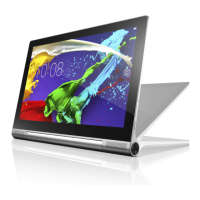
UsetheGoogleHomeapptomanageyourdevice.Throughtheapp,youcanmodify
yourGoogleAssistantsettingsincludingyourpersonalinformation,yourmediaservice
preferences,andyourconnectedsmarthomedevices.
1
Tap
toaddfeaturestohome,manageservices,orviewoers.
Tap
tomanageyourGoogleAccount.


 To Next Page