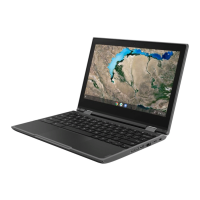
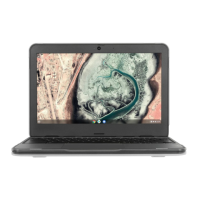
Lenovo 300e Chromebook
Powering on Your Device
• The power button is located on the right side.
• The light inside the button will glow white, orange or red
depending on the battery’s charge.
o White: Fully charged
o Orange: Charging
o Red: No battery life, charge until orange.
• This light will also indicate if the computer is receiving
power.
Volume & Headphones
• The volume + & - buttons are located under the power
button on the right side of the device.
• Directly below the power buttons there is a 3.5 mm jack
that will fit any standard headphone plug.
- If your headphones are equipped with a microphone
you will only need to plug the headphones in and both
headphones and microphone will work.

 Need help?





 To Next Page
 General