
 Need help?
Do you have a question about the Lenovo ideapad 330 and is the answer not in the manual?
Overview of the computer's top components, including the display and keyboard.
Details of the ports and connectors located on the left side of the computer.
Details of the ports and connectors located on the right side of the computer.
Overview of the computer's bottom components and features.
Instructions on using the power button to shut down, restart, or sleep the computer.
How to access and use the Action Center for notifications and quick settings.
Guide on using Task View to add and switch between multiple desktops in Windows 10.
Explanation of the push-button reset feature for system recovery.
Common issues and their solutions for user assistance.
Detailed steps to diagnose and resolve various computer problems.
The Lenovo ideapad 330, available in 15-inch (330-15ICH, 330H-15ICH, 330L-15ICH, 330E-15ICH, 330R-15ICH) and 17-inch (330-17ICH, 330H-17ICH, 330L-17ICH, 330E-17ICH, 330R-17ICH) models, is a user-friendly notebook computer designed for everyday computing tasks. This guide provides essential information for getting acquainted with the device, navigating its operating system, and performing basic maintenance.
The ideapad 330 serves as a personal computing device, enabling users to perform a wide range of activities from productivity tasks to entertainment. It runs on the Windows 10 operating system, offering a familiar and intuitive interface for most users. The core functionality revolves around its ability to execute software applications, browse the internet, manage files, and connect to various peripherals.
The device features a display panel for visual output, a keyboard for text input and system commands, and a touchpad for cursor control. Integrated components such as a camera and microphone facilitate video conferencing and audio recording. Wireless connectivity options allow for internet access and communication with other devices without physical cables. The internal recovery system ensures that users can restore the operating system to a previous state in case of software issues, providing a safety net for data and system integrity.
Upon initial setup, the ideapad 330 guides users through the configuration of the Windows 10 operating system. This process typically involves setting up user accounts, connecting to networks, and personalizing settings.
The primary interface for interacting with the ideapad 330 is the Windows 10 Start menu. This menu, accessible via the power button, provides quick access to installed applications, frequently used programs, and system power options (shut down, restart, sleep). Users can explore all installed applications through the "All apps" section within the Start menu.
The power button on the Start menu allows users to manage the computer's power state.
The Action Center, accessed by clicking its icon on the taskbar, is a centralized hub for notifications and quick settings. It displays important alerts from Windows and installed applications, keeping users informed about system events, security updates, and app activities. Additionally, the Action Center provides quick access to common settings such as Wi-Fi, Bluetooth, airplane mode, and display brightness, allowing for rapid adjustments without navigating through multiple menus.
Windows 10 introduces the Task View feature, which enhances multitasking capabilities. By clicking the Task View icon in the taskbar, users can manage multiple virtual desktops. This allows for organizing different sets of applications and windows, improving workflow and reducing clutter on a single screen. Users can easily add new desktops and switch between them, effectively creating separate workspaces for different tasks or projects.
The ideapad 330 supports wireless network connections, enabling internet access and communication with other devices. The process of connecting to a wireless network typically involves selecting the desired network from the available options and entering a password if required.
Windows 10 includes built-in help resources to assist users with common questions and issues. These resources can be accessed directly from the operating system, providing guidance on various features and troubleshooting steps.
The ideapad 330 is equipped with a recovery system, which is crucial for maintaining system stability.
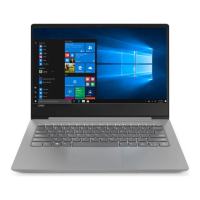
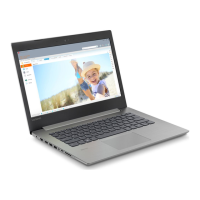
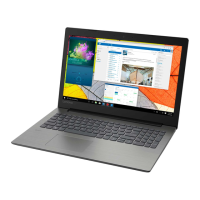
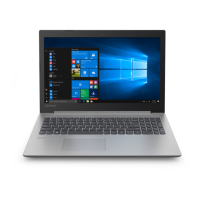
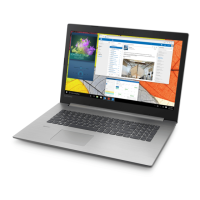
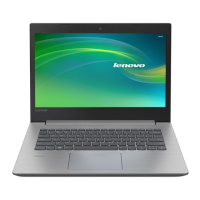
The top view of the ideapad 330 reveals several key components:
It is crucial to handle the display panel with care to prevent damage. The manual specifically advises against opening the display panel beyond 170 degrees. Exceeding this limit can strain the hinges or internal components, potentially leading to malfunction. Furthermore, users should be careful not to leave objects such as pens or other items between the display panel and the keyboard when closing the laptop. Doing so can exert undue pressure on the screen, resulting in cracks, scratches, or other forms of damage to the display. Regular cleaning of the screen with a soft, lint-free cloth is recommended to remove dust and smudges, ensuring optimal viewing clarity.
Regularly updating the Windows 10 operating system and installed applications is a key maintenance practice. Updates often include security patches, bug fixes, and performance enhancements that contribute to the overall stability and security of the device. Users should also periodically run antivirus and anti-malware scans to protect against malicious software.
The push-button reset feature serves as a critical maintenance tool for addressing severe software issues. If the operating system becomes unstable, slow, or infected with persistent malware, performing a reset can often resolve these problems by restoring the system to a clean state. Users have the option to retain their personal files during this process, making it a less disruptive solution than a complete reinstallation.
The user guide includes a dedicated troubleshooting section and frequently asked questions (FAQs) to help users diagnose and resolve common problems. This resource provides guidance on issues such as connectivity problems, performance slowdowns, and display anomalies, empowering users to address minor issues independently before seeking professional support.
By understanding these features and following the recommended maintenance practices, users can ensure a smooth and efficient experience with their Lenovo ideapad 330.
 General
| Form factor | Clamshell |
|---|---|
| Product type | Laptop |
| Product color | Gray |
| Bus type | DMI2 |
| Stepping | C0 |
| Tjunction | 100 °C |
| Processor cache | 3 MB |
| Processor cores | 2 |
| Processor model | i3-4010U |
| System bus rate | 5 GT/s |
| Processor family | Intel® Core™ i3 |
| Processor series | Intel® Core™ i3-4000 Mobile Series |
| Processor socket | BGA 1168 |
| Processor threads | 4 |
| Processor codename | Haswell |
| Processor frequency | 1.7 GHz |
| Processor cache type | Smart Cache |
| Processor lithography | 22 nm |
| Processor manufacturer | Intel |
| Processor front side bus | - MHz |
| PCI Express slots version | 2.0 |
| Processor operating modes | 64-bit |
| ECC supported by processor | No |
| PCI Express configurations | 2x4, 4x1 |
| Thermal Design Power (TDP) | 15 W |
| Maximum number of PCI Express lanes | 12 |
| Motherboard chipset | - |
| Internal memory | 4 GB |
| Memory form factor | SO-DIMM |
| Internal memory type | DDR3-SDRAM |
| Maximum internal memory | 16 GB |
| Storage media | Hybrid-HDD |
| Hybrid-HDD cache type | SSD |
| Card reader integrated | Yes |
| Total storage capacity | 500 GB |
| Compatible memory cards | MMC, SD |
| Hybrid-HDD cache memory | 8 GB |
| Number of HDDs installed | 1 |
| Display diagonal | 13.3 \ |
| Touch technology | Multi-touch |
| Display resolution | - pixels |
| On-board graphics card ID | 0xA16 |
| Discrete graphics card model | Not available |
| On-board graphics card model | Intel® HD Graphics 4400 |
| On-board graphics card family | Intel® HD Graphics |
| Maximum on-board graphics card memory | 2 GB |
| On-board graphics card OpenGL version | 4.3 |
| On-board graphics card base frequency | 200 MHz |
| On-board graphics card DirectX version | 11.2/12 |
| On-board graphics card dynamic frequency (max) | 1000 MHz |
| Wi-Fi standards | 802.11b, 802.11g, Wi-Fi 4 (802.11n) |
| Bluetooth version | 4.0 |
| Charging port type | DC-in jack |
| DisplayPorts quantity | 0 |
| USB 2.0 ports quantity | USB 2.0 ports have a data transmission speed of 480 Mbps, and are backwards compatible with USB 1.1 ports. You can connect all kinds of peripheral devices to them. |
| Operating system installed | Windows 8 |
| Processor code | SSSR16Q |
| Processor ARK ID | 75107 |
| Intel TSX-NI version | 0.00 |
| Processor package size | 40 x 24 x 1.5 mm |
| Intel ME Firmware Version | 9.5 |
| Supported instruction sets | AVX 2.0, SSE4.1, SSE4.2 |
| Intel Smart Connect Technology version | 1.00 |
| Battery life (max) | 10 h |
| AC adapter input voltage | 100 - 240 V |
 Weight and Dimensions
| Depth | 224 mm |
|---|---|
| Width | 322 mm |
| Weight | 1530 g |
| Height (rear) | 18 mm |
| Height (front) | 4.5 mm |




 To Next Page
