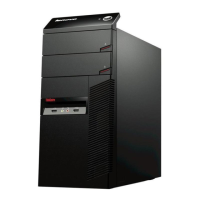
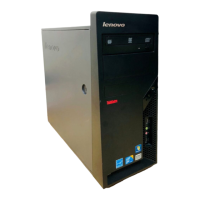
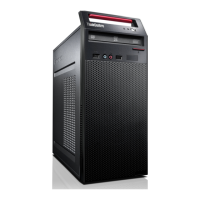
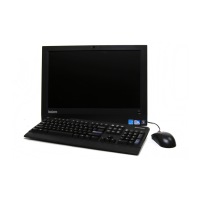
2. Position the computer cover on the chassis so that the rail guides on the bottom
of the computer cover engage the rails. Then push the computer cover closed
until it snaps into position.
3. If the computer cover is secured with thumbscrews, install them.
4. If a cover lock is installed, lock the cover.
5. Reconnect the external cables and power cords to the computer. See “Locating
connectors on the rear of your computer” on page 9.
6. To update your configuration, see Chapter 4, “Using the Setup Utility,” on page
59.
Note: In most areas of the world, Lenovo requires the return of the defective CRU.
Information about this will come with the CRU or will come a few days
after the CRU arrives.
Obtaining device drivers
You can obtain device drivers for operating systems that are not preinstalled at:
http://www.lenovo.com/support
Installation instructions are provided in readme files with the device driver files.
Installing security features
To help prevent hardware theft and unauthorized access to your computer, several
security options are available. In addition to physical locks, unauthorized use of
your computer can be prevented by a software lock that locks the keyboard until a
correct password is typed in.
Figure 37. Reinstalling the computer cover
46 User Guide



 To Next Page
 Loading...