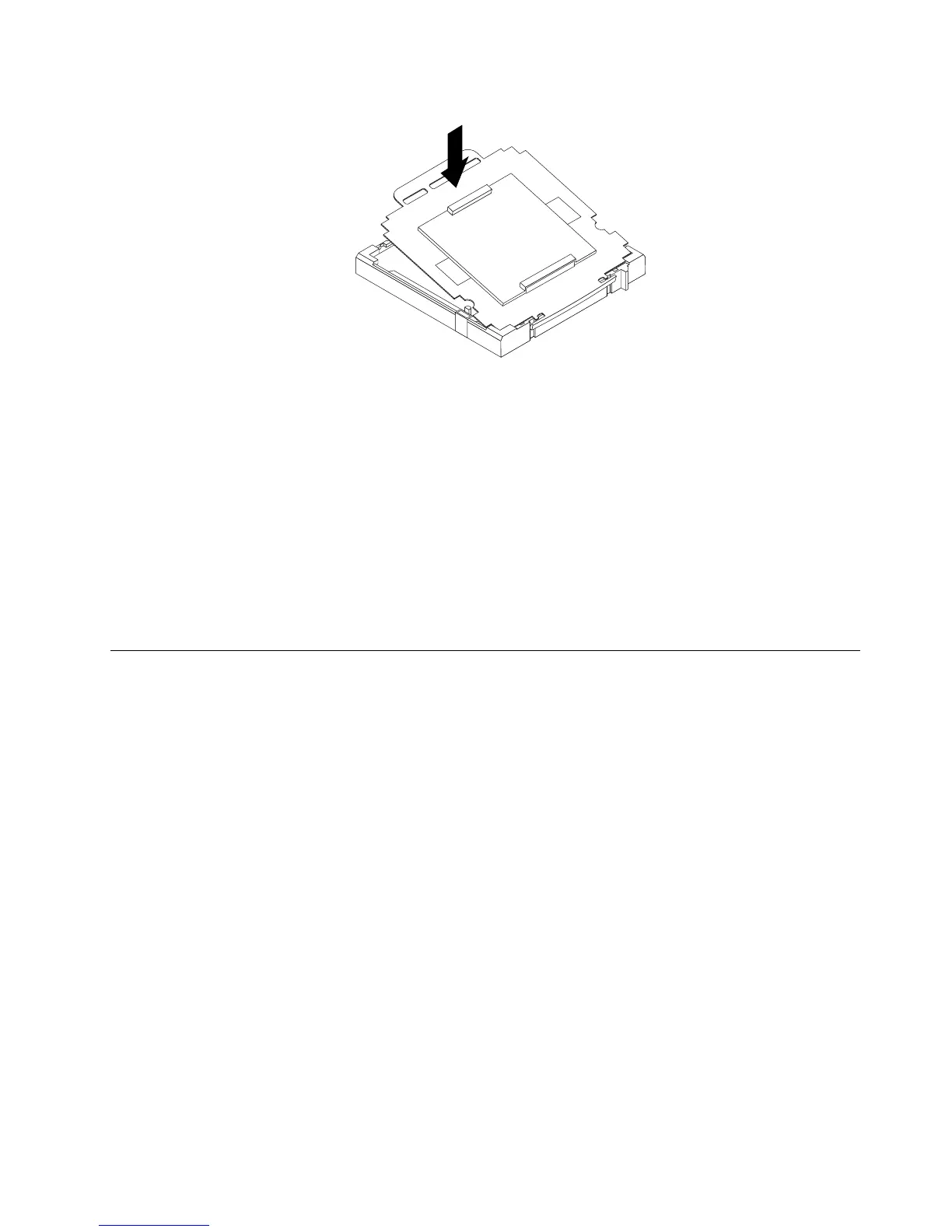
Figure41.Installingonesideofthesocketcoverintothemicroprocessorsocket
Note:Yourmicroprocessorsocketandcovermightlookslightlydifferentfromtheillustration.
4.Carefullypresstheothersideofthesocketcoverdownwardsuntilthesocketcoversnapsintoplace.
5.Carefullycheckthefourcornersofthesocketcovertomakesurethatthecoverissecuredinthe
microprocessorsocket.
6.Lowerthemicroprocessorretainer,andthenlowerthelevertosecuretheretainer.Makesurethe
leverislockedintoposition.
7.Followanyadditionalinstructionsincludedwiththereplacementpartyoureceived.
Note:Ifyoursystemboardhastwomicroprocessorsockets,besuretoinstallasocketcoverforeach
microprocessorsocket.
ReplacingtheLCDpanel
Attention
Donotopenyourcomputerorattemptanyrepairbeforereadingandunderstandingthe“Importantsafety
information”intheSafety,Warranty,andSetupGuidethatcamewithyourcomputer.Toobtainacopyofthe
Safety,Warranty,andSetupGuide,goto:
http://www.lenovo.com/support
ThissectionprovidesinstructionsonhowtoreplacetheLCDpanel.
ToreplacetheLCDpanel,dothefollowing:
1.Removeallmediafromthedrivesandturnoffallattacheddevicesandthecomputer.Then,disconnect
allpowercordsfromelectricaloutletsanddisconnectallcablesthatareconnectedtothecomputer.
2.Placeasoft,cleantowelorclothonthedeskorotheratsurface.Holdthesidesofyourcomputerand
gentlylayitdownsothatthescreenisagainstthesurfaceandthecoverisfacingup.
3.Removethecomputercover.See“Removingthecomputercover”onpage94.
4.Removethefootstands.See“Removingandreinstallingthefootstands”onpage91.
Chapter9.ReplacingFRUs119



 To Next Page
 Loading...













