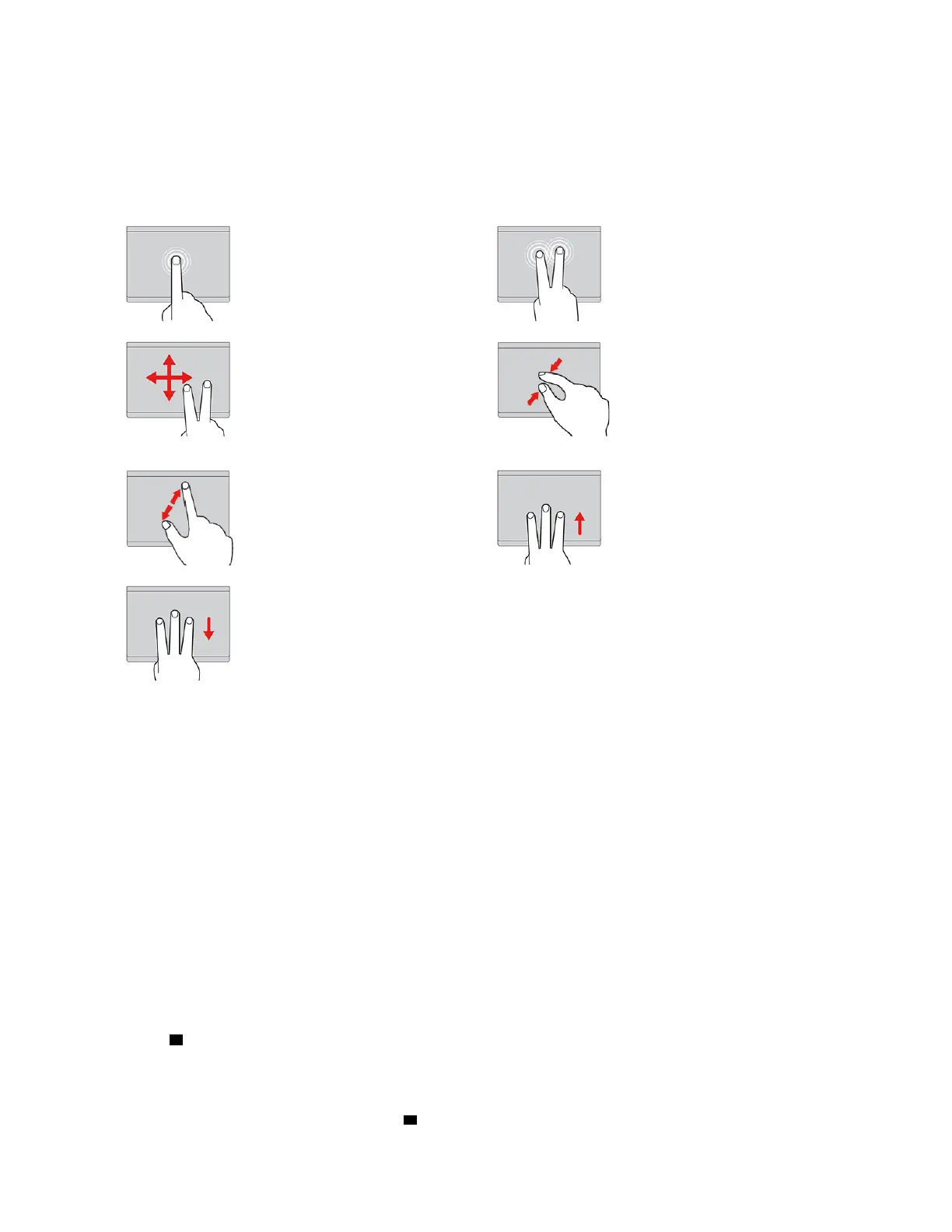
• When using two or more fingers, ensure that you position your fingers slightly apart.
• Some gestures are not available if the last action was done from the TrackPoint pointing device.
• Some gestures are only available when you are using certain apps.
• Depending on the model, the trackpad on your computer might look different from the illustrations in this
topic.
Tap
Tap anywhere on the trackpad
with one finger to select or open
an item.
Two-finger tap
Tap anywhere on the trackpad with
two fingers to display a shortcut
menu.
Two-finger scroll
Put two fingers on the trackpad
and move them in the vertical or
horizontal direction. This action
enables you to scroll through the
document, Web site, or apps.
Two-finger zoom out
Put two fingers on the trackpad
and move them closer together to
zoom out.
Two-finger zoom in
Put two fingers on the trackpad
and move them farther apart to
zoom in.
Swipe three fingers up
Put three fingers on the trackpad
and move them up to open the task
view to see all your open windows.
Swipe three fingers down
Put three fingers on the trackpad
and move them down to show
the desktop.
Customizing the ThinkPad pointing device
You can customize the ThinkPad pointing device so you can use it more comfortably and efficiently. For
example, you can choose to enable the TrackPoint pointing device, the trackpad, or both. You also can
disable or enable the touch gestures.
To customize the TrackPoint pointing device, do the following:
1. Open the Start menu, and then click Settings ➙ Devices ➙ Mouse.
2. Follow the on-screen instructions to customize TrackPoint.
To customize the trackpad, do the following:
1. Open the Start menu, and then click Settings ➙ Devices ➙ Touchpad.
2. Follow the on-screen instructions to customize the trackpad.
Replacing the cap on the pointing stick
The cap 1 on the end of the pointing stick is removable. After you use the cap for a period of time, you might
consider replacing the cap with a new one.
Notes:
• Ensure that you use a cap with grooves
a as shown in the following illustration.
Chapter 2. Using your computer 19













 To Next Page