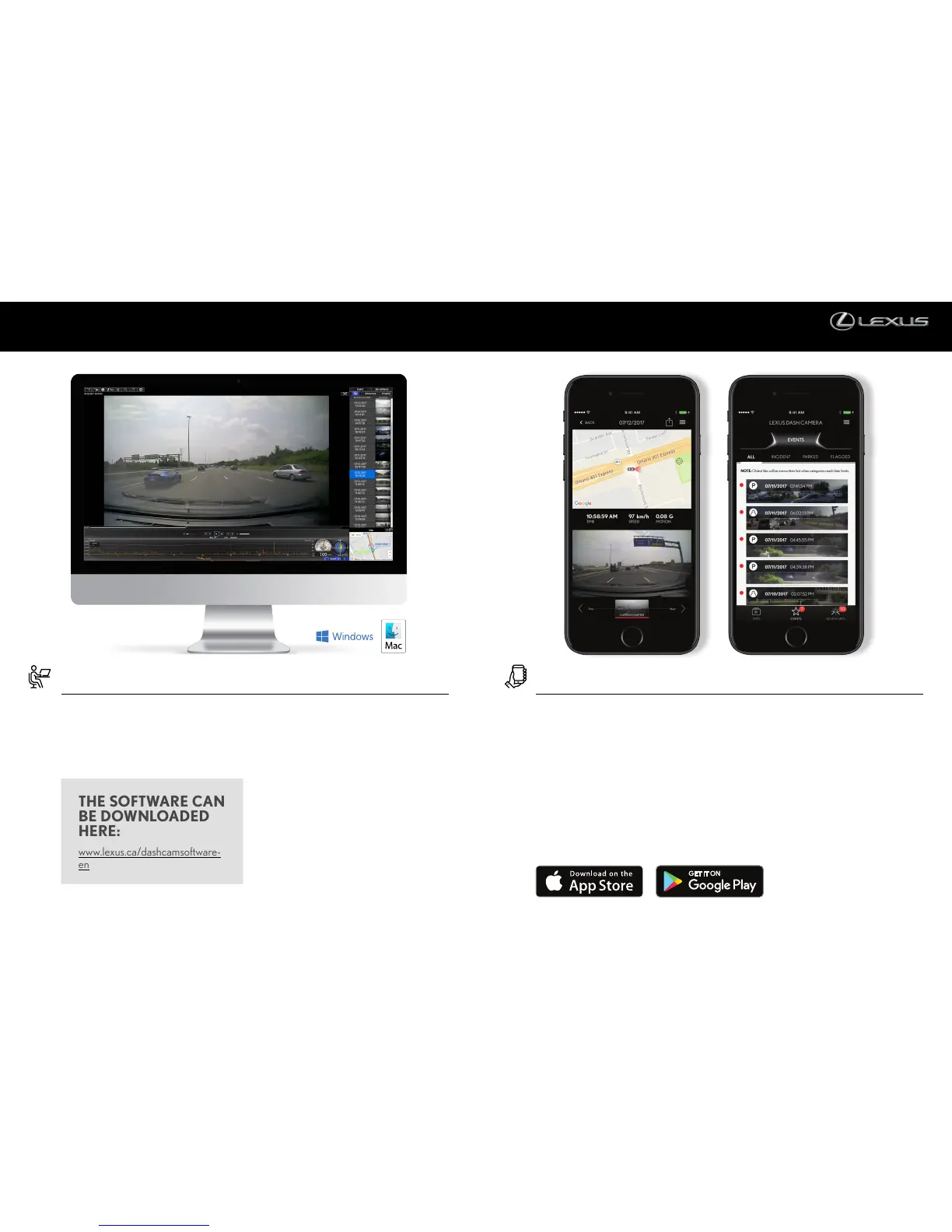
COMPUTER SOFTWARE
Video and audio recordings from the
dash camera’s micro SD card can be played
back and saved on a computer. Various
settings for the dash camera can be changed
on the computer using the viewer software.
Follow the instructions on the screen to
perform the installation. When it is complete,
a shortcut icon for DASH CAM VIEWER
will be created on the Desktop. Insert the
micro SD card from the dash camera into the
card reader device provided and connect the
device to the computer.
To change settings for the dash camera
and save them on the micro SD card, select
Settings-Camera Settings from the Menu on
the main screen. When the micro SD card
is reinserted into the dash camera and the
ignition key is turned on, the new settings
will take effect.
THE SOFTWARE CAN
BE DOWNLOADED
HERE:
www.lexus.ca/dashcamsoftware-
en
LEXUS GENUINE DASH CAMERA MOBILE APP
The Lexus Dash Camera can be paired
wirelessly to any smartphone via a Wi-Fi
connection. The video and audio recorded
by the dash camera can then be played back
on your smartphone. Various dash camera
settings can be changed using the mobile app.
To make use of this feature, download the
application, called LEXUS DASH CAMERA,
from Google Play Store or Apple App Store.
It is important to note that the viewer app
can only be used if the phone is connected
to the dash camera’s Wi-Fi network.
For Android phones, connection must be
made using the Wi-Fi DIRECT connection
method, not normal Wi-Fi network
connection. Consult your smartphone’s
instruction manual for the appropriate
Wi-Fi/Wi-Fi DIRECT connection procedure.
For a detailed overview of the Lexus Genuine
Dash Camera, please refer to the Owner’s
Manual.


 To Previous Page
 Loading...