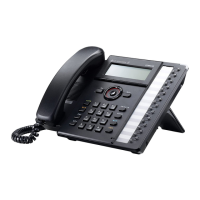
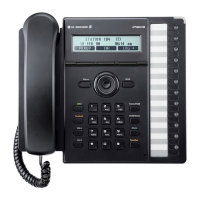
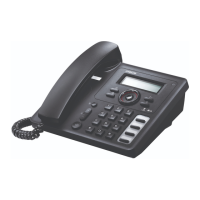
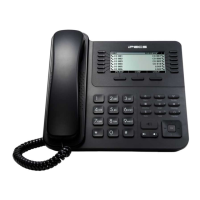
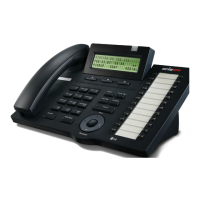
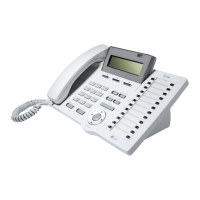
LIP-8012E/24E/40E Installation
Note: LIP-8012E/24E/40E Gigabit Phone can be powered by either AC adaptor or Power over
Ethernet (PoE, class 2). To use AC power, use only the LG-Ericsson Approved AC power
adaptor, which you can order separately. To use PoE, your connected LAN must support PoE.
<Important> Use either PoE or AC adaptor, not both, for power supply of your phone.
1. Plug one end of the supplied LAN cable into the LAN Ethernet port on the back of your
Gigabit Phone marked with the symbol.
2. Plug the other end of the cable into your LAN Ethernet connection. (Do not extend the LAN
Ethernet cable to the outside of the building.)
3. (Optional) If you are connecting your PC Ethernet through the Gigabit Phone, plug one end of
the LAN Ethernet cable into the PC Ethernet port on the back of your Gigabit Phone marked
with the symbol.
<Important> Skip the following procedures from 5 to 6 if PoE is used for power supply
of your phone.
4. (Optional) Plug the other end of the cable into your LAN Ethernet connection.
5. (Optional) Connect the AC power adapter (not supplied) to the AC adapter jack on the back of
your Gigabit Phone. Fasten the cord with a hook to prevent it from being disconnected.
6. (Optional) Plug the AC power adapter into the nearest AC power outlet. The phone will start
up.
7. (Optional) for the wall-mounting, sleeve of the CAT5 cable should be moved backward to
prevent it protruding.
Menu Program
Codes (SBG)



 To Next Page