EasyManua.ls Logo

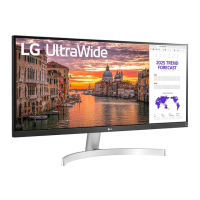
LG 29WL500 - User Manual

LG 29WL500
27 pages
Print Icon
To Next Page IconTo Next Page
Loading...
29WL500
34WL500
www.lg.com
Copyright © 2019 LG Electronics Inc. All Rights Reserved.
OWNER’S MANUAL
LED LCD COMPUTER
MONITOR
(LED Computer Monitor*)
* Disclaimer : LG LED Monitor applies LCD screen with LED backlights.
This product is a computer monitor and not for television purpose.
Please read this manual carefully before operating your set and retain it for
future reference.

Other manuals for LG 29WL500

Questions and Answers

  • C
    Casey DeckerAug 17, 2025
    Why is my LG 29WL500 Monitor screen flickering?
    • F
      ffryAug 18, 2025
      If your LG Monitor screen is flickering and the selected resolution is HDMI 1080i 60/50 Hz (interlaced), the screen may be flickering. Change the resolution to 1080P or the recommended resolution.
  • V
    Vicki AndrewsAug 21, 2025
    What to do if my LG Monitor shows a missing signal?
    • R
      rcurtisAug 21, 2025
      If your LG Monitor displays a missing signal message, this indicates that the signal cable between the PC and the monitor is either missing or disconnected. Check the cable and reconnect it securely.
  • A
    Adam VaughnAug 25, 2025
    How do I set the optimal resolution for my LG 29WL500?
    • C
      Christine GarnerAug 25, 2025
      To set the optimal resolution for your LG Monitor, check if the graphics card's resolution or frequency is within the range allowed by the monitor. You can then set it to the recommended resolution in Control Panel > Display > settings.
  • M
    Mr. Christopher MasseyAug 28, 2025
    Why do pixilated spots appear on my LG 29WL500 Monitor?
    • D
      Darrell TylerAug 28, 2025
      When using the LG monitor, pixilated spots (red, green, blue, white, or black) may appear on the screen. This is not an error, nor is it related to the monitor's performance.
  • D
    David Oliver MDSep 1, 2025
    How do I install the display driver for my LG 29WL500 Monitor?
    • M
      Mark WaltersSep 1, 2025
      To install the display driver for your LG Monitor, be sure to download and install it from the LG website: http://www.lg.com. Also, make sure to check if the video card supports Plug&Play function.
  • W
    wileyjohnSep 4, 2025
    How to turn off OSD Lock on LG 29WL500?
    • Y
      yfoxSep 5, 2025
      To turn off OSD Lock on your LG Monitor, navigate to Settings > General and set OSD Lock to Off.
  • L
    Lauren PattersonSep 9, 2025
    How to extend the lifetime of my LG 29WL500?
    • M
      Matthew BakerSep 9, 2025
      Displaying a still image for a prolonged time may cause damage to the screen, resulting in the retention of the image. To extend the lifetime of the LG monitor, use a screensaver.
  • M
    Michael WhiteNov 12, 2025
    What to do if nothing is displayed on my LG 29WL500 Monitor screen?
    • M
      Martin GrayNov 12, 2025
      If nothing is displayed on your LG Monitor screen, start by checking if the power cord is correctly plugged into the power outlet. You can test the power plug using a lamp or another device. Also, verify the power cable connection and press the power button. Ensure that the connected input is enabled in the monitor's settings under Input List. If the monitor is in sleep mode, try moving the mouse or pressing any key on the keyboard. Confirm that your computer is turned on as well. If the signal cable between the PC and the monitor is missing or disconnected, check the cable and reconnect it. Make sure that OSD Lock is set to Off in Settings > General. If the selected resolution is HDMI 1080i 60/50 Hz (interlaced), the screen may be flickering, try to change the resolution to 1080P or the r...

Summary

Open Source Software Notice

Assembly and Preparation

Monitor Description and Controls

Joystick Button Operation

Explains how to operate monitor functions using the joystick button.

Moving and Lifting the Monitor

Provides instructions for safely moving and lifting the monitor.

Installation and Setup

Table Installation and Ventilation

Guides on placing the monitor on a table for ventilation.

Adjusting the Screen Angle

Details how to adjust the screen's viewing angle.

Security and Mounting

Kensington Lock Usage

Explains how to connect a Kensington security system cable.

Wall Mount Installation Guide

Covers specifications and precautions for wall mount plate installation.

Using the Monitor

Connecting to a PC

Details connecting the monitor to a PC via various ports.

Connecting Headphones

Explains how to connect headphones to the monitor's audio port.

User Settings Overview

Activating the Main Menu

Step-by-step guide to access and navigate the monitor's main menu.

Main Menu Features

Configuring User Settings

Explains how to adjust various monitor settings via the menu.

Quick Settings and Input;Aspect Ratio

Picture Modes (SDR)

Picture Modes (HDR)

Picture Adjustments

Game Adjustments

Color Adjustments and Reset

General Settings

Language and Energy Saving

Covers language selection and SMART ENERGY SAVING feature.

Power LED and Standby

Explains power LED status and automatic standby function.

HDMI Compatibility and OSD Lock

Details HDMI compatibility modes and OSD locking features.

Reset to Initial Settings

Troubleshooting Common Issues

No Display or Power Issues

Addresses problems with the screen not displaying and power LED behavior.

OSD Lock and Image Retention

Solves issues related to OSD lock and image sticking or retention.

Screen Instability and Shadow Trails

Helps diagnose unstable displays and shadow trails by checking resolution.

Display Color and Recognition Issues

Audio Output Troubleshooting

Product Specifications (29 WL500)

Environmental and Physical Specs (29 WL500)

Product Specifications (34 WL500)

Environmental and Physical Specs (34 WL500)

Factory Support Mode (HDMI)

HDMI Video Timing

Power LED Status

Product Information and Energy Efficiency

LG 29WL500 Specifications

General IconGeneral
Color gamut99 %
Pixel pitch0.2628 x 0.2628 mm
Aspect ratio16:9, 21:9
Screen shapeFlat
Backlight typeW-LED
Display surfaceMatt
Display diagonal29 \
Display resolution2560 x 1080 pixels
Display technologyLED
Native aspect ratio21:9
Maximum refresh rate75 Hz
Contrast ratio (typical)1000:1
Display number of colors16.78 million colors
Display brightness (typical)250 cd/m²
Supported graphics resolutions2560 x 1080
AMD FreeSyncYes
Product colorBlack
Market positioningBusiness
DisplayPorts quantity-
Cable lock slot typeKensington
Panel mounting interface100 x 100 mm
Storage temperature (T-T)-20 - 60 °C
Operating temperature (T-T)0 - 40 °C
Storage relative humidity (H-H)0 - 85 %
Operating relative humidity (H-H)0 - 80 %
AC input voltage100 - 240 V
AC input frequency50 - 60 Hz
Energy efficiency scaleA to G
Power consumption (off)0.3 W
Power consumption (standby)0.5 W
Package typeBox
Package depth413 mm
Package width822 mm
Package height159 mm
Package weight7200 g
Weight and Dimensions IconWeight and Dimensions
Depth (with stand)209.4 mm
Width (with stand)698.1 mm
Height (with stand)410.9 mm
Weight (with stand)4900 g
Depth (without stand)76.9 mm
Height (without stand)317.5 mm
Weight (without stand)4400 g

Related product manuals