EasyManua.ls Logo

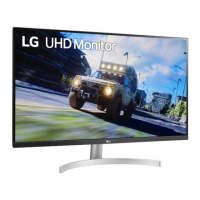
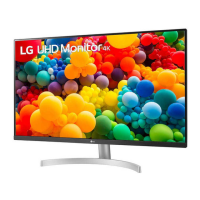
LG 32UN500 - User Manual

LG 32UN500
33 pages
Print Icon
To Next Page IconTo Next Page
Loading...
* LG LED Monitor applies LCD screen with LED backlights.
Please read this manual carefully before operating your set and retain it for future reference.
32UN500
32BN50U
32UN550
32UP50S
32UN50B
32UN55B
32BP57U
OWNER’S MANUAL
LED LCD MONITOR
(LED Monitor*)
www.lg.com
Copyright © 2020 LG Electronics Inc. All Rights Reserved.

Questions and Answers

  • V
    vickiewebbJul 28, 2025
    How to fix an LG 32UN500 Monitor when nothing is displayed on the screen?
    • P
      paulmortonJul 28, 2025
      If nothing is displayed on your LG Monitor, ensure the power cord is correctly plugged into the outlet. Also, verify the power cable connection and press the power button. Check that the connected input is enabled in the monitor's settings under Input. If the issue persists, inspect the signal cable between the PC and the monitor for any disconnections. Finally, ensure the signals from your PC's graphics card are within the monitor's horizontal or vertical frequency range, as specified in the Product Specification section.
  • W
    wheelerkeithAug 2, 2025
    What to do if LG 32UN500 images are displayed without sound?
    • D
      dharrisAug 2, 2025
      If images are displayed without sound on your LG Monitor, first ensure that the headphone port connections are properly made. Then, try increasing the volume using the joystick. Finally, set the audio output of your PC to the monitor you are using; note that these settings may vary depending on your operating system.
  • A
    amber68Aug 7, 2025
    Why is my LG 32UN500 screen display unstable and shaky?
    • R
      Ryan NormanAug 7, 2025
      If your LG Monitor's screen display is unstable and shaky, or if images leave shadow trails, it could be due to the resolution being set to HDMI 1080i 60/50 Hz (interlaced). Try changing the resolution to 1080p or the recommended resolution. Additionally, not setting the graphics card to the optimal resolution may cause these issues, along with blurred text, a dimmed screen, a truncated display area, or misalignment. Setting methods may vary depending on your computer or operating system.
  • K
    Kayla LawsonAug 12, 2025
    What to do if I see an "Unrecognized monitor, Plug and Play (VESA DDC) monitor found" message on my LG Monitor?
    • C
      carrillorobertAug 12, 2025
      If you see an 'Unrecognized monitor, Plug and Play (VESA DDC) monitor found' message on your LG Monitor, be sure to install the display driver from the LG website. Also, make sure to check if your graphics card supports the Plug and Play function.
  • E
    edwardsmichaelAug 16, 2025
    How to prevent image sticking on my LG 32UN500?
    • A
      Angela DavisAug 17, 2025
      Displaying a still image for a prolonged time may cause damage to the screen of your LG Monitor, resulting in image retention. To extend the monitor's lifespan, use a screensaver.
  • C
    Carolyn RayAug 22, 2025
    Why are some functions not available when I press the Menu button on my LG 32UN500?
    • U
      uevansAug 22, 2025
      If some functions are unavailable when you press the Menu button on your LG Monitor, disable OSD Lock in the General settings.

Summary

Assembling and Preparing

Supported Drivers and Software

Information on downloading and installing the latest drivers and software for the monitor.

Product and Button Description

Joystick Button Usage

How to use the joystick button to control monitor functions like power, volume, and menus.

Monitor Handling and Movement

Instructions on safely moving and lifting the monitor to prevent damage and injury.

Monitor Installation

Table Installation and Ventilation

Guidelines for placing the monitor on a table and ensuring proper ventilation.

Adjusting Stand Height

Steps to adjust the monitor's screen height using the stand.

Monitor Adjustments

Screen Angle Adjustment

How to adjust the monitor's screen angle for comfortable viewing.

Kensington Security Lock

Information on using the Kensington security system to secure the monitor.

Wall Mounting

Wall Mount Plate Installation

Details on installing the wall mount plate and compatible devices.

Wall Mounting Procedure

Instructions for installing the monitor on a wall with a mounting bracket.

Using the Monitor

PC Connectivity

Connecting the monitor to a personal computer via various input options.

HDMI Connection for PC

Transmitting digital video and audio signals from a PC using HDMI.

DisplayPort Connection for PC

Transmitting digital video and audio signals from a PC using DisplayPort.

Connecting AV and Peripherals

HDMI for AV Devices

Connecting AV devices to the monitor using HDMI for video and audio signals.

Peripheral Device Connection

Connecting external devices, such as headphones, to the monitor.

User Settings Overview

Activating the Monitor Menu

Steps to access and navigate the on-screen display (OSD) menu.

Menu Navigation

Main Menu Features and Settings

Overview of main menu options like Input, Settings, Picture Mode, and Power Off.

Quick Settings

Adjusting Brightness, Volume, and Color

Quickly adjust screen brightness, contrast, volume, and color temperature settings.

Input and Aspect Ratio

Input Source Selection

How to select the active video signal input for the monitor.

Aspect Ratio Control

Adjusting how the image is displayed based on its original aspect ratio.

Picture Settings

Picture Mode Options

Selecting picture modes for different content types like Vivid, HDR, Reader, Cinema, FPS, RTS.

Picture Settings

Picture Adjustments

Fine-tuning image properties like sharpness, black level, and DFC.

Picture Settings

Game Adjustments

Optimizing response time, FreeSync, and black stabilizer for gaming.

Picture Settings

Color Adjustments and Reset

Adjusting gamma, color temperature, RGB, and resetting picture settings.

Sound Settings

Volume and MaxxAudio Control

Controls for audio volume and MaxxAudio enhancement features.

General Settings

Language, Energy Saving, Power LED

Setting language, energy saving modes, and power LED behavior.

Auto Standby and DisplayPort Version

Configuring auto-standby timer and DisplayPort version settings.

General Settings

Advanced General Features

Features like Deep Color, Buzzer, OSD Lock, information display, and factory reset.

Troubleshooting

Display and Signal Issues

Solutions for no screen display, no signal, or unstable images.

Image Quality Problems

Addresses issues like image sticking, shadow trails, and screen spots.

Feature Malfunctions

Resolves issues where monitor functions are locked or unavailable.

Troubleshooting

Driver and Sound Troubleshooting

Fixes for 'Unrecognized monitor' messages and no sound from the headphone port.

Product Specifications

Display and Power Specifications

Details on color depth, resolution, power rating, and consumption.

Environmental Conditions

Temperature and humidity ranges for operation and storage.

Product Specifications

Dimensions and Weight

Physical size and weight of the monitor with and without the stand.

Product Specifications

Model 32 BN50 U;32 BP57 U Specs

Display and power specifications for models 32BN50U and 32BP57U.

Product Specifications

Model 32 BN50 U;32 BP57 U Dimensions

Physical dimensions and weight for models 32BN50U and 32BP57U.

Product Specifications

Model 32 UN550;32 UN55 B Specs

Display and power specifications for models 32UN550 and 32UN55B.

Product Specifications

Model 32 UN550;32 UN55 B Dimensions

Physical dimensions and weight for models 32UN550 and 32UN55B.

Factory Support Mode

DisplayPort Timing Information

Supported resolutions, frequencies, and polarity for DisplayPort connections.

HDMI Timing Information

PC Input Timing

Supported resolutions and frequencies for HDMI PC input.

Video Input Timing

Supported resolutions and frequencies for HDMI video input.

LG 32UN500 Specifications

General IconGeneral
Panel typeVA
Color gamut90 %
Pixel pitch0.18159 x 0.18159 mm
Screen shapeFlat
Display diagonal31.5 \
Display technology-
Native aspect ratio16:9
Maximum refresh rate60 Hz
Contrast ratio (typical)3000:1
Display number of colors1.07 billion colors
Display brightness (typical)350 cd/m²
Supported graphics resolutions1920 x 1080 (HD 1080), 3840 x 2160
AMD FreeSyncYes
RMS rated power10 W
Number of speakers2
Product colorBlack, White
Market positioningGaming
VGA (D-Sub) ports quantity0
Tilt angle range-5 - 15 °
Panel mounting interface100 x 100 mm
AC input voltage100 - 240 V
AC input frequency50 - 60 Hz
Energy efficiency scaleA to G
Power consumption (off)0.3 W
Power consumption (standby)0.5 W
Harmonized System (HS) code85285210
Weight and Dimensions IconWeight and Dimensions
Depth (with stand)208.28 mm
Height (with stand)513.08 mm
Weight (with stand)10704 g
Depth (without stand)45.72 mm
Width (without stand)713.74 mm
Height (without stand)419.1 mm
Weight (without stand)6713 g

Related product manuals