15
ENGLISH
How to Share the Screen
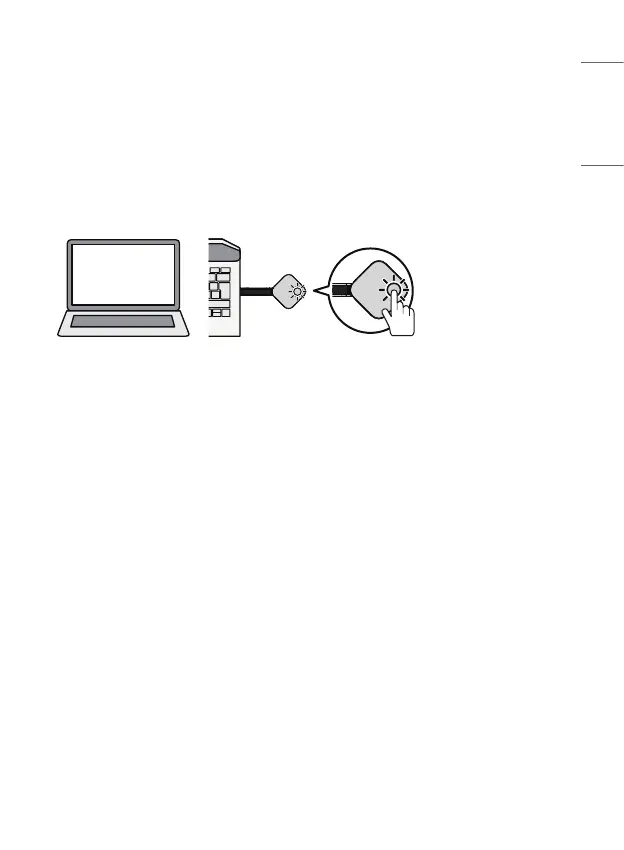
• When you connect the Dongle to your PC, the yellow LED lights up within
approximately 30 seconds to indicate it is ready to start screen sharing.
• Press the button on the Dongle (or the [Share] button on the PC app menu
that has been brought up automatically) to display and share your PC’s screen
on the LG Signage screen.
- If the Dongle is not connected to the Signage or PC app, the Dongle’s red
LED light will turn on, indicating that there is a problem.
- Check if the [SoftAP] settings have been switched to ON in the Signage
monitor’s [Network] menu. For more details on Signage monitor settings,
please refer to the user manual of the relevant model.
• If you press the button on the Dongle for two seconds or longer while the
screen is being shared, you can share the screen with two to four LG Signage
displays.
• If you press the button on the Dongle (or the [stop share] button on the PC
app menu) while the screen is being shared, screen sharing is turned off.


 To Next Page